
As an Amazon Associate we earn from qualifying purchases.
Introduction: Breathe New Life Into Your Mechanical Keyboard
Your mechanical keyboard is a precision instrument, designed for tactile feedback and durability. However, like any frequently used device, it's susceptible to accumulating dust, crumbs, skin oils, and other debris. This buildup isn't just unsightly; it can significantly impact your keyboard's performance and even its lifespan. Dust and food particles can degrade switch performance, potentially leading to unresponsive keys or a less satisfying typing experience. Regular, thorough cleaning is essential for maintaining both hygiene and optimal functionality.
This guide provides a safe, step-by-step approach to deep cleaning your mechanical keyboard, focusing on methods that prevent damage and ensure proper tool usage. By following these instructions, you can confidently tackle grime and restore your keyboard to its peak condition.
Maintaining a clean mechanical keyboard offers several key benefits:
- Enhanced Performance: Prevents debris from interfering with switch mechanisms, ensuring consistent key actuation and responsiveness.
- Improved Hygiene: Eliminates accumulated dirt, oils, and potential allergens, contributing to a healthier workspace.
- Extended Longevity: Protects internal components from corrosive elements and wear caused by trapped particles, preserving your investment.
- Optimal Typing Experience: Restores the crisp feel and sound that initially attracted you to mechanical keyboards.
The Unseen Benefits of a Well-Maintained Keyboard
Beyond aesthetics, a clean mechanical keyboard actively contributes to both its operational integrity and user well-being. The accumulation of debris, often microscopic, directly impacts the precision engineering that defines these devices, while also presenting overlooked hygiene concerns.
Dust, crumbs, and various forms of grime are persistent invaders of a mechanical keyboard's intricate switch mechanisms. These foreign particles can lodge between the keycap and the switch housing, or even within the switch stem's travel path. This interference degrades the intended performance, leading to a noticeable decline in responsiveness. Keys may feel "mushy," exhibit inconsistent actuation, or become partially or entirely unresponsive. Over time, these particles can even adhere to internal components, requiring more effort to dislodge and potentially causing abrasive wear.
Neglecting regular cleaning can significantly shorten a mechanical keyboard's expected lifespan, despite their inherent durability. While many mechanical switches are rated for tens of millions of keystrokes, this longevity presumes a clean operating environment. Persistent debris introduces friction and stress on components, accelerating wear and tear. The satisfying tactile feedback and crisp sound that define the mechanical keyboard experience can diminish, replaced by a gritty or inconsistent feel. This erosion of performance not only impacts typing speed and accuracy but also detracts from the overall user experience, turning what should be a premium interaction into a frustrating one.
Furthermore, a keyboard is a high-touch surface that frequently harbors a surprising array of microorganisms. Skin oils, dead skin cells, food particles, and environmental dust create an ideal breeding ground for bacteria. Regular interaction with a dirty keyboard means these germs can easily transfer to hands, and subsequently to the face or food, posing potential health implications. Maintaining a clean keyboard is a fundamental aspect of workspace hygiene, reducing the presence of allergens and pathogens that can contribute to illness or skin irritation.
Gather Your Cleaning Arsenal: Essential Tools
Before embarking on a thorough cleaning of your mechanical keyboard, assembling the right tools is crucial. Using appropriate equipment not only makes the process more efficient but, more importantly, prevents accidental damage to delicate components. Each item serves a specific purpose in safely dislodging debris, wiping away grime, and restoring your keyboard's pristine condition.
Here's a list of essential items for a safe and effective deep clean:
- Keycap Puller: This specialized tool is indispensable for safely detaching keycaps from their switches. Attempting to pry off keycaps with fingers or improvised tools like screwdrivers can easily bend switch stems, scratch keycaps, or even crack the keycap's mounting cross, leading to irreversible damage. A wire keycap puller is generally preferred over a plastic ring type as it distributes pressure more evenly.
- Compressed Air: Ideal for dislodging loose dust, crumbs, and other dry debris from between and under keycaps. When using compressed air, hold the can upright and spray in short bursts from a distance of several inches to avoid moisture buildup or propellant freezing on components. Directing the spray away from the keyboard's interior can help prevent pushing debris further into the switches.
- Microfiber Cloths: Soft, lint-free microfiber cloths are excellent for wiping down surfaces without leaving behind fibers or scratches. Use them for the keyboard case, the surface of the keycaps (before soaking), and for drying components.
- Isopropyl Alcohol (IPA): For tackling stubborn grime, oily residue, or sticky spots on keycaps or the keyboard's non-electronic surfaces, 70% or 90%+ isopropyl alcohol is effective. Apply it sparingly to a microfiber cloth or cotton swab, rather than directly to the keyboard. Always ensure the keyboard is unplugged and completely dry before reconnecting power. Avoid contact with any exposed electronic components or switch interiors.
- Cotton Swabs or Small Brushes: These are invaluable for reaching into tight spaces, such as around switch housings, under stabilizers, or within the crevices of the keyboard case. A soft-bristle brush (like a clean paintbrush or a dedicated keyboard brush) can gently sweep away dust that compressed air might miss.
- Mild Dish Soap and Bowls: For a deep clean of your keycaps, a solution of mild dish soap and warm (not hot or boiling) water in a bowl is highly effective. Soaking keycaps helps to loosen accumulated oils and dirt without harsh scrubbing. After soaking, a soft brush can be used for gentle agitation, followed by thorough rinsing and complete air-drying.
- A Note on Avoiding Harsh Chemicals: It is critical to steer clear of abrasive cleaners, acetone-based solvents, bleach, or any strong household cleaning products. These chemicals can damage keycap legends, discolor plastic, degrade switch lubricants, or even corrode electronic components, leading to cosmetic and functional issues. Stick to the recommended isopropyl alcohol and mild soap for safety.
The Deep Clean: A Step-by-Step Guide
A thorough deep clean can rejuvenate your mechanical keyboard, restoring its aesthetic appeal and ensuring optimal performance. This process involves carefully disassembling key components, cleaning them individually, and then reassembling the device. Adhering to these steps ensures safety and prevents accidental damage.
Preparation: Unplug and Document
Before beginning any cleaning, prioritize safety and meticulous documentation. This initial phase sets the foundation for a successful, damage-free cleaning experience.
- Disconnect Power: Always start by unplugging your mechanical keyboard from your computer. This eliminates any risk of electrical short circuits or accidental key inputs during the cleaning process.
- Capture Keycap Layout: Using your smartphone or camera, take several clear, high-resolution photos of your keyboard's current keycap arrangement from different angles. This visual reference is invaluable for correctly repositioning each keycap during reassembly, especially for non-standard layouts or specialized keys.
Removing and Cleaning Keycaps
Keycaps are the most exposed part of your keyboard and accumulate the most grime. Proper removal and cleaning are crucial for a pristine finish.
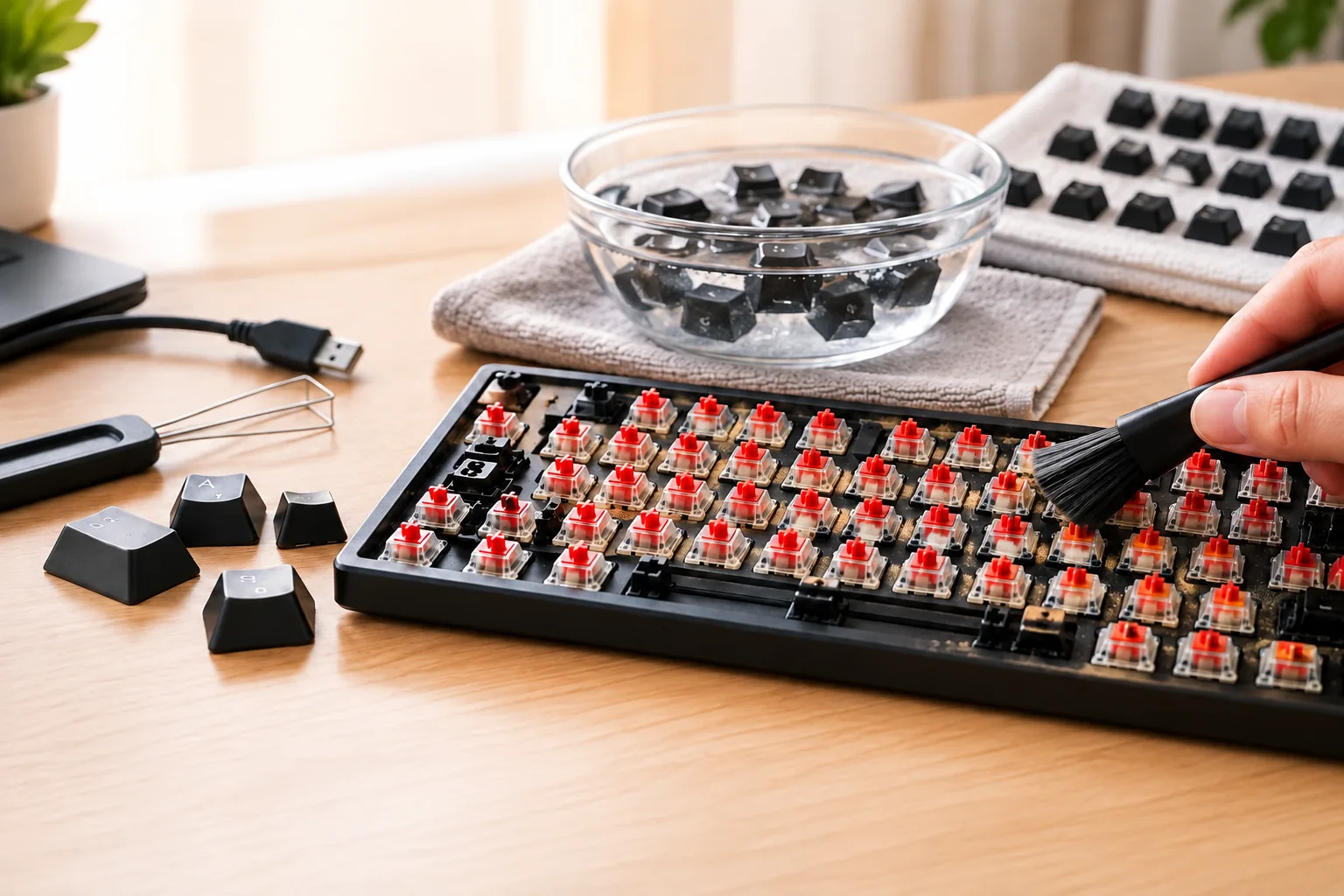
- Utilize a Keycap Puller: Gently use a dedicated keycap puller tool to remove each keycap. Insert the puller's wires or prongs under the keycap and apply even, upward pressure. Avoid twisting or yanking, which can damage the keycap's stem or the switch underneath.
- Soak in Warm Soapy Water: Once removed, place the keycaps into a bowl of warm (not boiling) water mixed with a small amount of mild dish soap. The soap acts as a degreaser, helping to break down oils and grime. Allow them to soak for 15-20 minutes. For stubborn dirt, gently scrub individual keycaps with a soft brush (like an old toothbrush).
- Rinse Thoroughly: After soaking and scrubbing, drain the soapy water and rinse the keycaps thoroughly under clean, running water. Ensure all soap residue is removed, as it can leave a film or attract new dirt.
- Air-Dry Completely: Spread the rinsed keycaps on a clean towel or paper towels. Allow them to air-dry for several hours, or even overnight, to ensure they are completely free of moisture before reinstallation. Any residual water can damage the switches.
Cleaning the Keyboard Plate and Switches
With the keycaps removed, the keyboard's plate and switches are exposed for a more detailed cleaning. This step focuses on removing debris without introducing moisture into sensitive electronic components.
- Initial Debris Removal: Hold the keyboard upside down and gently shake it to dislodge any loose crumbs or dust. Follow up with a can of compressed air, using short bursts to blow away remaining particles from between and around the switches. Direct the air stream at an angle to effectively clear debris.
- Surface Wipe-Down: Use a clean, dry microfiber cloth to wipe down the exposed keyboard plate. This removes surface dust and grime that compressed air might miss.
- Targeted Switch Cleaning: For dirt or residue directly around the switch housings, lightly dampen a cotton swab with isopropyl alcohol (70% or 90% concentration is generally safe). Carefully clean around the switch stems and housings. Avoid saturating the swab and prevent any liquid from dripping into the switches, as this can cause damage. Isopropyl alcohol evaporates quickly, minimizing moisture risk.
Reassembly: Putting It All Back Together
The final stage involves carefully reassembling your keyboard, ensuring all components are dry and correctly placed.
- Verify Dryness: Before replacing any keycaps, double-check that both the keycaps themselves and the keyboard's plate and switches are completely dry. Patience here is critical to prevent moisture-related issues.
- Replace Keycaps: Refer to the photos you took in the preparation stage. Align each keycap with its corresponding switch stem and press down firmly and evenly until it clicks into place. Ensure each keycap is seated properly and feels secure. Pay particular attention to larger keys (like the spacebar, shift, and enter keys) which often have stabilizers; ensure these are correctly aligned with the stabilizer inserts on the keycap.
- Test Functionality: Once all keycaps are back in place, plug your keyboard back into your computer and test every key to confirm proper functionality. This ensures no keycaps were missed and no issues arose during the cleaning process.
Avoiding Common Cleaning Pitfalls and Risks
While cleaning your mechanical keyboard can significantly extend its life and improve its feel, improper methods carry substantial risks that can lead to permanent damage. Understanding these common pitfalls is crucial for a safe and effective cleaning process.
Applying Liquid Directly to Switches or Internal Electronics is a primary risk. Unlike the exterior, the internal components and switch mechanisms are highly sensitive to moisture. Spraying cleaning solutions directly onto the keyboard, or saturating cloths and then wiping, can cause liquid to seep into the switches or onto the circuit board. This can lead to electrical shorts, corrosion, and irreversible damage, rendering keys or the entire keyboard non-functional. Instead, always apply cleaning solutions, such as isopropyl alcohol, to a microfiber cloth or cotton swab first, ensuring it is damp, not dripping wet.
Using Harsh or Abrasive Cleaning Agents can compromise the integrity and appearance of your keyboard. Products like bleach, strong solvents, or abrasive scrubs can discolor keycaps, etch plastic surfaces, degrade legends, or damage the finish of metal plates. For keycaps, mild dish soap and warm water are typically sufficient, while isopropyl alcohol is suitable for surface cleaning. Always test any new cleaning agent on an inconspicuous area first if you are unsure.
Forgetting to Unplug the Keyboard before beginning any cleaning is a critical safety oversight. Even minor contact with liquid or static discharge during cleaning can short-circuit the electronics if the keyboard is still connected to power. Always disconnect the USB cable from both the keyboard and your computer to eliminate any electrical risk and prevent accidental key presses that could trigger unwanted commands or damage components.
Using Boiling Water for Keycaps poses a significant risk of warping or deforming the plastic. While soaking keycaps can help remove stubborn grime, excessive heat can cause them to shrink, warp, or become brittle, making them impossible to reattach properly or altering their feel. Opt for warm, not hot, water for soaking, and ensure the water temperature is comfortable to the touch.
Reassembling Components Before They Are Completely Dry can trap moisture inside the keyboard, leading to long-term issues. Residual water can cause corrosion on metal contacts, short circuits, or even promote mold growth in humid environments, resulting in unpleasant odors and potential health concerns. After washing keycaps or cleaning any internal parts with liquid, allow all components to air dry thoroughly, ideally for several hours or overnight, before reassembly. Ensure there is no visible moisture or dampness before putting your keyboard back together.
Maintaining Your Keyboard's Pristine Condition
Proactive maintenance is key to preserving your mechanical keyboard's performance and minimizing the need for extensive deep cleaning. Establishing a routine of light cleaning and adopting best practices for usage can significantly extend the interval between deep cleans, protecting your investment and ensuring a consistent typing experience.
Routine light cleaning focuses on addressing surface dust and loose debris before they can accumulate and infiltrate the switch mechanisms. These quick interventions are designed to be performed frequently without requiring significant disassembly.
- Regular Wipe-Downs: Use a clean, dry microfiber cloth to gently wipe down keycap surfaces and the keyboard frame. For light oily residue, a microfiber cloth lightly dampened with a small amount of diluted isopropyl alcohol (70% or higher) can be effective, but ensure the cloth is not saturated and avoid direct application to switches.
- Compressed Air Blasts: Employ short, controlled bursts of compressed air to dislodge crumbs and dust lodged between keycaps and along the keyboard's edges. Hold the can upright and at a safe distance (typically 4-6 inches) to prevent moisture or propellant residue from impacting components. Focus on blowing debris out, not further into the keyboard.
Beyond cleaning, certain habits can drastically reduce the rate of grime accumulation. Simple preventative measures protect your keyboard from common contaminants.
- Designated Eating Area: Consuming food and beverages away from your keyboard is one of the most effective ways to prevent crumbs, spills, and sticky residues from reaching sensitive components.
- Dust Covers: When not in use, covering your keyboard with a dedicated dust cover provides a physical barrier against airborne dust and accidental spills, especially in environments prone to high dust levels.
- Hand Hygiene: Washing hands before using your keyboard can significantly reduce the transfer of skin oils, dirt, and food particles onto keycaps, preventing the buildup of stubborn grime.
The frequency of cleaning depends on usage and environment. Light cleaning, such as quick wipe-downs and compressed air blasts, is generally recommended daily or weekly, especially for keyboards in active use or dusty environments. This consistent effort prevents minor issues from escalating. Deep cleaning, which involves keycap removal and more thorough internal cleaning, can then be reserved for monthly or quarterly intervals, or as needed when performance issues or visible grime become apparent. This balanced approach ensures your keyboard remains functional and hygienic without excessive effort.
Your Top Questions About Keyboard Cleaning Answered
Maintaining a mechanical keyboard involves understanding not just the "how-to," but also the "why" and "what-not-to-do." Addressing common concerns ensures your cleaning efforts are effective and prevent accidental damage, contributing to your keyboard's longevity and performance.
-
How often should a mechanical keyboard be cleaned? The frequency depends on usage and environment. A quick clean, involving compressed air to dislodge loose debris, can be beneficial weekly or bi-weekly. This helps prevent particles from settling deep within the switches. For a more thorough, deep clean that involves keycap removal and detailed cleaning of the plate and switches, a quarterly or bi-annual schedule is often sufficient. Heavy use or dusty environments may necessitate more frequent deep cleaning.
-
Can keycaps be cleaned in a dishwasher? No, keycaps should not be cleaned in a dishwasher. Dishwashers use high temperatures and aggressive detergents that can damage the plastic, warp the keycaps, or fade/remove the legends (letters and symbols) printed or molded onto them. The safest method involves removing keycaps with a puller tool and soaking them in a bowl of warm (not boiling) water with a mild dish soap. After soaking, gently scrub with a soft brush, rinse with clean water, and ensure they are completely air-dried before reattaching.
-
Is it safe to clean the switches themselves? Direct application of water to mechanical switches is generally not recommended due to the risk of corrosion or short-circuiting internal components. However, switches can be safely cleaned using specific methods. Compressed air is effective for blowing out dust and crumbs from around and within the switch housing. For more stubborn grime or sticky residue, a cotton swab lightly dampened with isopropyl alcohol (90% or higher concentration) can be used to carefully clean the exterior of the switch housing and around the stem, taking care not to let liquid seep inside.
-
What to do in case of a liquid spill on the keyboard? Immediate action is crucial to minimize damage from a liquid spill.
- Unplug Immediately: Disconnect the keyboard from your computer as quickly as possible to prevent short circuits.
- Invert and Drain: Turn the keyboard upside down to allow as much liquid as possible to drain out.
- Blot and Dry: Gently blot any visible liquid with an absorbent cloth. Do not rub, as this can spread the liquid.
- Disassemble (if comfortable): If you are comfortable and capable, carefully remove keycaps and potentially the top plate to access and dry internal components more thoroughly.
- Air Dry Thoroughly: Allow the keyboard to air dry completely for at least 24-48 hours in a well-ventilated area. Avoid using heat sources like hair dryers, which can warp plastic. Do not plug it back in until you are certain it is fully dry. For significant spills, professional repair may be necessary.
-
Are there specific cleaning products to avoid? To protect your mechanical keyboard, avoid harsh chemical cleaners, abrasive materials, and excessive moisture.
- Abrasive Cleaners: Products like scouring pads or harsh scrubbing brushes can scratch keycaps or the keyboard chassis.
- Strong Solvents: Cleaners containing ammonia, bleach, or other strong solvents can degrade plastic, remove keycap legends, or damage internal electronics.
- Excessive Water: Never submerge the entire keyboard in water. Direct water contact with switches or the PCB (Printed Circuit Board) can cause permanent damage.
- Boiling Water: As mentioned for keycaps, boiling water can warp or deform plastic components. Stick to warm water for soaking keycaps.
Final Thoughts: Extend Your Keyboard's Lifespan and Performance
The effort invested in safely cleaning your mechanical keyboard yields tangible returns, transforming a potentially grimy tool into a responsive, hygienic, and long-lasting device. As demonstrated, consistent maintenance is not merely about aesthetics; it directly impacts the precision and tactile feedback that define the mechanical keyboard experience. Neglecting regular cleaning can lead to diminished performance, unresponsive keys, and a shortened lifespan for your investment.
Integrating these cleaning practices into your routine ensures that dust, debris, and oils do not compromise the intricate mechanisms beneath your keycaps. Adopting a proactive approach, rather than waiting for visible grime or performance issues, preserves the integrity of your switches and the overall functionality of your keyboard.
Embrace the satisfaction of a keyboard that not only looks pristine but performs flawlessly, day after day. A well-maintained mechanical keyboard remains a reliable partner for typing, gaming, or any task, continuing to deliver the crisp, satisfying experience you expect.
Frequently Asked Questions About how to clean a mechanical keyboard
Is how to clean a mechanical keyboard the right choice for every user?
No. The right fit depends on layout, switch feel, sound tolerance, operating-system support, connection needs, desk space, and whether the user values repairability or customization.
What should I verify before buying how to clean a mechanical keyboard?
Confirm the physical layout, switch and socket compatibility, keycap support, firmware features, connection modes, operating-system mappings, warranty, and return policy using current manufacturer documentation.