
As an Amazon Associate we earn from qualifying purchases.
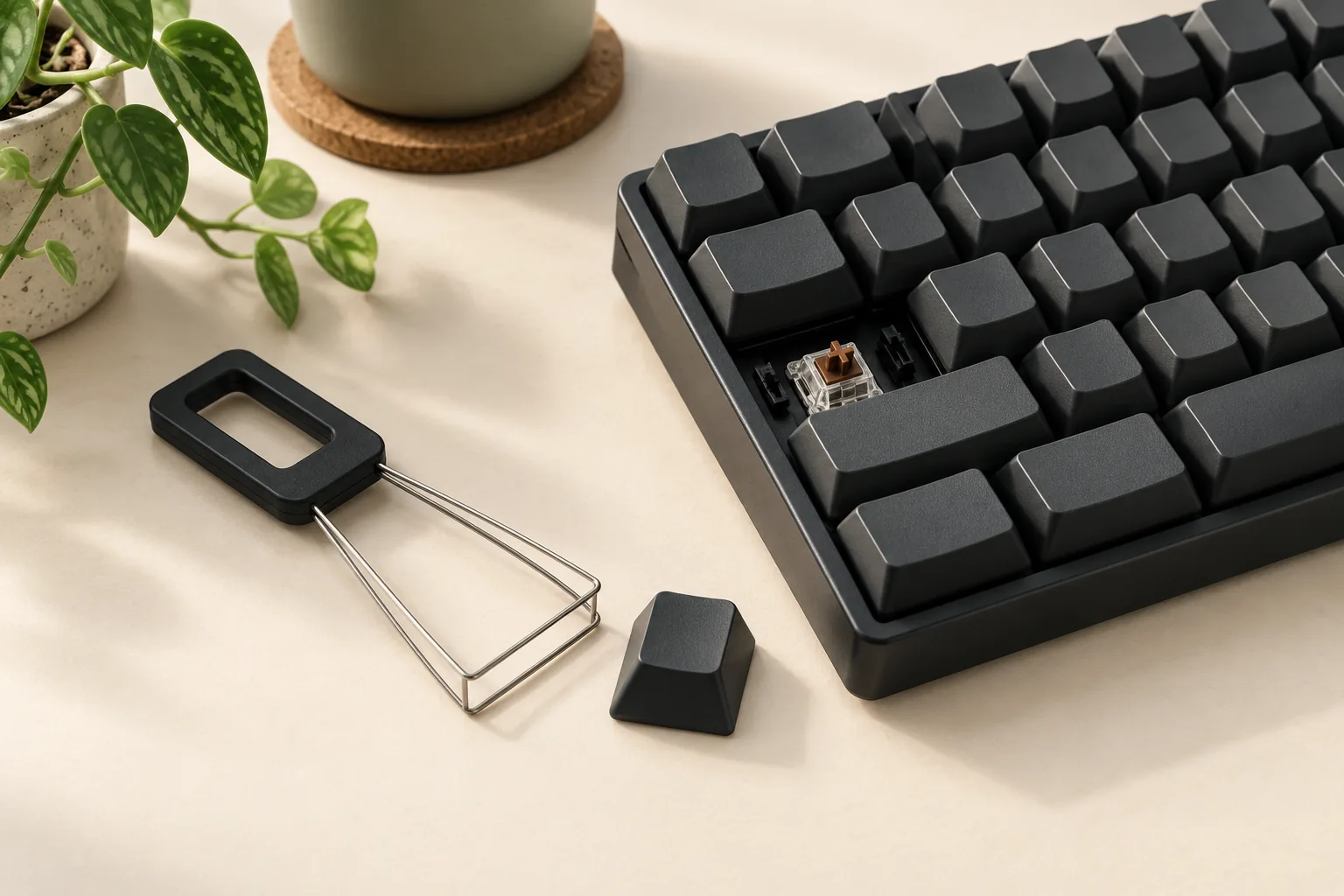
To remove a supported mechanical keyboard keycap, power off and unplug the keyboard, position a compatible keyboard keycap puller around the cap, and lift upward carefully. Align the replacement before pressing it into place. Check the exact keyboard model first, and use its specific procedure for stabilizers, the extra supports on large keys. Keychron’s removal guidance supports this basic sequence.
The keycap is the removable cover you press; the switch is the mechanism beneath it. A keycap puller grips that cover for removal. This guide is for owners of mechanical keyboards whose manufacturers document removable keycaps. Laptop and scissor mechanisms, unidentified low-profile attachments, and switch or circuit-board repairs require their own instructions.
Key takeaways
- Confirm the model, generation, and removable mechanism before pulling.
- Identify whether the tool grips the keycap or the switch.
- Check large-key attachments before lifting a spacebar or other stabilized key.
- Verify replacement geometry, layout, and height before ordering.
Editorial method: This guide synthesizes manufacturer documentation, product descriptions, and available source excerpts collected October 15, 2026. It does not report hands-on testing or promise damage-free results.
Jump to: Choose a puller · Removal steps · Large keys · Keychron fit · Fit worksheet · Troubleshooting · FAQ
Choose a keyboard keycap puller
A keyboard keycap puller grips a removable keycap so you can lift it off its switch. A switch puller engages the switch itself. A combined tool can perform both jobs, but you must identify the correct gripping points and confirm that your keyboard supports the intended operation. The CORSAIR K65 PLUS WIRELESS manual documents these separate engagement targets. For the separate switch-removal task, consult the switch-puller guide.
For a routine cap replacement, prioritize documented cap fit and clear operating instructions. A combined tool is an option if you also have a separate, supported switch-removal task. Its extra function does not add a switch-removal step to an ordinary cap swap.
| Tool or function | What the documentation establishes | What to confirm before use |
|---|---|---|
| K65 PLUS keycap-puller function | The manual places the tool over the cap, then lifts it off. | Follow that model’s documented cap engagement. |
| K65 PLUS switch-puller function | The tips engage beneath the switch’s top and bottom tabs. | This targets the switch; cap replacement alone does not require this operation. |
| GATERON Twins 2-in-1 | Gateron describes a spring-loaded clamp that retains extracted components and releases them when pressed. | Confirm cap geometry and the correct operating mode; two functions do not establish universal fit. |
| AULA Gold Shovel | The storefront advertises simultaneous removal of four caps while retaining their alignment. | Confirm tool spacing and cap geometry before considering a group lift. |
Sources: CORSAIR manual, GATERON Twins description, and AULA Gold Shovel description.
AULA’s four-cap feature is a merchant claim, not an independently measured speed or damage-prevention result. Treat multi-cap removal as a conditional convenience. If the tool’s fit on your caps is unclear, choose a documented single-cap procedure before attempting a group lift.
Before purchasing, check the exact tool variant, its instructions, and any stated size restrictions. Verify the seller’s current package contents and return terms at checkout rather than assuming those details from a general tool description.
How to remove and replace keycaps
Have the exact-model instructions, a compatible puller, and verified replacement caps ready. If you are new to keycap replacement, begin with an ordinary removable cap after completing the model checks. Leave large keys until you have identified their attachments.
Step 1: Identify the keyboard and replacement
Record the full model name, generation, and layout: the arrangement and sizes of its keys. Confirm that the manufacturer permits keycap removal on that version, then locate any separate instructions for stabilized keys. The Keychron generation examples below show why a family name alone is insufficient.
As a practical organizing step, photograph the layout and keep removed caps in their original order. This gives you a reference for legends, orientation, and placement during reassembly.
Step 2: Power off and unplug
Turn the keyboard off and disconnect its cable before removal. For a wireless keyboard, include its power switch in this check. Keychron’s general instructions specify powering off and unplugging before starting.
Keep the keyboard supported on a stable work surface. Arrange the replacement caps within reach so you can compare each one before installation.
Step 3: Engage an ordinary cap and lift carefully
Position the keycap-puller portion around the cap according to the tool’s instructions. Support the keyboard with your other hand and lift the cap upward carefully. Keychron describes surrounding the cap and pulling upward; Razer’s mechanical-keyboard instructions also call for supporting the board and using the puller gently. Keychron guidance · Razer keycap transcript
If the attachment does not release as expected, stop and check the mechanism. Avoid escalating to sideways prying or an improvised lever. Confirm what is retaining the cap before applying more force.
Step 4: Orient and align the replacement
Check the replacement against the original cap and the keyboard’s documentation. Confirm its orientation, intended position, and attachment geometry before placing it over the switch’s stem, the post where the cap attaches. Keychron directs users to align the cap with the switch before pressing it into place; Razer also specifies correct orientation. Keychron guidance · Razer transcript
Press the correctly aligned cap into place using the model’s instructions. If the fit seems wrong, remove it from the installation position and recheck compatibility. Do not clip parts or modify the stem to make an uncertain replacement fit. Complete the individual replacement-keycap checks before trying another replacement.
Step 5: Check movement and operation
After reassembly, check that the cap moves and returns without catching. Reconnect the keyboard and confirm that the replaced key registers in a text field. Razer’s BlackWidow V4 75% stabilizer guide likewise ends its reassembly procedure with reconnection and a functional test.
For your own check, compare the key’s behavior before continuing across the board. If a replacement binds, sits unexpectedly, or fails to register, stop and use the troubleshooting checks below.
Handle large keys by their stabilizer design
Large keys need an attachment check before removal. In the documented Razer procedure, some mechanical keyboards use stabilizer bars attached to larger caps. Keychron’s general guidance also calls for correctly aligning stabilizers when reattaching large keys. Razer transcript · Keychron guidance
Razer keyboards with attached stabilizer bars
Use this branch only after confirming that your exact model has the attached-bar mechanism described in Razer’s keycap-replacement transcript.
For that mechanism, Razer directs users to remove smaller neighboring caps first to create working room. Gently lift the large cap, then use a flathead screwdriver as directed to nudge a curved bar end outward and release the cap. Apply the screwdriver only to the bar connection specified in that procedure.
During reinstallation, use the matching stabilizer support pieces. Razer describes inserting one bar end into its support, then nudging and hooking the other end into the opposite support before seating the replacement cap. Follow the linked transcript’s directions for the confirmed matching mechanism, and verify the replacement cap’s orientation before seating it.
BlackWidow V4 75% stabilizer disassembly is a separate task
Razer Support’s BlackWidow V4 75% guide treats keycap removal, switch removal, and stabilizer removal as separate operations. Its stabilizer repair includes its own housing-tab and bar procedure.
For a cap replacement, establish the cap’s removal and reattachment procedure before considering any further disassembly. A Razer brand name alone does not authorize transferring the attached-bar instructions to another mechanical, optical, or low-profile design.
Check Keychron keycap fit by generation
Keychron provides a useful example of why replacement fit needs more than a familiar-looking center stem. Its K3/K7 stabilizer design article describes offset stabilizer positions on the models discussed: viewed from above, the switch and stabilizer stems form a triangle. The article also identifies regular-profile cap height as another fit constraint.
That historical description concerns those K3/K7 designs. It does not establish the geometry of every later K3 Pro, K3 Max, or other Keychron model.
For a separate, specific compatibility example, the Low Profile Double Shot PBT LSA Keycap Set Version 2 lists K3 Version 3, K3 Pro, and K3 Max among its compatible low-profile ANSI models. ANSI is the layout designation used in that listing; check your keyboard’s specifications for the same designation. Those examples apply to that particular set and layout scope.
Suppose you own a K3 Max with an ANSI layout. That listing gives you a named compatibility example to investigate before ordering. If your keyboard is identified only as “K3,” first establish the generation; do not carry the K3 Max listing backward to an older model or extend it to another layout. Use the Keychron K3 keycap generation checks before transferring this example to a different K3.
Replacement keycap fit worksheet
Use these checks before ordering and again before installation. The worksheet combines the alignment requirements in Keychron’s removal guide, the geometry and height issues in its K3/K7 design article, and the exact-model approach in the LSA Version 2 listing.
- Exact identity: Record the full keyboard model and generation. Find it in the replacement set’s compatibility information or obtain manufacturer confirmation.
- Center attachment: Confirm the replacement’s switch-stem interface for that keyboard version.
- Large-key geometry: Check stabilizer attachment type, position, and alignment separately from the center stem.
- Layout and widths: Compare the set’s included keys with your actual layout, including the spacebar, Shift, Enter, and bottom row.
- Row and profile: Confirm that each replacement belongs in its intended position and uses a suitable cap profile, meaning its height and shape.
- Height and clearance: Check the manufacturer’s height restrictions, then verify unobstructed movement during supported installation.
If a specification is missing, ask a concrete question: “Does this exact set fit my keyboard generation and layout, including its stabilized keys?” A broad brand-compatibility label leaves those checks unresolved.
When to stop and recheck
The cap will not release: Stop pulling and revisit the exact-model removal instructions. Confirm that the tool is gripping the cap and that you have identified any additional attachment.
A large cap lifts only partly: Check the documented stabilizer mechanism before continuing. For Razer’s attached-bar design, release of the specified connection is part of the procedure; another design may require different handling. Razer transcript
The replacement will not seat or binds: Recheck orientation, stem and stabilizer alignment, width, and height. Keychron’s documented geometry and height restrictions are reasons to investigate fit rather than press harder. Keychron design article
If a switch or stabilizer housing comes loose unexpectedly, pause the cap replacement and consult the exact-model support instructions before reconnecting.
Frequently asked questions
Can I remove keycaps without a puller?
Use the tool specified by the keyboard manufacturer for its removable caps. Both Keychron and Razer describe using a keycap puller. This guide does not recommend paperclip tools or generic screwdriver prying. Obtain a compatible puller and confirm the removal procedure before attempting the swap.
Does a keycap puller also remove switches?
A combined tool can provide both functions, but the gripping targets differ. The K65 PLUS manual places the tool over the cap for cap removal and beneath switch tabs for switch removal. Identify the correct function, and confirm that the keyboard supports any planned switch extraction.
Can I use this method on a laptop or scissor keyboard?
This guide covers documented removable mechanical-keyboard caps. It does not establish a removal method for laptop or scissor mechanisms. Use the exact device manufacturer’s service instructions instead, and leave the key attached if you cannot confirm the retention mechanism and supported removal procedure.
Why might a replacement fit a letter key but not a large key?
A large key needs compatible stabilizer geometry as well as a matching center attachment. Keychron’s K3/K7 design article documents offset stabilizer positions and separate height constraints for the discussed models. Use that example as a reason to check each stabilized key before fitting the entire set.
Before your next keycap swap
Choose a keyboard keycap puller by documented fit, identify the part it grips, and follow the exact keyboard’s removal instructions. Check stabilized keys separately and align verified replacements before seating them. Start by confirming your model and generation in the manufacturer’s instructions, then complete the fit worksheet before removing the first cap.