As an Amazon Associate we earn from qualifying purchases.
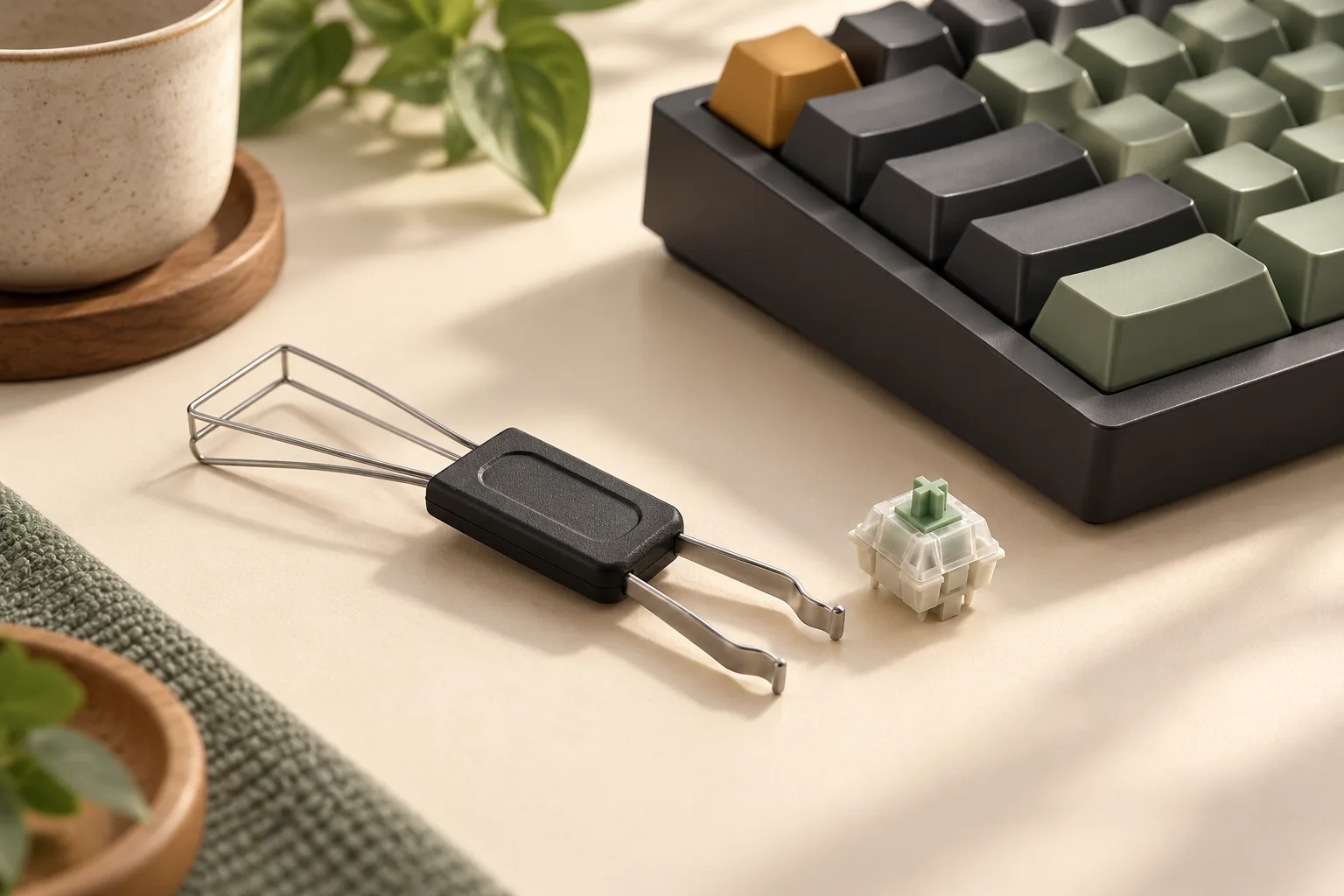
Choose a switch puller tool after confirming your exact keyboard supports removable hot-swap switches, then check that the tool reaches its retaining tabs. Hot-swap switches sit in sockets rather than being soldered to the circuit board. Retaining tabs are plastic housing clips that the puller depresses in the removal method described by Switch and Click.
Start with the puller included or recommended for your board. For extraction, Glorious recommends seating the teeth low, squeezing with control, and pulling gradually straight up without jerking.
This guide is for keyboard owners choosing a puller or preparing for a first switch change. If your board’s identity, switch mounting, or tool fit is uncertain, resolve that before attempting removal.
Quick takeaways
- Confirm removable hot-swap support for the exact board and revision.
- Use the switch puller for the switch housing and the keycap puller for keycap removal.
- Check access to both retaining tabs before applying upward pressure.
- Stop for unexplained resistance, housing damage, or socket movement.
On this page: Confirm your keyboard · Choose the tool · Remove a switch · Inspect afterward · Checklist · FAQs
Editorial method: This research-based guide combines manufacturer documentation excerpts with a published hot-swap tutorial. It does not report hands-on puller testing or measured tool comparisons.
Confirm your keyboard before buying a puller
A hot-swap keyboard allows switch removal without desoldering. Soldered switches remain attached to the circuit board by solder. Switch and Click’s replacement guide explains this distinction; identifying which construction you have comes before choosing a tool.
Find the manufacturer’s instructions for your exact model and revision. Look for an explicit statement that its switches are removable and for the matching switch-changing procedure. Treat a familiar model name or an existing puller in your drawer as a reason to investigate, rather than confirmation.
The Glorious GMMK 2 (65%) provides a documented example. Its official product guide identifies five-pin hot-swap sockets and lists separate switch and keycap pullers. It also states that barebones versions omit switches and keycaps. Those details establish a removable-switch example and identify the supplied tools; they do not establish another puller’s fit on an unrelated keyboard.
If the documentation identifies soldered switches, stop this process. If you cannot establish the board’s construction, ask its manufacturer before pulling. This procedure is limited to confirmed removable hot-swap switches.
Choose a switch puller tool by fit and access
Identify which tool performs which job
A keycap puller removes the keycap so you can access the switch. A switch puller engages the switch housing for removal. The separate tools listed in the GMMK 2 (65%) guide, together with Glorious’ removal sequence, illustrate why both functions matter.
Check your keyboard’s accessory box before buying another tool. If you already have its documented switch puller, begin by checking its condition and following the matching instructions. An aftermarket purchase should answer a specific fit or access need.
Check engagement at the actual retaining tabs
Switch and Click describes using the puller ends to depress two plastic retaining tabs on the switch housing. Separately, Glorious instructs positioning the puller teeth low on the switch for a secure grip.
Use those contact points as your selection criteria. Can both ends reach the documented tabs? Can they sit low enough to engage properly? Does the surrounding plate or case leave room for the tool to approach and pull upward?
Locate the tabs on your actual switch and follow its matching instructions. Avoid relying on universal left/right or top/bottom directions. If you cannot identify the intended contact points, tool fit remains unresolved.
Compare your options using documented fit
| Option or situation | What to verify | Recommended next step |
|---|---|---|
| Original included switch puller | It is the switch tool identified for your exact keyboard, and its ends can engage correctly | Follow the board’s removal instructions |
| Manufacturer-recommended replacement | The recommendation names your board or switch assembly | Confirm tab access before applying force |
| Unspecified aftermarket puller | Its documented fit and actual engagement match your hardware | Ask for confirmation if either is unclear |
| Keycap puller | Its documented function is keycap removal | Use the correct switch-removal tool afterward |
| Unknown board or switch mounting | Removable hot-swap support has not been established | Identify the hardware before buying or pulling |
This decision table combines the included-tool example in the Glorious product guide, the retaining-tab method in Switch and Click’s tutorial, and the grip and extraction guidance in Glorious’ removal article. The recommendations are a synthesis of those instructions, rather than a ranking of tested products.
For low-profile, optical, magnetic, or proprietary switches, seek instructions and a tool recommendation for that exact assembly. This guide makes no tool-fit promise for those designs. For a low-profile board, identify the switch family using the low-profile switch compatibility guide before seeking the exact assembly’s tool instructions.
How to remove a confirmed hot-swap switch
Follow the keyboard manufacturer’s preparation, power-off, and disconnection instructions first. Have the matching manual available, along with the appropriate keycap and switch pullers. Proceed only when you can identify both the removable-switch design and the intended tool engagement points.
Step 1: Expose the switch
Remove the keycap using the keyboard’s documented method. This exposes the housing that the switch puller needs to engage. Keycap removal precedes switch removal in Glorious’ instructions; use the matching keycap procedure rather than treating the cap and switch as one assembly.
Step 2: Locate both retaining tabs
Identify the retaining tabs described in your hardware’s instructions. Position the puller so its ends can reach both intended contact points, using the two-tab release principle described by Switch and Click.
Pause before squeezing. If one end is blocked by the plate or case, or you cannot see how the tool engages, reassess the approach. Upward force should wait until engagement is clear.
Step 3: Seat the teeth low and squeeze with control
Place the teeth low on the switch housing at the intended grip points. Squeeze enough to engage the retaining tabs and hold the switch securely. Glorious warns that excessive squeezing can crack the upper housing.
If the grip seems unreliable, release and check the tool’s position before trying again. A harder squeeze should not substitute for correct engagement.
Step 4: Pull gradually straight up
Maintain the controlled grip and pull straight up with gradual pressure. Follow Glorious’ direction to avoid jerking or yanking. Keep the extraction aligned with the documented removal path.
If the switch does not release, pause. Use the checks below before deciding whether to continue.
When to stop and what to inspect
Resistance: recheck the setup
Unexpected resistance calls for a position and compatibility check. Revisit the exact board’s hot-swap documentation, locate both tabs again, and confirm that the puller is seated low enough. These checks combine the tab-release method from Switch and Click with Glorious’ low-grip and gradual-extraction guidance.
If the reason for resistance remains unclear, contact the manufacturer. Do not use a stronger pull as a diagnostic test.
Housing damage: stop squeezing
If you see a crack or suspect the housing is being damaged, stop. Glorious’ warning about excessive squeeze makes housing condition a relevant checkpoint. Obtain model-specific advice before attempting removal again or reusing a damaged switch.
Socket movement: stop the procedure
Treat visible socket movement or suspected detachment as a stop condition. This is a conservative handling recommendation based on keeping extraction controlled, as described by Glorious; it does not establish what has happened to the socket’s attachment.
Contact the keyboard manufacturer with the model, revision, and a description or clear photo of the affected area. Avoid further pulling or inserting another switch while the socket’s condition is unresolved. Socket repair requires separate, model-specific service guidance.
After removal: inspect pins and housing
Inspect the removed switch before deciding what to do next. Fantech World’s manufacturer guidance emphasizes establishing whether pins are actually bent, because a switch problem can have another cause. It also cautions against damaging the pins or switch during handling.
Look for visibly bent or damaged pins and housing damage. As a conservative checkpoint, also check the accessible board area for anything that appears displaced, without probing or attempting socket repair. A visual check alone does not establish that every connection is sound.
If you find damage or remain uncertain, set the switch aside and seek the matching manufacturer guidance before replacement. Do not assume a nonworking key is explained by a bent pin.
Your before-pulling checklist
Use this checklist to make the decision before applying force:
- I have identified the exact keyboard model and revision.
- Its documentation confirms removable hot-swap switches.
- I have followed its preparation and disconnection instructions.
- I am using the correct switch puller.
- I can identify both retaining tabs and reach them with the tool.
- The teeth can engage low on the housing with sufficient surrounding clearance.
- I can follow the documented straight removal path.
- I will stop for unexplained resistance, damage, or socket movement.
The checklist combines the hot-swap prerequisite and controlled extraction described by Glorious, the housing-tab release described by Switch and Click, and conservative preparation and stop checks.
Frequently asked questions
Does any switch puller fit any hot-swap keyboard?
Do not assume universal fit. Confirm your exact board’s tool recommendation and check that the puller reaches the actual retaining tabs with adequate clearance. The GMMK 2 guide documents one keyboard and its included tools; it does not establish compatibility for every aftermarket puller or special switch design.
How hard should I squeeze a switch puller?
Use enough pressure to engage the intended tabs and maintain a secure grip. Glorious cautions that excessive force can crack the upper housing. If the grip feels unreliable, release the tool and recheck its position before pulling. Correct engagement should come before another attempt.
What should I do if a switch will not come out?
Stop pulling and work through the resistance checks. Glorious specifies gradual straight extraction without jerking. If those checks do not explain the obstruction, ask the manufacturer before another attempt. Any visible socket movement is also a reason to stop.
Does a nonworking key mean its switch pins are bent?
No. Fantech World advises inspecting the switch to establish whether pins are bent, since other problems can be involved. Inspect after documented removal, then follow the relevant support guidance. Avoid repeated removal and reinsertion based only on an assumed diagnosis.
Your next step
The appropriate switch puller tool is the one whose documented use and actual engagement match your confirmed removable hot-swap hardware. Before buying or pulling, open your exact keyboard’s manual and identify its recommended tool and retaining-tab contact points. Continue only when those checks are clear.
Sources
The dates below identify when the source material was retrieved.
- Glorious: GMMK 2 (65%) Product Guide — manufacturer documentation excerpt retrieved October 15, 2026.
- Glorious: Can You Remove Mechanical Keyboard Keycaps & Switches By Hand? — manufacturer guidance excerpt retrieved October 15, 2026.
- Switch and Click: How to Replace Keyboard Switches on a Hot-Swap Keyboard — tutorial page text retrieved October 15, 2026.
- Fantech World: How to Fix Bent Pins on a Mechanical Keyboard Switch! — manufacturer inspection-guidance excerpt retrieved October 15, 2026.