
As an Amazon Associate we earn from qualifying purchases.
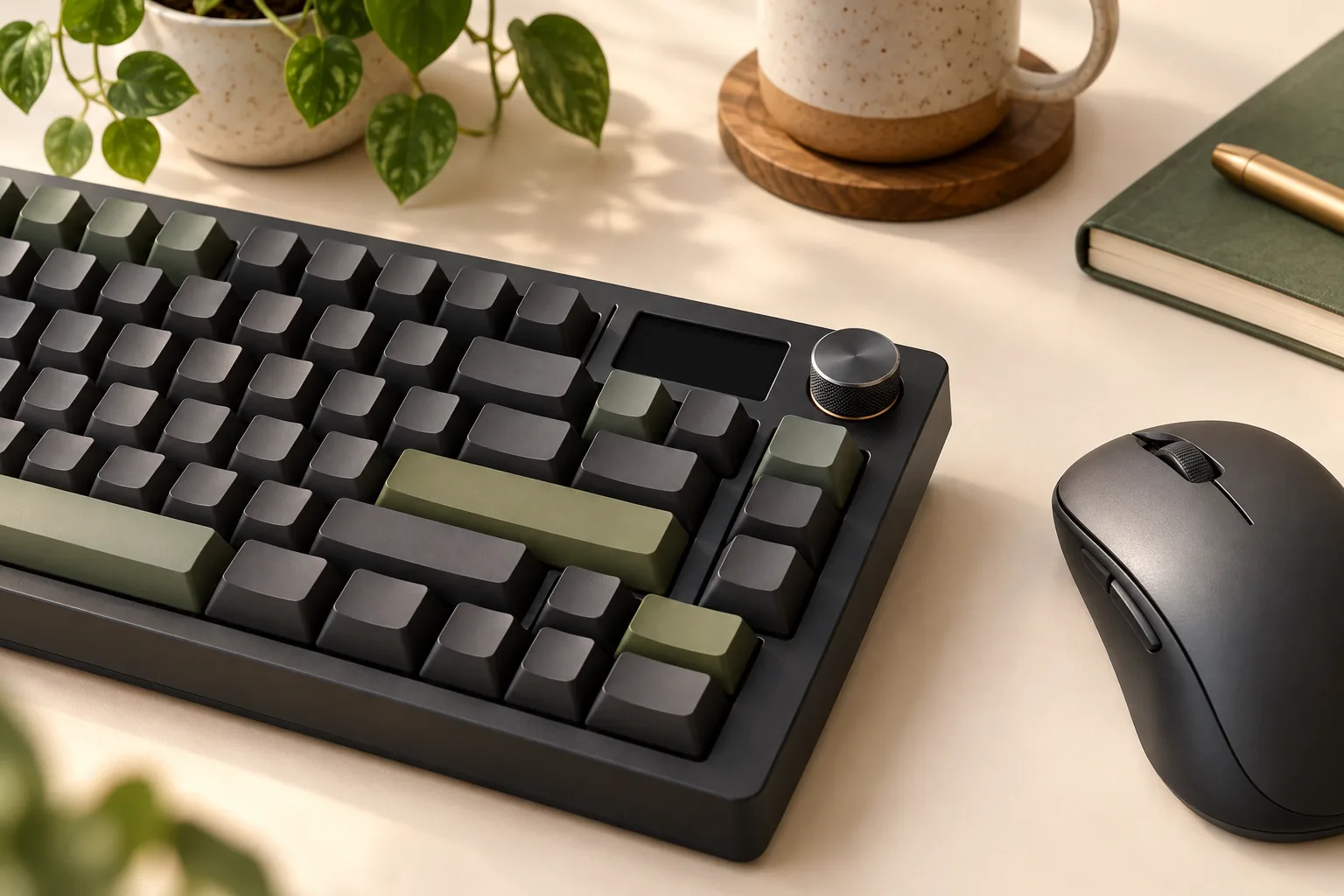
A mechanical keyboard with knob controls is worth choosing when the dial handles an adjustment you repeat, the screen shows information you actually check, or a macro—a recorded key sequence—handles a permitted work shortcut. Judge each feature by its exact action, required software, and saved behavior before paying for it.
This guide is for US shoppers comparing those extras. It uses the Corsair VANGUARD PRO 96 as a documented example, with recommendations based on source documents accessed October 15, 2026. No hands-on testing or measured productivity gains are claimed.
Quick takeaways
- Choose a dial for a specific adjustment you expect to use regularly.
- Choose a screen for a specific display task, such as checking status or showing a favorite image.
- Separate physical shortcut keys, recorded key sequences, and actions that require running software.
- For VANGUARD live widgets, plan on a wired USB connection and iCUE 5.47 or later running in iCUE mode. Widgets cannot operate in hardware mode. Corsair widget requirements
Jump to: Task fit · Exact package · Control comparison · Macro keys · Screens · Saved settings · Buying checklist · FAQs
Choose a mechanical keyboard with knob controls by task
Start by describing the action you want in a short sentence: “change listening volume,” “check a hardware reading,” or “trigger this work shortcut.” Then ask whether you want a physical adjustment, visible information, or a key assignment. That distinction gives you a useful shopping criterion before you compare appearance.
For a mechanical keyboard with a volume knob, require documentation for rotation and press behavior. If you mainly want audio adjustment, a clearly documented media control may satisfy the whole requirement. Extra screen functions deserve a separate reason to buy.
For editing work, write down the exact application and action you want, such as zooming a document. Treat that as a requirement to verify. Corsair documents custom dial functions through Web Hub, but that statement alone does not establish timeline scrubbing or zoom control in every application. VANGUARD PRO 96 product FAQ The guide to matching keyboard software to a task provides a broader checklist for finding the correct configuration route.
Appearance can also be the reason you want a screen. An animation is a valid preference; evaluate it as personalization unless you have identified information or a control you will use during work.
Verify the exact keyboard and included controls
Check eligibility before comparing extras. A useful warning comes from the PC Tech Kits knob roundup: it includes two Keychron C1 alternatives explicitly described as lacking a knob, and it identifies its AULA 99 entry as a membrane keyboard. A roundup heading therefore cannot establish that every listed option meets your requirements.
The bounded example here is the complete, wired North American Corsair VANGUARD PRO 96, part CH-91E911G-NA. Its official product page identifies a Hall Effect keyboard with an integrated LCD, rotary dial, and shortcut-key area. Those controls are included in this documented configuration. Exact product and configuration
The package text lists the keyboard, detachable magnetic cushioned palm rest, braided USB Type-C cable, safety leaflet, and warranty card. Its final puller entry is truncated; the manual separately identifies a 2-in-1 keycap/switch puller. There is no indication that this SKU requires a separate LCD or dial purchase. Package contents, manual
When comparing an offer, match the part number, regional layout, and complete package. Recheck the seller, condition, total cost, delivery terms, and applicable return policy before ordering.
Compare the action, setup, and runtime
The table compares documented functions on this VANGUARD PRO 96 example. “Programmable” becomes useful purchasing information when you can identify the trigger, setup path, and operating requirements.
| Function | Trigger and setup | Runtime requirement | Saved behavior or boundary |
|---|---|---|---|
| Adjust key actuation | Press FN+F12, turn the dial, then press it to save and exit. | Documented as a hardware adjustment. | The press saves that setting; it does not establish persistence for unrelated dial actions. Manual |
| Record an ordinary-key macro | Enter recording with FN+M or the dial in macro-recording mode; record standard keys, stop, and choose an assignment. | The manual provides a keyboard recording sequence. | Assign to a key, FN+key, or modifier+key; verify the intended assignment in your operating mode. Manual |
| Switch LCD widgets | Use FN+Left/Right, or enable and select Screen Widget in iCUE’s Rotary Dial tab. | iCUE 5.47+, iCUE open in iCUE mode, and wired USB. | Widgets cannot be saved to or used in hardware mode. Widget guide |
| Use Virtual Stream Deck | Install and launch the Elgato software described in the manual. | Running Elgato software is required. | A physical launch key does not establish standalone operation. Manual |
A dial example with a documented save action
Corsair’s actuation adjustment is a concrete example of how to evaluate a control. Actuation is the point at which a keypress registers. The manual describes this sequence:
- Press FN+F12 to enter actuation adjustment.
- Read the current setting on the screen and rotate the dial to change it.
- Press the dial to save the setting and leave adjustment mode.
That establishes a complete interaction: enter, adjust, confirm. It supports choosing this dial for that setting adjustment, without promising that the same interaction controls your editing application. Hardware actuation instructions
Separate physical macro keys from recorded shortcuts
A physical shortcut cluster, a macro assigned to an ordinary key, and Virtual Stream Deck are separate capabilities. Check which one serves your task before deciding how many extra keys you need.
Read the physical-key labels carefully
Corsair’s product copy markets six programmable G-keys. Its manual describes five G-keys plus an Elgato key in the Stream Deck section. Keep both descriptions in view when examining the shortcut area; they do not establish six interchangeable G-keys with identical behavior. Product description, manual
Check ordinary-key macro assignment separately
The manual also documents recording a series of standard keys and assigning the result to a key, FN+key, or a modifier+key combination. This is separate from the physical G-key area. For a repeated, permitted work shortcut, first decide whether an ordinary-key assignment would meet your need. Macro recording instructions
There is a consequential clearing behavior: if you record no keys and then choose an assignment, the manual says that assignment’s saved macro or function is cleared. Use a nonessential assignment when checking the process, and record your existing setup before replacing it. Macro clearing notes
Budget for Virtual Stream Deck’s software requirement
The manual requires Elgato software to be installed and launched for Virtual Stream Deck. The product FAQ uses beta-version language for Stream Deck, so confirm the currently supported release before relying on the integration. Its software requirement is separate from the iCUE requirement for LCD widgets. Manual, product FAQ
Choose a mechanical keyboard with screen features you will use
The VANGUARD PRO 96 manual specifies a 1.9-inch, 320 × 170 IPS LCD. Corsair’s product documentation describes custom images and animations, while its widget guide explicitly lists static images and animated GIFs. These statements establish content categories; they do not establish every upload format, file limit, or shutdown behavior. Display specifications, product page, widget content
For useful information, Corsair’s built-in widget list includes sensor readings, calendar, media, weather, notifications, and clock content. The same guide describes a Marketplace Timer widget with stopwatch and countdown functions. Choose the information you want to check, then verify that specific widget and its requirements. Available widget descriptions
Live widgets require an active software setup
Corsair’s guide, updated October 9, 2026, requires iCUE 5.47 or later, iCUE mode with iCUE open, and a wired USB connection. Widgets cannot be saved to or used in hardware mode. This applies to the widget system, including its Image widget; it does not settle the behavior of every other custom-image path. Widget requirements
For dial-based widget switching, enable Screen Widget in iCUE’s Rotary Dial tab and select it as the dial function. The guide also documents FN+Left/Right switching on VANGUARD PRO 96. If you want the dial reserved for another task, consider whether those keyboard shortcuts suit your screen use. Widget controls
Check saved settings, platform support, and reset limits
The manual describes hardware mode using onboard profiles and settings when Web Hub is absent or unsupported. However, the product page and manual give conflicting profile counts. Treat the exact total as unresolved, and verify the particular setting you need rather than assuming every advanced feature follows the keyboard between computers. Widgets already have an explicit hardware-mode exclusion. Operating modes, product specifications, widget restriction
Before buying for a particular computer, ask whether the exact feature supports your operating system, browser where applicable, connection, and device permissions. On a managed work computer, also check whether you may install and run the required applications. Basic keyboard operation is insufficient evidence for your intended advanced workflow.
Recovery deserves its own check. The manual documents holding ESC for two seconds while the device is plugged in to erase onboard profiles and restore factory defaults. That is a destructive reset; the documentation does not establish it as recovery from an interrupted firmware update. Before updating firmware, check exact-model recovery guidance with Corsair through the support options on its official product page. Factory reset instructions
Use this checklist before ordering
Apply these questions to each shortlisted configuration. Keep the manufacturer’s answer or relevant manual passage beside your notes.
- Task: What repeated adjustment, information check, or permitted shortcut will this feature handle?
- Package: Does the exact complete configuration include the required dial, screen, and shortcut area?
- Trigger: What does rotation do, what does a press do, and how do you select the intended mode?
- Setup: Where is the assignment configured, and can your computer access that tool?
- Runtime: Which applications must remain open during use?
- Storage: Which exact settings are documented to work in hardware mode?
- Verification: After setup, what will you check with the configuration app closed and after reconnecting the keyboard?
- Support: What does reset erase, and where will you obtain exact-model recovery help?
For example, if you want live hardware readings on a work computer that cannot run iCUE, exclude VANGUARD widgets from your buying rationale. If you want personal artwork, confirm the upload method and persistence you need before counting the display as a match. These checks turn an attractive feature list into a decision tied to your computer and tasks.
Frequently asked questions
Does a programmable mechanical keyboard need dedicated macro keys?
For the documented VANGUARD PRO 96, ordinary keys and key combinations can receive recorded macros independently of the physical shortcut area. Dedicated keys may still be your preferred place for an assignment. Choose based on the trigger you want and verify that assignment’s behavior in your intended mode. Manual
Can the VANGUARD PRO 96 screen show live information without iCUE?
Its documented iCUE widgets require iCUE open in iCUE mode, version 5.47 or later, and wired USB. They cannot operate in hardware mode. Apply that restriction to live-widget plans; check any separate custom-image workflow on its own terms. Widget guide
Does a keyboard dial automatically control an editing timeline?
A dial’s presence does not establish application-specific timeline control. Corsair documents custom dial functions through Web Hub and a specific actuation-adjustment sequence. Before buying for editing, verify your exact application, desired rotation and press actions, setup path, and runtime requirements. Product FAQ, manual
Make the extras earn their place
Choose a mechanical keyboard with knob controls when you can name a supported adjustment you will use. Add a screen or macro requirement when its specific function and software demands fit your setup. Before ordering, use the checklist to verify your most important action against the exact model’s official documentation.