As an Amazon Associate we earn from qualifying purchases.
Choose split spacebar keycaps by comparing your exact keyboard layout with the selected kit’s inventory. Match each required key’s width, profile row, quantity, legend, and top shape. A matching width clears only one check: Keebio explains that sculpted keycaps also need the appropriate row, and base-kit contents vary between sellers. Keebio’s selection guide explains both distinctions.
This guide is for buyers choosing keycaps for ANSI, compact, Alice, and split keyboards. It explains set coverage; detailed stem, stabilizer, and lighting-clearance checks require separate compatibility verification.
Quick takeaways
- Start with the exact keyboard model, revision, and regional layout.
- Compare the selected kit diagram with every required position.
- Count repeated widths separately and check the intended legends and rows.
- Verify split-spacebar shape before treating an extra modifier as a substitute.
- Leave undocumented details unresolved until the manufacturer or seller confirms them.
On this page: Build your worksheet · Check your layout · Audit split spacebars · Check 1.5u keys · Worked example · Questions
Build your required-key worksheet
Keycap set coverage means having enough suitable caps for every position you intend to populate. For this audit, treat width, row, quantity, legend, and shape as separate requirements. Mark a position covered only after the selected kit documents those requirements or you deliberately accept a specific substitution.
Begin with the keyboard’s layout diagram and the kit’s inventory diagram. Record the exact revision and regional configuration before comparing them. Keep the diagram’s width notation, such as 1.5u or 2.25u, rather than estimating widths from a product photograph.
Copy the following worksheet fields for each required key type. Group positions only when all their requirements match.
| Field | What to record | Evidence to use |
|---|---|---|
| Keyboard identity | Model, revision, and selected layout configuration | Board documentation |
| Region | ANSI or ISO configuration and intended regional legends | Exact layout diagram |
| Position and legend | Location, intended function, and acceptable printed legend | Your layout and preferences |
| Width | Exact labeled width | Board diagram |
| Profile and row | Profile name and the kit’s row designation | Kit diagram or seller confirmation |
| Quantity | Number needed simultaneously | Counted board positions |
| Top shape | Convex, concave, or another documented shape | Kit description or diagram |
| Candidate supply | Matching keys in the selected base kit and add-ons | Selected variant’s inventory |
| Status and source | Confirmed, missing, or unresolved; retain the supporting document | Saved diagram or product description |
Keep a separate compatibility note for the switch stem interface, stabilizer requirements, and physical clearance. These remain unconfirmed for an unspecified keyboard. Do not fill them in from a shared brand name or a broad compatibility label.
Why the row matters
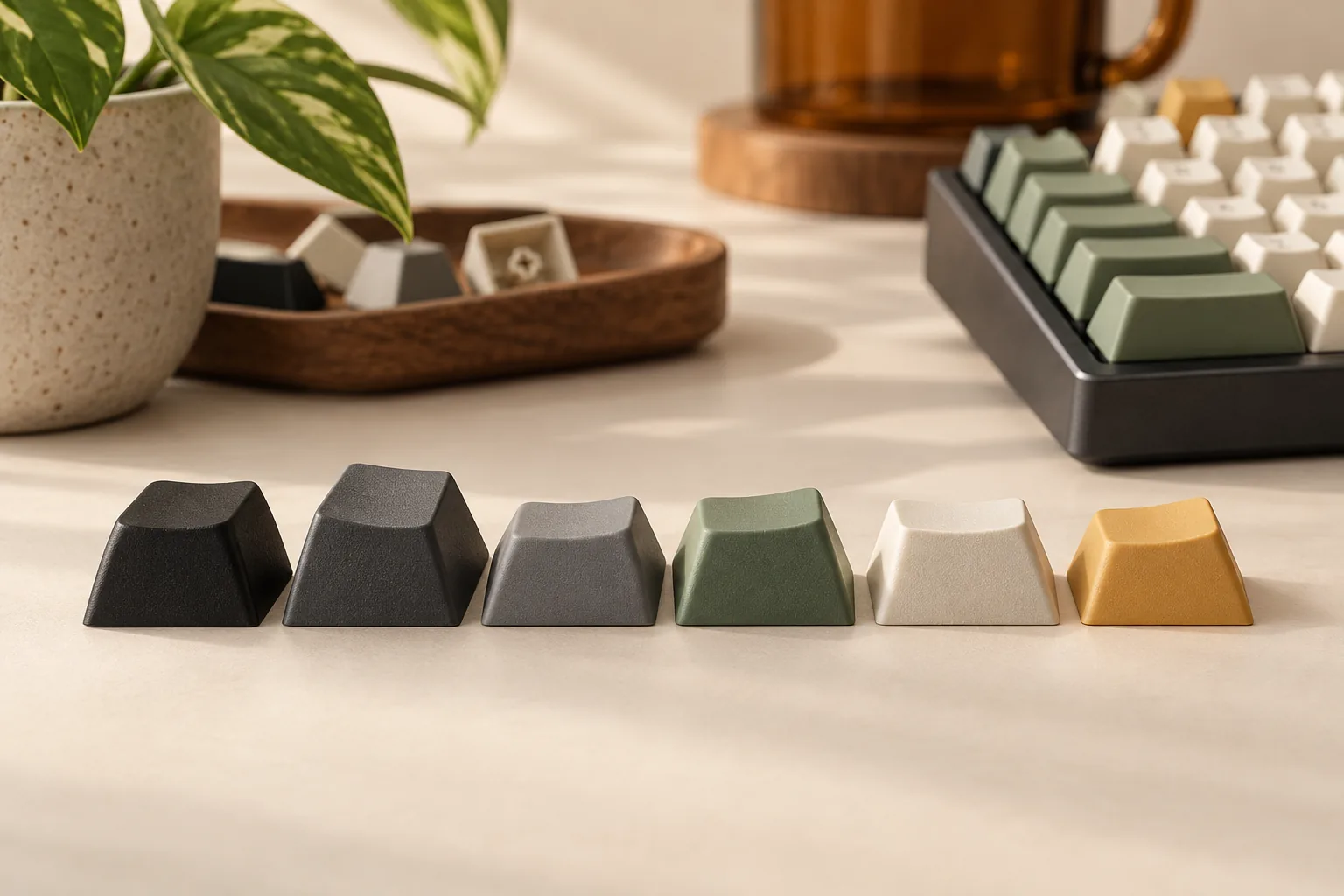
Keebio distinguishes uniform profiles, including DSA and XDA, from sculpted profiles whose shape changes by row. Uniform profiles simplify moving a spare key to another position because there is no sculpted row angle to match. Width, quantity, and your chosen legend still need checking. Keebio’s profile explanation supports that distinction. For an XDA option, compare the XDA keycap set coverage after checking row shape.
For a sculpted set, copy the row designation associated with the actual key in the kit diagram. A spare cap of the right width does not establish the intended row match. If the text lists a width without its row, leave the row unresolved until you can inspect the exact inventory diagram.
Check coverage for your layout
Use these layout sections to decide where to concentrate your audit. They are inspection priorities, not promises that a particular percentage or layout name determines every key size.
ANSI keycaps: verify the selected configuration
Start an ANSI audit with Enter, Backspace, both Shift positions, and the entire bottom row. Record each actual width and quantity from the board diagram, then compare the kit. Check the legends you want to use as well as the physical positions.
Keep regional layout and language requirements explicit. A listing’s broad layout-support statement should prompt you to inspect its inventory rather than skip that comparison. Keebio’s warning that base-kit contents differ between shops is the reason to examine the selected kit instead of relying on its category name. Source: Keebio.
60% keyboard keycaps: audit the bottom row and alternatives
For a 60% keyboard, mark the bottom-row modifiers and spacebar first, followed by Enter, Backspace, and Shift. If your board offers alternative configurations, use the one you will actually build. Do not combine requirements from different layout options into a single assumed arrangement.
A useful purchase question is: “Does this selected kit contain every key in my chosen diagram?” The label “60% keycap set” alone does not answer that question. Keep any undocumented width, row, or repeated-key count open.
75% keycap sets: check modifiers and navigation rows
For a 75% layout, inspect the right-side modifiers and navigation positions individually. If your diagram calls for a shortened modifier, copy its exact width. Then match each navigation legend to its actual row in the selected keycap profile.
Do not treat unused navigation caps elsewhere in a kit as automatic replacements. With a sculpted profile, the spare needs the appropriate row shape as well as the width and an acceptable legend. This applies Keebio’s row-matching guidance to the layout you are auditing. Source: Keebio.
96-key keyboard keycaps: count navigation and numpad needs together
For a 96-key layout, audit navigation positions and the numpad alongside the modifiers and spacebar. Allocate each supplied cap once. A spare assigned to one position cannot also satisfy another required position.
Keep the legend and row attached to each allocation. If a kit documents a suitable width but leaves the relevant row or legend unclear, classify that position as unresolved. This count-and-allocate method also prevents an attractive total key count from hiding a missing specific key.
Alice keycaps: check bars, duplicate letters, and thumb positions
For an Alice layout, record each spacebar or thumb position separately and check whether your diagram requires a second B. CannonKeys lists split spacebars and a second B for NicePBT Cyrillic Sublegend Classic Beige. Those are useful inventory details, but they do not prove complete coverage for every Alice layout. See the specific CannonKeys listing. Use the Alice keyboard layout guide to identify the host arrangement before matching those extras.
Compare your board’s bar widths, quantities, and other modifiers with the selected color’s diagram. CannonKeys explicitly directs buyers to select a color to view its kitting. Keep any details you cannot establish from that selection unresolved.
Audit split spacebar keycaps by width and shape
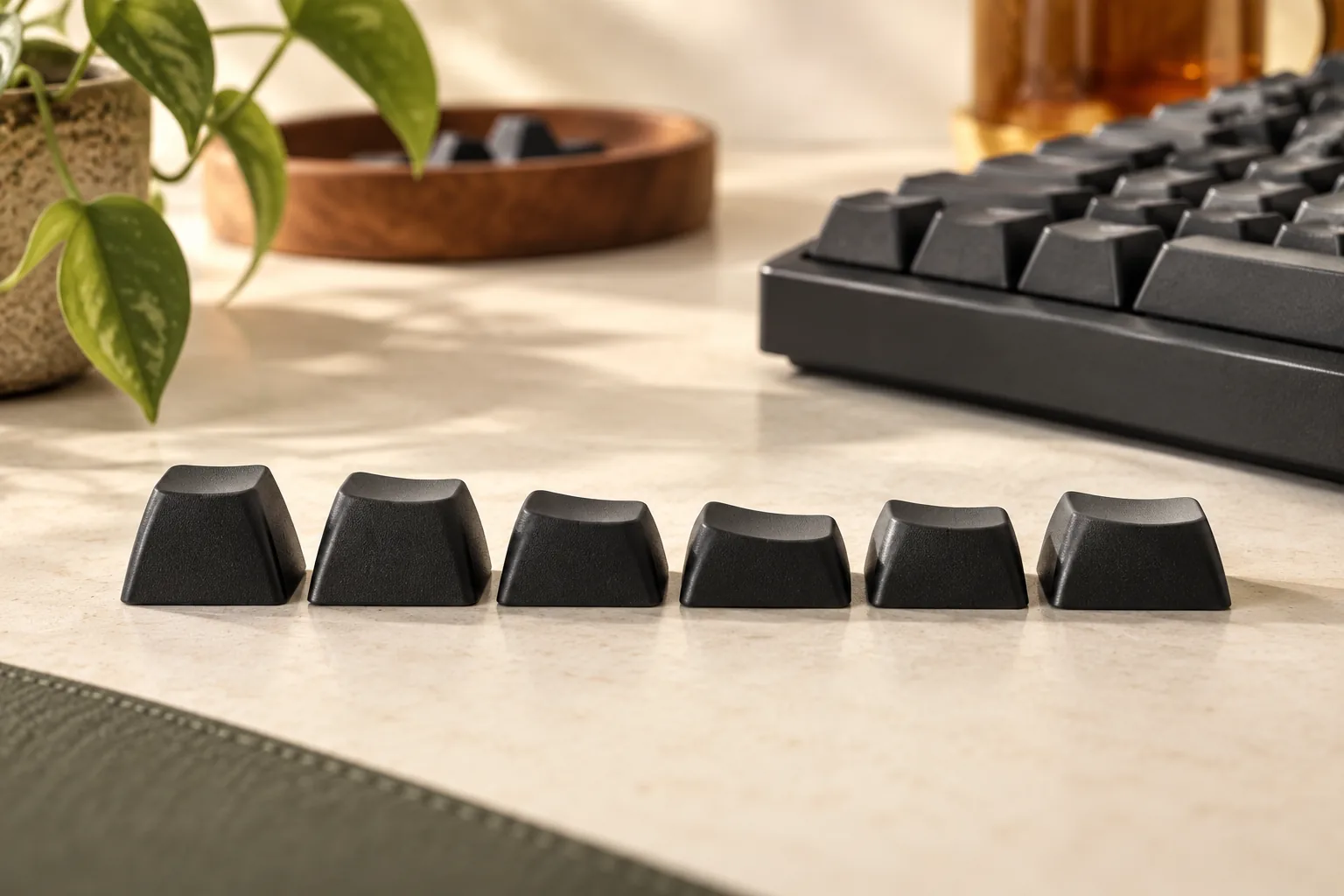
For each split-spacebar position, record width, required quantity, profile, and top shape. Keebio’s guide explains that the KLE annotation “c” means convex and identifies that shape as more suitable for a space keycap. A same-width Shift cap therefore should not be counted as an equivalent shape without checking it. Source: Keebio.
Model revisions deserve their own check. Keebio’s September 13, 2022 guide highlights split spaces and right Shift for Quefrency Rev. 4. For Quefrency Rev. 2, it discusses determining whether extra 1.25u, 1.5u, or 2.25u caps are needed. These are revision-specific inspection notes, not fit guarantees for later revisions.
For either revision, confirm the actual bottom row, bar widths, regional configuration, stem interface, and stabilizer requirements from the relevant board documentation. Those complete specifications are not established here.
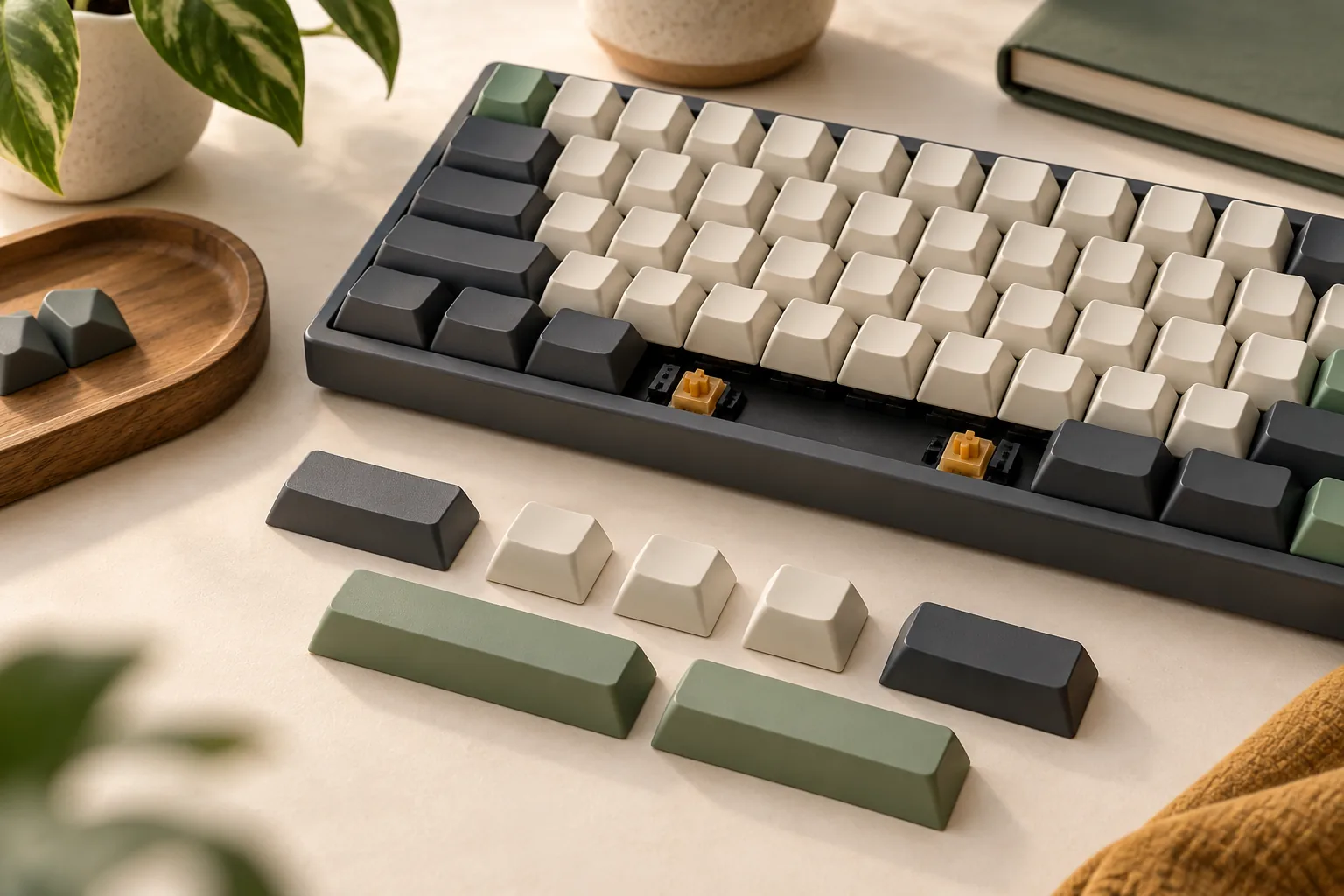
A documented add-on can address a specific inventory gap. The captured official description for Keebio’s Cherry PBT Split Spacebar Keycaps identifies convex 2.25u and 2.75u Cherry-profile PBT caps and states MX-style switch and stabilizer compatibility. Check the quantity supplied or ordered and the exact board requirements before assigning them to your worksheet.
Keep three decisions separate:
- Individual mounting: Does the particular cap match the switch and any required stabilizer interface?
- Complete set coverage: Are enough suitable caps available for every required position?
- Clearance in use: Does the installed combination avoid relevant profile, LED, or surrounding-part interference?
The add-on’s documented widths and MX-style wording do not settle every board’s geometry or clearance. Use it as a candidate for a matching missing bar, then complete the separate compatibility checks.
Check 1.5u keycaps by row and legend
Search for the complete requirement, such as “1.5u Enter in the required row,” rather than stopping at “1.5u keycaps.” CannonKeys specifically lists an R3 1.5u Enter among this NicePBT set’s extras. That supports an inventory entry for that key, not an arbitrary 1.5u modifier in any row. Source: CannonKeys.
If you need a 1.5u Ctrl, for example, keep its coverage unresolved until the selected inventory documents an acceptable cap. You may choose to accept a different legend, but record that choice explicitly. A legend substitution still leaves width, row, quantity, shape, and mounting requirements to check.
Worked example: audit the NicePBT inventory
Use NicePBT Cyrillic Sublegend Classic Beige as an inventory-reading example. CannonKeys identifies this specific set as Cherry profile and lists the following Shift and spacebar assortment. The table summarizes its textual specifications; the selected color’s diagram still needs confirmation. Source: CannonKeys. Apply the multilingual keycap legend checks separately from the spacebar inventory.
| Key group | Listed widths and quantities |
|---|---|
| Shift | 1.25u, 1.75u, 2u, two 2.25u, and 2.75u |
| Spacebars | 1u, 1.25u, two 2u, 2.25u, 2.75u, two 3u, 6.25u, and 7u |
| Relevant compact-layout extra | R3 1.5u Enter |
| Relevant Alice extra | Second B |
Now suppose a hypothetical required-key sheet calls for the following subset. These requirements are an arithmetic exercise, not a specification for a particular keyboard.
| Hypothetical requirement | Textually listed supply | Preliminary inventory result |
|---|---|---|
| Two 2.25u spacebars | One 2.25u spacebar | One additional matching bar needed |
| One 2.75u spacebar | One 2.75u spacebar | No width/count shortage |
| Two 3u spacebars | Two 3u spacebars | No width/count shortage |
| One 1.5u Ctrl in a specified row | R3 1.5u Enter documented; required Ctrl not established | Unresolved |
Notice that the two listed 2.25u Shift keys do not automatically erase the spacebar shortage. They belong to a different inventory category, and the required top shape still matters. Likewise, “no width/count shortage” is only a preliminary result: selected-color contents, shape, and applicable row details remain to be checked.
Keebio’s documented 2.25u add-on is a candidate to investigate for the first gap. Its 2.75u offering does not establish an answer for a missing 3u bar or a 1.5u modifier. Buy the base kit alone when your completed worksheet establishes coverage; investigate an add-on when it documents the exact remaining requirement.
Frequently asked questions
Can I buy by keyboard percentage alone?
Use the percentage label to narrow your search, then compare the exact board diagram with the selected kit. For a 60%, 75%, or 96-key layout, record widths, quantities, legends, and rows. The buying decision is complete only when every required position has an acceptable documented cap.
Does a second B mean an Alice layout is fully covered?
No. A second B answers one inventory question if your board requires it. You still need to check split-bar widths and quantities, modifiers, profile rows, and shapes. CannonKeys lists that extra B for this specific NicePBT set and directs buyers to the selected color’s kitting diagram. Source: CannonKeys.
What should I ask the seller when the kit diagram is unclear?
Give the seller your exact model, revision, regional layout, and missing-key list. Ask for the required width, row, quantity, legend, and shape to be confirmed for the selected variant. For mounting or clearance questions, identify the switch and stabilizer configuration too; request specific confirmation rather than a general fit assurance.
Make the purchase decision from your completed worksheet
Choose split spacebar keycaps when the selected inventory matches your required widths, rows, quantities, legends, and shapes. Resolve remaining mounting and clearance questions separately. Before ordering, compare the exact board diagram and selected kit one last time, and check the offer’s current contents and applicable seller terms.
Editorial method and sources: This guide synthesizes manufacturer documentation captured October 15, 2026; no hands-on fit testing was performed. Sources are Keebio’s Keycap Selection Guide, published September 13, 2022; CannonKeys’ NicePBT Cyrillic Sublegend Classic Beige listing; and the captured official product excerpt for Keebio’s Cherry PBT Split Spacebar Keycaps. The add-on evidence is limited to that excerpt.