
As an Amazon Associate we earn from qualifying purchases.
Unlocking Your Perfect Typing Experience: A Guide to Building Your Own Mechanical Keyboard
A custom mechanical keyboard offers a level of personalization and tactile feedback often unmatched by mass-produced alternatives. Unlike off-the-shelf models, a custom build allows you to hand-pick every component—from the switches that dictate typing feel and sound, to the keycaps and case that define its aesthetics. This bespoke approach empowers you to create a typing instrument perfectly tuned to your preferences, whether for gaming, productivity, or simply a more satisfying daily interaction.
The decision to build rather than buy stems from the desire for specific control over the keyboard's performance and appearance. It's an opportunity to avoid common compromises found in pre-built options, ensuring compatibility with your workflow and personal comfort. However, the process can seem daunting for newcomers, with potential pitfalls ranging from incompatible parts to assembly errors.
This comprehensive guide aims to demystify the custom mechanical keyboard building process, equipping you with the knowledge and confidence to undertake your first assembly. We will cover:
- Understanding essential components and their roles.
- Practical, step-by-step assembly instructions.
- Identifying and avoiding common beginner mistakes, such as incorrect stabilizer installation or bent switch pins.
- Best practices for ensuring component compatibility and a successful build.
Why Build Your Own? The Advantages of a Custom Mechanical Keyboard
Building a mechanical keyboard offers a distinct experience beyond simply purchasing a pre-built model. It shifts the focus from consumer to creator, allowing for a level of control and personalization that off-the-shelf options rarely provide. This process addresses specific user desires for bespoke functionality, aesthetic integration, and a deeper understanding of their tools.
Key motivations for undertaking a custom build include:
- Unparalleled Personalization: Every component, from the switches that dictate typing feel and sound, to the keycap profiles and materials, can be chosen to match individual preferences. This extends to the keyboard's layout (e.g., compact, full-size, ergonomic), case material, and overall aesthetic, ensuring the final product aligns precisely with your ergonomic needs and visual style.
- Optimized Performance and Feel: Custom builds allow for meticulous tuning of performance elements. This includes lubricating switches for a smoother keystroke and refined acoustics, or carefully tuning stabilizers to eliminate rattle and improve consistency on larger keys. These adjustments can significantly enhance the typing experience, offering a tactile and auditory feedback loop tailored to your workflow.
- Engaging Learning and Community: The building process itself is a valuable learning experience, demystifying the internal workings of a keyboard. It introduces enthusiasts to a vibrant community where knowledge sharing, troubleshooting, and collaborative design are common. This engagement can transform a simple tool into a hobby.
- Value and Specific Needs: While not always cheaper than a basic pre-built keyboard, a custom build can offer superior value for money when seeking high-end features or niche specifications that are prohibitively expensive or unavailable in mass-produced models. It allows investment in specific components that matter most to the user, potentially leading to a more satisfying long-term solution.
However, committing to a custom build involves certain trade-offs compared to buying a pre-assembled unit. It requires a significant investment of time for research, component selection, and assembly. There's an initial learning curve associated with understanding compatibility, assembly techniques, and troubleshooting potential issues. This project demands patience and attention to detail, but for those seeking a truly unique and optimized typing instrument, the effort can yield substantial rewards.
Gathering Your Essentials: Key Components for a Custom Build
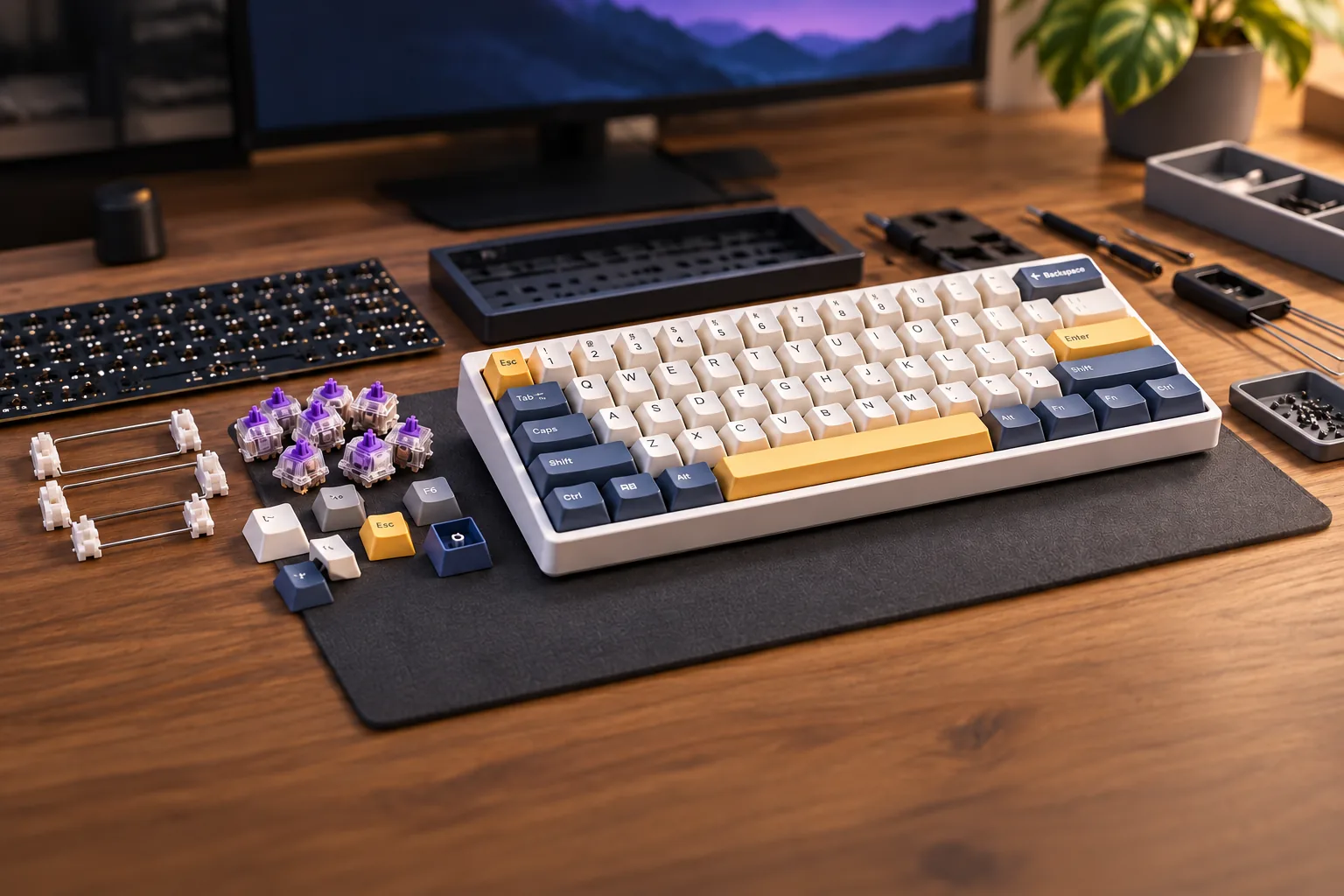
Embarking on a custom mechanical keyboard build requires a clear understanding of the individual components that come together to form your personalized typing tool. Each part plays a distinct role in the keyboard's functionality, feel, and acoustics. Identifying these essentials and their variations is the first step in ensuring compatibility and achieving your desired outcome.
Here’s a breakdown of the core components and optional accessories you'll need:
- Printed Circuit Board (PCB): This is the "brain" of your keyboard, responsible for registering keystrokes and sending signals to your computer. A key decision point for beginners is the PCB type:
- Hotswap PCBs: Feature sockets that allow switches to be pressed in and pulled out without soldering. This is highly recommended for first-time builders as it simplifies assembly, enables easy switch experimentation, and reduces the risk of damaging components.
- Solderable PCBs: Require switches to be soldered directly onto the board. This offers a potentially more secure connection and wider compatibility with various switch types but demands soldering equipment and skill.
- Switches: These are the mechanisms beneath each keycap that register your presses, defining the tactile and auditory feedback. Your choice significantly impacts typing feel.
- Linear Switches: Offer a smooth, consistent press from top to bottom without any bump or click. They are often favored for gaming due to their quick, unobstructed actuation.
- Tactile Switches: Provide a noticeable "bump" in the middle of the keystroke, indicating actuation. This feedback can aid typing accuracy.
- Clicky Switches: Feature both a tactile bump and an audible "click" sound, delivering distinct feedback for each press. These are often preferred by those who enjoy a pronounced auditory experience.
- Keycaps: These are the plastic caps you press, providing the surface for your fingers and contributing significantly to the keyboard's aesthetics and feel.
- Materials: Common materials include ABS (Acrylonitrile Butadiene Styrene), known for its smooth finish and vibrant colors, and PBT (Polybutylene Terephthalate), valued for its textured feel and resistance to shine over time.
- Profiles: Refer to the shape and height of the keycaps. Popular profiles like Cherry and OEM are sculpted to fit the natural curve of your fingers, while uniform profiles like DSA or XDA offer a flat surface across all rows.
- Case: The outer shell of the keyboard, housing all internal components. The case material and mounting style influence the keyboard's sound, feel, and overall aesthetic.
- Materials: Common options include plastic (ABS, polycarbonate), aluminum, and wood, each offering different acoustic properties and weight.
- Mounting Styles: Affect how the PCB and plate are secured within the case, impacting the typing feel. Examples include tray mount (common for entry-level kits), gasket mount (known for a softer, more flexible typing experience), and top mount.
- Plate: A flat piece of material that sits between the PCB and the switches, providing structural support and influencing the typing feel and sound.
- Materials: Common choices are aluminum (firm, higher pitched sound), brass (dense, lower pitched sound), polycarbonate (flexible, softer feel), and FR4 (a fiberglass composite, balanced feel). The plate's material and thickness contribute to the overall flexibility and acoustics of the build.
- Stabilizers: Essential components for larger keys (Shift, Spacebar, Enter, Backspace) that prevent wobbling and ensure consistent keypresses. Properly tuned stabilizers are crucial for a satisfying typing experience.
- Clip-in Stabilizers: Snap directly into the PCB. They are generally easier to install but can be less secure than screw-in types.
- Screw-in Stabilizers: Attach to the PCB with screws, offering a more stable and secure fit, often favored for higher-end builds.
- Plate-mount Stabilizers: Clip into the plate rather than the PCB, typically found in pre-built keyboards or kits where the PCB doesn't support PCB-mount stabilizers.
Optional Tools and Accessories: While not strictly part of the keyboard itself, these items greatly assist in the building process and enhance the final product:
- Switch Puller: A small tool used to safely remove switches from hotswap PCBs or plates.
- Keycap Puller: Used to remove keycaps without damaging them or the switches.
- Switch Lube and Brush: Applying lubricant to switches can significantly improve smoothness and sound.
- Screwdrivers (various sizes): Necessary for assembling the case and securing components.
- Tweezers: Useful for handling small parts or straightening bent switch pins.
- Soldering Iron and Solder: Required only if you opt for a solderable PCB.
- Desoldering Pump/Braid: Also for solderable PCBs, used to remove solder if mistakes are made.
The Build Process: Step-by-Step Assembly of Your Mechanical Keyboard
Assembling a custom mechanical keyboard is a rewarding experience that transforms individual components into a personalized typing tool. This process, while requiring attention to detail, is manageable for beginners when approached systematically. Breaking down the build into distinct stages helps ensure each part is correctly installed and potential issues are addressed proactively.
Pre-Assembly Preparations
Before beginning the physical assembly, it's crucial to prepare your workspace and components. A clean, well-lit area reduces the chance of losing small parts or introducing dust.
- Gather All Components: Ensure you have your PCB, plate, switches, stabilizers, case, keycaps, and any necessary tools like a switch puller, keycap puller, small screwdriver set, and lubricant.
- PCB Visual Inspection and Testing:
- Carefully inspect your Printed Circuit Board (PCB) for any visible damage, such as bent pins in hotswap sockets, detached components, or solder bridges. Manufacturers often offer better support for PCBs that haven't been assembled.
- If possible, perform a basic functionality test. Connect the PCB to your computer via USB. Use a pair of tweezers to carefully short the two metal contacts inside a hotswap switch socket (or press a single switch into a socket) and verify the input registers using an online keyboard tester tool. This confirms the PCB is working before full assembly.
Stabilizer Preparation and Installation
Stabilizers are critical for ensuring larger keys (like the spacebar, shift, and enter keys) press down evenly and without wobble. Proper installation and lubrication here can significantly impact your typing experience.
- Lubing Stabilizers: This step is highly recommended to reduce rattle and improve the feel of stabilized keys. Apply a thin, even layer of lubricant to the stabilizer wires, housings, and stems. Focus on areas of contact and movement.
- Installing Stabilizers:
- Identify whether your stabilizers are plate-mount (clip directly into the plate) or PCB-mount (screw into or clip onto the PCB).
- For PCB-mount stabilizers, carefully push or screw them into their designated spots on the PCB. Ensure they are fully seated and oriented correctly; installing them backward is a common beginner mistake that can lead to issues later.
- For plate-mount stabilizers, clip them into the plate before attaching the plate to the PCB.
- After installation, gently press on the stabilizer stems to confirm smooth, unhindered movement.
Mounting Switches
This stage involves placing the mechanical switches into the keyboard, connecting them to the PCB. For hotswap PCBs, this does not require soldering, making it ideal for beginners.
- Aligning Switches with the Plate (if applicable): If your build includes a plate, begin by pressing the switches into the plate. Ensure each switch clips securely into its opening.
- Aligning Pins with the PCB:
- Carefully align the two metal pins on the bottom of each switch with the corresponding holes in the hotswap socket on the PCB.
- Ensure the central plastic stem of the switch also aligns with its opening.
- Crucial Warning: Before applying pressure, double-check that both pins are perfectly straight and aligned with the socket holes. Bent pins are a frequent issue; forcing a switch with bent pins can damage the hotswap socket, potentially requiring soldering for repair.
- Pressing Switches into Place: Apply gentle, even, vertical pressure until the switch clicks into the hotswap socket. You should feel it seat firmly. Work methodically across the keyboard, installing switches row by row or section by section.
- Post-Switch Installation Check: After installing a few switches, connect the PCB to your computer and test them using a keyboard tester. This allows you to identify and fix any non-working switches or bent pins early in the process.
Case Assembly
With the switches installed, the final steps involve enclosing the components within the keyboard case and adding the keycaps.
- Integrating the Plate/PCB/Switch Assembly into the Case: Carefully place the assembled unit into the bottom half of your keyboard case. Ensure all standoffs align and any internal cables (e.g., for a daughterboard or USB port) are connected.
- Securing the Case: Use the provided screws to attach the top and bottom halves of the case. Tighten screws evenly to avoid warping the case or internal components. Do not overtighten, as this can strip screw holes or crack plastic.
- Installing Keycaps: Once the case is fully assembled, carefully press each keycap onto its corresponding switch stem. Ensure the keycap is fully seated and level. Pay attention to the correct orientation for profile-specific keycaps (e.g., Cherry, OEM).
- Final Functionality Test: Connect your fully assembled keyboard to your computer and perform a comprehensive test of every key. This confirms that all switches are registering correctly and that the build is complete.
Troubleshooting and Avoiding Common Mistakes in Your Build
Embarking on your first custom mechanical keyboard build is an exciting endeavor, but it comes with potential pitfalls that can deter a beginner. Understanding and preparing for these common issues can save significant time and frustration, ensuring a smoother assembly process and a successful final product. Proactive verification and careful execution are key to mitigating risks.
Consider these frequent errors and how to address them:
- Incompatible Components: A foundational mistake is purchasing parts that do not work together.
- Risk: Components like the PCB, plate, and case may not align physically, or switches may not fit the plate or PCB sockets. Firmware compatibility can also be an issue.
- Prevention: Before any purchase, meticulously cross-reference the specifications of all chosen components. Verify the PCB's layout (e.g., ANSI, ISO), switch type compatibility (3-pin vs. 5-pin), plate mounting style, and case dimensions. Consult product documentation and community forums for confirmed compatibility lists.
- Bent Switch Pins: Switches have delicate metal pins that connect to the PCB.
- Risk: If a switch pin is bent, it will not make proper contact with the PCB socket, causing the key to not register inputs. Forcing a switch with bent pins can damage the PCB socket.
- Prevention: Always visually inspect switch pins before insertion.
- Solution: If a pin is bent, gently straighten it with a pair of fine-tipped tweezers. Align the switch carefully with the socket before applying light, even pressure.
- Forcing Switches into Hotswap Sockets: Hotswap PCBs allow for switch installation without soldering, but they are not impervious to damage.
- Risk: Applying excessive force can dislodge or damage the hotswap socket from the PCB, potentially requiring soldering to repair or rendering the socket permanently unusable.
- Prevention: Insert switches vertically and apply only gentle, consistent pressure. If you encounter significant resistance, stop immediately. Remove the switch and re-check for bent pins or misalignment.
- Incorrect Stabilizer Installation: Stabilizers are crucial for larger keys (spacebar, shift, enter) to prevent wobbling and ensure smooth presses.
- Risk: Common errors include installing stabilizers backward, failing to clip them properly to the PCB or plate, or not fully seating the wire into the housing. This leads to rattling, sticking, or keys that don't return properly.
- Prevention: Double-check the orientation of the stabilizer housings and ensure the wire clips securely into both sides. Verify that the stabilizer is fully seated and moves freely before installing switches.
- Skipping PCB Testing: The PCB is the central nervous system of your keyboard.
- Risk: Discovering a faulty PCB after all switches and stabilizers are installed requires tedious disassembly to diagnose and potentially replace. Manufacturers often provide better support for untested PCBs.
- Prevention: Before installing any switches or stabilizers, connect the bare PCB to your computer via USB. Use an online keyboard tester tool to confirm that every key switch location registers an input when shorted with tweezers. Visually inspect the hotswap sockets for any visible damage or missing components.
- Common Post-Assembly Issues: Even after careful assembly, issues can arise.
- Keys Not Registering: Often points to a bent switch pin, a faulty switch, or a damaged hotswap socket. Re-check the switches in the affected area.
- Rattling Stabilizers: Indicates insufficient lubrication, loose stabilizer wires, or improper seating. Disassemble the affected key area to re-lubricate or re-seat the stabilizer components.
Post-Build: Testing, Software, and Customization Beyond Assembly
Completing the physical assembly of your mechanical keyboard is a significant milestone, but the journey doesn't end there. The post-build phase involves verifying functionality, configuring its digital brain, and understanding the ongoing potential for personalization and care. This stage ensures your custom creation performs as intended and continues to evolve with your preferences.
Verifying Initial Functionality
Immediately after assembly, it's crucial to confirm every component is working correctly. This initial test helps identify any issues before further customization.
- Connect and Test: Plug your assembled keyboard into a computer. Navigate to an online keyboard tester website or a simple text editor.
- Systematic Key Press: Press each key individually, ensuring every input registers correctly on screen. Pay close attention to keys with stabilizers, as these can sometimes be tricky.
- Troubleshooting Non-Responsive Keys:
- Bent Switch Pins: If a key doesn't register, carefully remove the keycap and then the switch. Inspect the two metal pins on the bottom of the switch; they are fragile and can bend during installation. Gently straighten any bent pins with tweezers and re-insert the switch, ensuring proper alignment.
- Hot-Swap Socket Issues: For hot-swap PCBs, a non-responsive key might indicate that the switch isn't fully seated or, in rare cases, that the socket has lifted from the PCB. Re-seating the switch firmly can often resolve this.
- Soldered Connections: If you soldered your switches, a non-responsive key could point to a cold joint or a bridge. Visual inspection and re-soldering might be necessary, though this is less common with careful initial soldering.
Configuring Your Keyboard's Software
The physical build defines the hardware, but software dictates how your keyboard interacts with your computer. This typically involves flashing firmware and remapping keys to suit your workflow.
- Understanding Firmware: Your keyboard's Printed Circuit Board (PCB) requires firmware—software that defines what each key press does. Popular open-source firmware options like QMK (Quantum Mechanical Keyboard) and VIA/VIAL offer extensive customization.
- Flashing Firmware: This process involves loading the chosen firmware onto your PCB. While it sounds technical, many PCBs come with user-friendly tools or pre-compiled firmware. Always follow the specific instructions provided by your PCB manufacturer to avoid issues. Incorrect flashing can potentially render the PCB unusable, so proceed with caution.
- Key Remapping and Layers: Once flashed, tools like QMK Configurator, VIA, or VIAL allow you to visually remap keys, assign macros, and create multiple layers. Layers enable a single physical key to perform different functions based on a modifier key (like a function key), vastly expanding your keyboard's capabilities without adding more physical keys. This is where you truly tailor the keyboard to your personal preferences and specific tasks.
Evolving Your Custom Build
The beauty of a custom mechanical keyboard lies in its modularity and the potential for ongoing evolution. Your initial build is often just the beginning.
- Keycap Swaps: Changing keycaps is one of the easiest and most impactful ways to refresh your keyboard's aesthetics and typing feel. Different profiles (e.g., Cherry, OEM, DSA, SA) and materials (ABS, PBT) offer distinct visual and tactile experiences.
- Switch Modifications: Even if you chose pre-lubed switches, you might explore further modifications. Lubing switches yourself can fine-tune their smoothness and sound profile. Adding switch films can reduce stem wobble and improve acoustics.
- Internal Case Adjustments: Experimenting with internal foam layers or case weights can alter the keyboard's acoustics and perceived solidity, further refining your typing experience. These modifications can dampen hollow sounds or add a satisfying heft.
Maintaining Your Investment
To ensure the longevity and optimal performance of your custom mechanical keyboard, regular maintenance is essential.
- Routine Cleaning: Dust, crumbs, and debris can accumulate between keycaps and switches. Use compressed air, a soft brush, or a small vacuum specifically designed for electronics to clear these out regularly.
- Keycap Cleaning: Keycaps can accumulate oils and grime from use. Most plastic keycaps can be gently cleaned with mild soap and water, ensuring they are completely dry before re-installation.
- Switch Care: For hot-swap boards, switches can be easily removed for individual cleaning or replacement if they become faulty. Avoid exposing the PCB directly to liquids during any cleaning process.
- Cable Management: Proper cable routing can prevent strain on the USB port and ensure a tidy setup.
Frequently Asked Questions About Building Mechanical Keyboards
Embarking on a custom mechanical keyboard build often comes with a set of initial questions. Understanding these common queries can help set realistic expectations and guide your decision-making process.
-
Is building a mechanical keyboard cheaper than buying one? Not necessarily. While some entry-level pre-built mechanical keyboards can be more expensive than a basic custom build, a custom keyboard often involves purchasing individual components (PCB, case, plate, switches, stabilizers, keycaps) from niche vendors. These specialized parts, combined with the time investment for assembly and potential tools, can frequently result in a higher overall cost than many mass-produced alternatives. The primary value of a custom build lies in personalization and quality control, rather than guaranteed cost savings.
-
How long does it take to build a mechanical keyboard? The total time varies significantly depending on your experience and the complexity of the build. For a beginner assembling a hot-swap keyboard (no soldering required), the physical assembly might take anywhere from 1 to 3 hours. However, this estimate does not include crucial preparation steps like thoroughly checking all components for compatibility, lubricating switches (which can add several hours), or testing the PCB before final assembly. Expect your first build to take longer as you familiarize yourself with each step and component.
-
Do I need to solder for every custom build? No, not for every build. Many modern custom mechanical keyboards utilize "hot-swap" PCBs (Printed Circuit Boards). These PCBs feature sockets that allow switches to be pressed into place without any soldering. This significantly lowers the barrier to entry for beginners. Soldering is typically required for traditional PCBs that lack hot-swap sockets, or if a hot-swap socket becomes damaged and needs repair.
-
What's the hardest part of building a mechanical keyboard? Many beginners find that ensuring component compatibility before purchase is one of the most challenging aspects, as incompatible parts can lead to frustration and wasted investment. During assembly, common difficulties include:
- Installing stabilizers correctly: They must be securely clipped and oriented properly; installing them backward is a frequent mistake.
- Inserting switches: Forcing a switch can bend its pins or damage a hot-swap socket, requiring careful alignment and gentle pressure.
- Patience: The process of lubricating switches or meticulously assembling the case often requires a significant amount of patience and attention to detail.
-
Can I customize a pre-built mechanical keyboard? Yes, to a certain extent. Most pre-built mechanical keyboards allow you to change keycaps, offering an immediate aesthetic customization. If the pre-built keyboard features hot-swap switch sockets, you can also easily swap out the switches to alter the typing feel and sound. However, deeper customization, such as changing the PCB, case, or plate material, is often difficult or impossible with pre-built models, as their components are typically designed as a fixed unit. Custom builds offer far greater flexibility for component selection and modification from the ground up.
Your Custom Keyboard Journey Begins
Embarking on the journey of building a custom mechanical keyboard culminates in a uniquely rewarding experience. This process, from carefully selecting each component to the final assembly, empowers you to create a personalized typing instrument. You've navigated the intricacies of compatibility, learned the importance of meticulous installation, and understood how to mitigate common beginner pitfalls like bent switch pins or improperly seated stabilizers. The result is not just a keyboard, but a tool precisely tuned to your preferences in feel, sound, and aesthetics.
This first build is often just the beginning of a deeper dive into the custom keyboard hobby. With a foundational understanding of the components and assembly process, you are now equipped to explore further modifications, experiment with different switch types, or even tackle more advanced builds. The custom mechanical keyboard community offers a vast landscape of innovation, from new mounting styles to unique keycap profiles, inviting continuous learning and personalization.
Ultimately, the satisfaction derived from typing on a keyboard you assembled yourself is unparalleled. Each keystroke carries the weight of your effort and attention to detail, transforming a functional peripheral into a personal statement. This hands-on approach provides not only a superior typing experience but also a tangible connection to the tools you use daily, fostering a sense of accomplishment that off-the-shelf products cannot replicate.