As an Amazon Associate we earn from qualifying purchases.
The Logitech POP Keys wireless mechanical keyboard is worth considering if you like round keys, want dedicated emoji controls, and are willing to check software support for your devices. For daily writing, the deciding questions are whether the key shape suits your typing and whether the controls fit your editing habits. Logitech confirms the mechanical design and customizable emoji keys; its POP-specific support limits emoji support to Windows and macOS. Product details · Emoji support
This guide is for people choosing a keyboard for documents, messages, and everyday device use. It draws on Logitech documentation captured October 15, 2026, and an attributed historical review. We have not tested the keyboard.
Quick take
- For frequent messaging: assess emoji assignment and your actual chat apps separately; Logitech documents application-specific limitations.
- For long writing sessions: try the round keys with your own text and editing tasks before committing.
- For a matching desktop setup: confirm the selected order includes the mouse. Logitech offers a separate POP Keys + POP Mouse bundle.
These checks follow Logitech’s emoji compatibility explanation, Andrew Cunningham’s 2021 typing observations, and the official bundle listing.
In this guide: Round keys · Emoji caps · Software and apps · Bluetooth pairing · Purchase checklist · FAQ
Round keys and daily typing
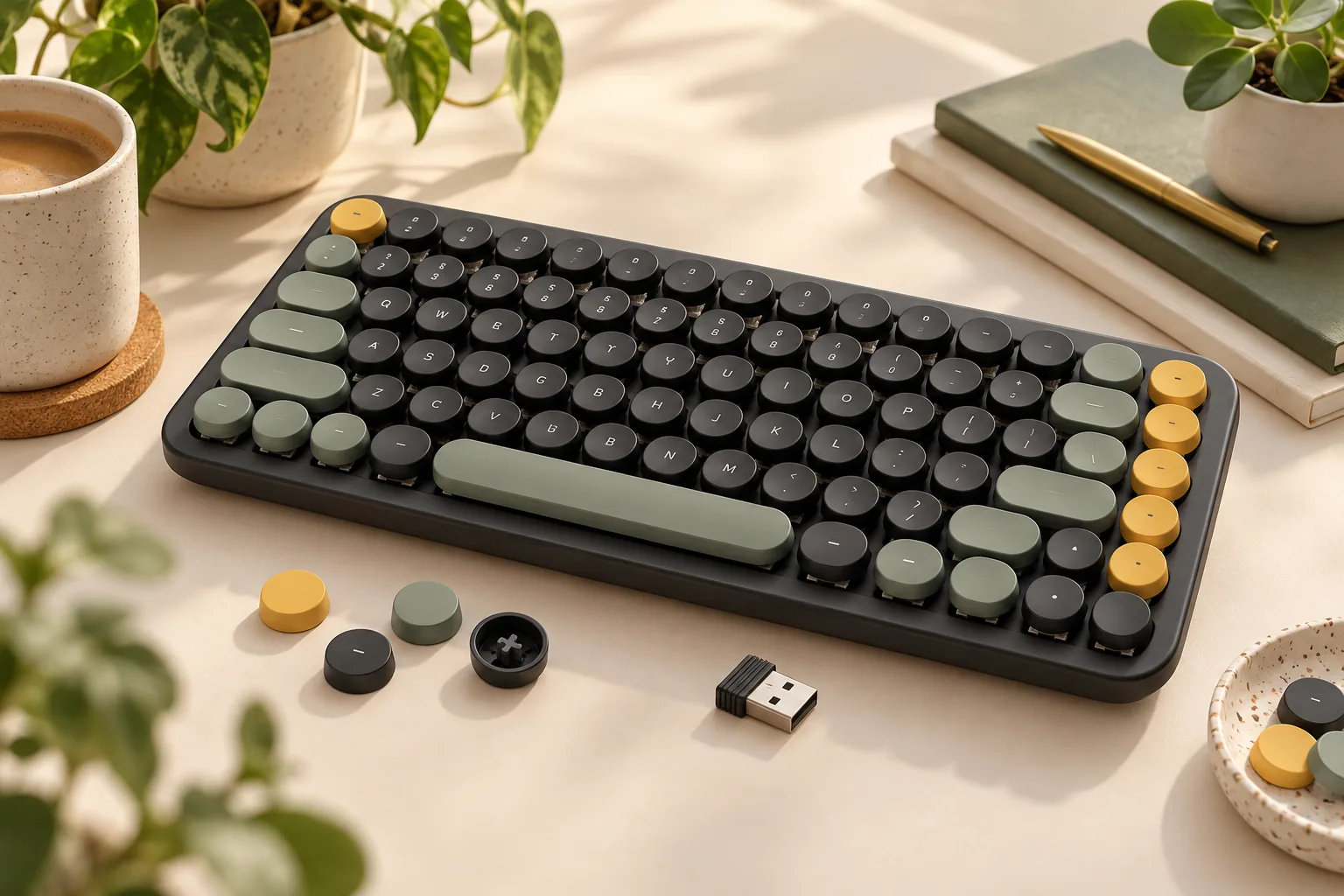
Logitech describes POP Keys as a wireless mechanical keyboard with scooped, round keys and 12 FN shortcuts. Those are useful design facts, but the company’s promotional comfort language does not establish how accurately or comfortably you will type. Treat the shape as something to evaluate personally. Logitech POP Keys product page
In his November 11, 2021, Ars Technica review, Andrew Cunningham reported making more errors with the round keys than with a typical keyboard, even after several days. That is one reviewer’s experience, rather than a forecast of your accuracy. It gives you a concrete reason to try realistic typing instead of judging the keyboard entirely by its appearance. Read Cunningham’s review
If you can try a unit, bring a short passage resembling your daily work. Include punctuation, corrections, and any shortcuts you use without looking. Ask yourself whether you can find the controls you need and return to typing without repeatedly checking the legends—the symbols printed on the keys.
Map your editing tasks before choosing assignments
Cunningham’s review also described using the emoji-position keys for functions such as Page Up and Page Down through the software available at the time. He noted the resulting mismatch between the printed emoji and the assigned action. That historical example is useful when planning a layout, but it does not verify today’s Options+ menus. Ars Technica’s software discussion
Write down the actions you reach for most: moving through a document, jumping to its beginning or end, inserting an emoji, or using a familiar shortcut. Check whether the current POP-specific software offers your intended assignment. If you change a key’s function, record both its printed symbol and its assigned action so you can judge whether the mismatch bothers you.
For example, a document editor could prioritize page movement while a frequent messenger could prioritize favorite emoji. These are configuration goals to investigate, not guaranteed current presets.
Changing an emoji cap and changing its assignment
The physical cap and the software assignment are separate steps. Logitech’s POP-specific instructions describe four extra emoji caps and explain how to replace a supplied cap. They then give a separate procedure for assigning the desired emoji in software. Official emoji customization instructions
For the supplied emoji caps, Logitech instructs you to:
- Grip the emoji cap firmly and pull it vertically upward.
- Align the chosen supplied cap with the exposed plus-shaped stem.
- Press the cap down firmly.
- With POP Keys connected, open the supported Logitech customization software.
- Select the key to reassign and choose the desired emoji from the suggested list.
Follow the model-specific support instructions when performing the change. Replacing the printed cap alone does not complete the software assignment.
Does the plus-shaped stem mean other keycaps will fit?
It does not establish full compatibility with an aftermarket set. In his 2021 review, Cunningham reported that the replacement caps he tried contacted the keyboard deck when pressed fully down. His observation supports checking clearance, rather than declaring every replacement compatible or incompatible. Ars Technica’s replacement-cap observations
If changing the entire keycap set is essential to your purchase, obtain evidence for the exact set before ordering. Logitech’s supplied-cap procedure is also not evidence that the switches themselves are hot-swappable. Keep cosmetic cap replacement and switch replacement as separate questions.
Check keyboard input, software, and emoji apps separately
A Bluetooth connection answers only part of the compatibility question. You also need to establish whether the customization software supports your computer and whether your communication app accepts the emoji you want. Logitech’s POP-specific support and its emoji compatibility FAQ address these as distinct concerns. Customization support · Application limitations
Use this worksheet for each device you intend to use:
| Check | What the documentation establishes | Your practical check |
|---|---|---|
| Basic keyboard input | The POP Keys quick-start documents Bluetooth pairing. | Confirm support for your exact host, then check ordinary text entry. |
| Customization app | Logitech’s general Options+ guide lists Windows 10 or later and macOS 12 or later. | Verify current requirements and POP Keys feature support separately. |
| Emoji assignment | POP-specific support names Windows and macOS only. | Confirm the intended assignment on your exact computer. |
| Emoji in a communication app | Logitech says proprietary app libraries can limit its Unicode emoji. | Try the specific emoji in the app where you will use it. |
Sources: POP Keys quick-start, general Options+ installation guide, POP emoji customization, and POP emoji compatibility.
Use current software guidance
The POP customization support article carries a notice that legacy Logitech Options has reached end of support. It recommends moving to Logi Options+ for supported devices. Start with that current support guidance rather than assuming instructions or screenshots from the 2021 review describe today’s setup. Logitech’s support notice
The general Options+ operating-system requirements are app requirements; they do not prove every POP Keys feature works on every eligible computer. Before buying for a work computer, ask whether you can install the required software. If customization is a deciding feature, resolve that question before paying for the keyboard.
Check the destination app
Logitech explains that POP Keys uses Unicode emoji, while communication applications may use their own proprietary emoji libraries. Consequently, some emoji may be limited in particular software. The FAQ does not provide enough readable detail to promise a complete current application compatibility matrix. Logitech’s emoji compatibility FAQ
A useful check is to assign one emoji, enter it in your intended communication app, and confirm the result before configuring the rest. Repeat that check on each computer where emoji controls matter. If ordinary typing works but an emoji does not, investigate the assignment and destination app separately rather than assuming the Bluetooth connection failed.
Bluetooth pairing: what the official guide confirms
For adding another device, Logitech’s POP Keys quick-start gives a specific discovery instruction: hold the Channel 2 Easy-Switch key for roughly three seconds until its LED starts blinking. Its Bluetooth passage then directs you to open the host’s Bluetooth preferences, select Logi POP, and expect an onscreen PIN. Official POP Keys quick-start
Use those details to begin pairing:
- Put Channel 2 into discovery mode with the long press described above.
- Open Bluetooth preferences on the device you want to connect.
- Select Logi POP and watch for the PIN prompt.
Use the host’s onscreen directions and the linked quick-start to complete the process. Afterward, check ordinary text input before moving on to emoji assignments. This keeps connection setup and feature setup manageable as separate tasks.
For a purchase decision, list every intended host and verify its POP Keys support individually. The pairing instructions alone do not establish a complete operating-system feature list or the total number of supported hosts.
Match the model, layout, color, and package
Start with the exact name POP Keys and the mechanical-keyboard description on Logitech’s product page. Keep the product identity consistent across the listing title, selected variation, and order summary.
Logitech’s US keyboard catalog identifies the Heartbreaker POP Keys version as English US (QWERTY). That is a useful reference for a US buyer, but you should still confirm the regional layout on the particular offer you select. Logitech US keyboard catalog
For historical color identification, Logitech’s June 2024 US/Canada manufacturer list maps:
- Daydream Mint: 920-010708
- Heartbreaker Rose: 920-010709
These are historical color-to-part references. They do not establish a current seller’s package, layout, availability, or terms, and the old MSRP is not a current price. June 2024 manufacturer list
A coordinated photo does not confirm bundle contents
Logitech has a separate POP Keys + POP Mouse bundle page with product selections. A matching mouse in promotional imagery is therefore insufficient evidence that a keyboard-only order includes it.
Before checkout, confirm:
- The exact POP Keys model and selected color.
- The regional layout, including US QWERTY if required.
- Keyboard-only or explicitly selected keyboard-and-mouse contents.
- The complete contents stated for that offer.
- Current price, seller, availability, and return terms.
If personal typing adaptation is your main uncertainty, pay particular attention to the return conditions. If emoji functionality is essential, finish the computer-and-app checks before ordering. A matching color scheme and a suitable working configuration deserve separate decisions.
Frequently asked questions
Will POP Keys improve my typing speed or accuracy?
There is no basis here to promise an improvement. Logitech’s description establishes round mechanical keys, while Cunningham’s 2021 review reports more errors for that reviewer. Evaluate your own writing and correction tasks before choosing POP Keys as your main keyboard. Product description · Historical review
Are the emoji controls guaranteed on every Bluetooth device?
No. Logitech’s POP-specific customization support names Windows and macOS only, and its separate compatibility FAQ describes application limitations. Successful basic keyboard input on another operating system should not be treated as proof that emoji customization works there. Check your exact host and intended app. Customization support · App compatibility
Can I change the printed emoji without changing the software?
You can replace a supplied cap physically, but that does not perform the reassignment. Logitech instructs users to connect POP Keys, select the relevant key in its customization software, and choose the desired emoji separately. Complete both steps when you want the symbol and action to match. Official instructions
Should you choose POP Keys for daily use?
Choose the Logitech POP Keys wireless mechanical keyboard if its round-key design appeals to you, its controls suit your daily tasks, and your essential software features check out. If familiar key shapes or specific editing functions are your priority, try those tasks before deciding. Use the worksheet above, then match the exact model, US layout, and package on the official POP Keys listing before comparing purchase offers.