
As an Amazon Associate we earn from qualifying purchases.
The best split mechanical keyboard for your setup should pass three checks: you can position each half where you want it, reach the keys assigned to frequent tasks, and connect it through a configuration your computer supports. Evaluate low-profile construction and wireless operation separately, then confirm the exact complete keyboard and accessories you would receive.
This guide is for US buyers comparing separate keyboard halves, thumb-key layouts, replacement parts, and connection choices. ZSA Voyager and Dygma Defy provide documented examples for those decisions.
Quick takeaways
- Consider Voyager when low-profile construction is a priority and a wired arrangement fits your desk.
- Consider the wireless-equipped Defy when its RF or Bluetooth arrangement meets your needs.
- Judge thumb keys by reachable assignments and actual tasks.
- Confirm switches, keycaps, software requirements, and selected accessories before comparing total cost.
Editorial method: These comparisons use excerpts of official manufacturer pages captured October 15, 2026. They are research-based recommendations; neither keyboard was tested for this article. The linked manufacturer pages are the next step for checking your selected configuration.
On this page: Separate halves · Thumb keys · Connections · Low-profile parts · Software · Buying worksheet · FAQs
Start with independently positioned halves
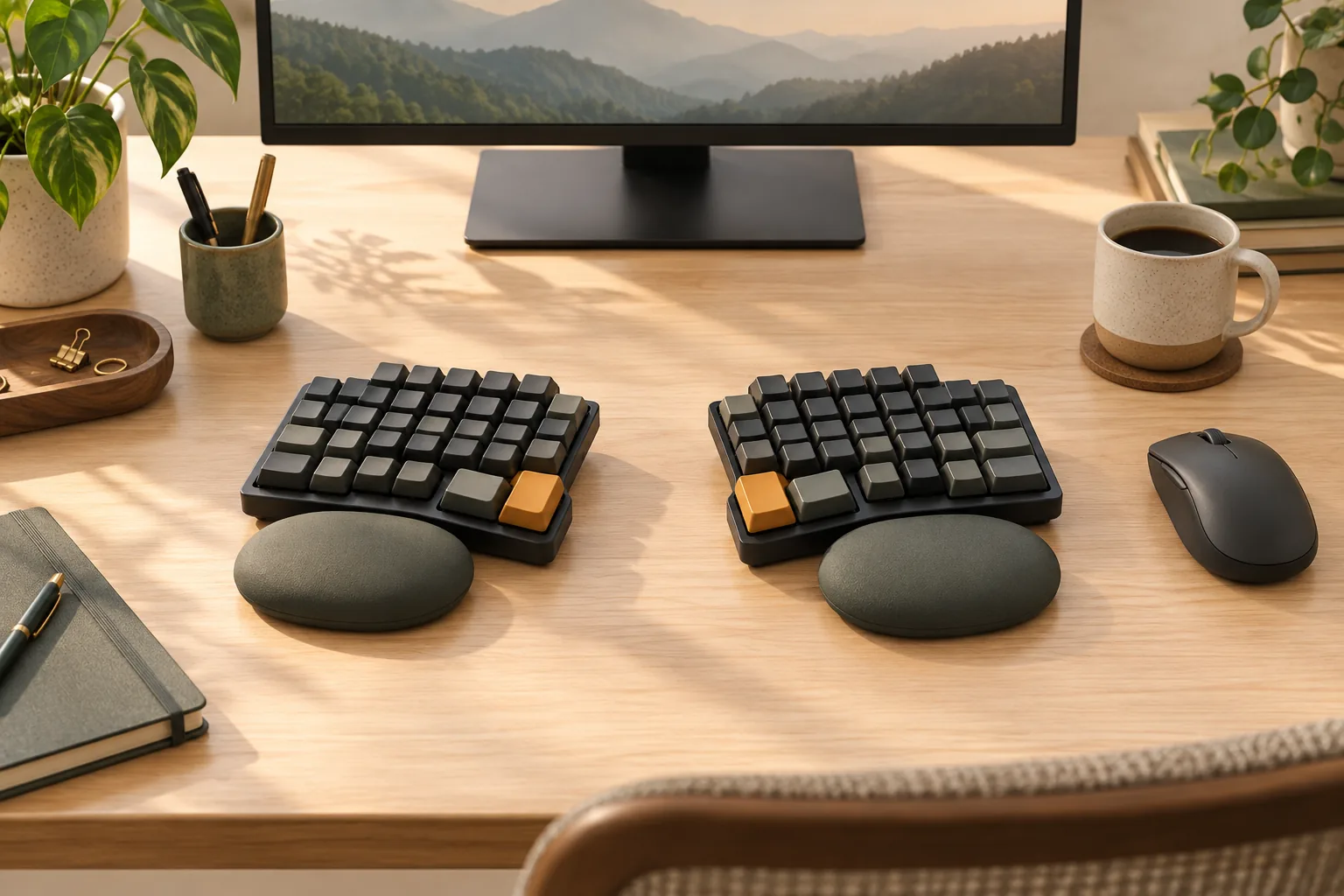
For this buying guide, a true split mechanical keyboard has separate left and right sections that you can position independently. Treat the physical separation, key layout, and connection system as separate decisions: first establish where each hand will sit, then check the keys and cables required to use the keyboard there.
Start with your actual desk. Where will the halves sit while you type, and where will your mouse or other pointing device go? Sketch that arrangement before choosing cables or adjustment accessories. If the Alice-style keyboard you are considering occupies one case, evaluate it separately from your requirement for independently positioned halves.
The two examples address different priorities. ZSA describes the Voyager as a low-profile split mechanical keyboard with 52 keys and hot-swappable switches. Dygma describes the Defy as a split columnar keyboard with 16 thumb keys and programmable layers. Columnar describes the arrangement of keys in columns. Those specifications help establish a shortlist; your required mappings and connections determine which example deserves a closer look. ZSA Voyager · Dygma Defy
Choose thumb keys around your work
Make a list of what you need to do before deciding how many physical keys you need. Include ordinary typing, editing, navigation, numbers, symbols, and application shortcuts. Mark which actions you use frequently and which you would accept on a secondary layer.
A layer is an alternate set of key assignments that you access through a configured key action. Dygma documents programmable layers and thumb-key assignments for actions such as Space, Enter, Backspace, and modifiers on the Defy. That makes it a useful example for planning how physical keys and alternate mappings could divide your work. Defy layout and programming features
Try a task sequence, not just individual keys
During a demonstration or permitted trial, place both halves where you intend to use them. Find the thumb positions you can press without moving your hand away from its typing position. Treat distant positions as candidates to evaluate rather than automatically assigning essential actions to them.
For example, imagine an editing workflow that repeatedly selects text, copies it, moves the cursor, pastes, and deletes a mistake. Write down where each action would live. If a proposed navigation layer requires holding a thumb key, try that hold while completing the whole sequence, including the modifiers your application needs.
This is a proposed mapping exercise, not a claim that either keyboard ships with that arrangement. Verify the required behavior in the relevant configurator. You can also leave some thumb positions unused if your trial shows that a smaller set of assignments suits your hands.
Dygma's documented 16-thumb-key feature establishes the available layout feature. It does not establish which positions you personally find comfortable or how quickly you will learn a mapping. Use the feature count to plan a trial, then make your decision from the assignments you can actually use. Dygma Defy
Compare each wired and wireless link
For a wireless split mechanical keyboard, write down every connection separately. Identify how each half communicates, where any controller or receiver sits, how the computer receives input, and what the instructions require for power or charging. This prevents a broad “wireless” label from leaving an essential connection unexplained.
The following table compares only the documented arrangements. It is a connection guide, not a latency or reliability ranking.
| Example or mode | Halves and controller | Connection to the computer | What to confirm |
|---|---|---|---|
| ZSA Voyager, wired example | ZSA lists an included interconnect cable | ZSA lists three included USB-C cables for its wired arrangement | Selected cable package and routing for your desk |
| Dygma Defy, wired | Both halves connect by cable to Neuron | Neuron connects to the computer | Instructions and cables for the selected version |
| Wireless-equipped Defy, RF mode | Each half sends an RF signal directly to Neuron | Neuron remains connected to the computer | Wireless option and placement of Neuron |
| Wireless-equipped Defy, Bluetooth mode | Neuron moves to a compartment underneath the keyboard | Neuron serves as the Bluetooth transmitter | Exact revision's setup, inter-half communication, and pairing instructions |
Sources: ZSA's cable description, Dygma's Defy setup guide, and Dygma's wireless-version FAQ.
Voyager: plan around the wired package
ZSA's captured description lists an interconnect cable and three USB-C cables. It also identifies a magnetic tripod mount as optional. Use that distinction when checking an order: included cables and optional mounting hardware belong on separate lines in your shopping list. Voyager package and accessory description
Defy: distinguish RF from Bluetooth
Dygma's setup description explains that, in RF mode, both halves transmit to Neuron while Neuron stays connected to the computer. Its Bluetooth setup instead places Neuron underneath the keyboard and uses the physical wireless setting. Moving between these arrangements involves the controller's location as well as the selected connection mode. Defy setup guide
Dygma also expressly confirms wired fallback for the wireless version: both halves connect to Neuron, and Neuron connects to the computer. Confirm that this matches the version you are ordering. Follow its matching instructions before changing cables, power connections, or physical modes. Defy wireless-version FAQ
Keep power and charging on a separate checklist. Ask which components need charging, what connections are permitted, and what the documented procedure requires. The connection descriptions here do not establish a charging routine or battery runtime.
Check low-profile parts before planning swaps
If a low profile split mechanical keyboard is your priority, Voyager is a documented example: ZSA identifies its low-profile mechanical construction and hot-swappable switches. That description supports considering it for this requirement; it does not establish compatibility with a particular replacement switch or keycap set. ZSA Voyager
Before purchasing replacements, obtain answers for the exact board revision and proposed parts:
- Switch: What manufacturer, family, and generation does the keyboard require?
- Socket: Does the manufacturer expressly support the proposed replacement switch?
- Keycap: Does its mount match the switch, and do its dimensions and spacing suit the board?
- Special positions: Are the required thumb-key shapes and any stabilizer arrangements covered?
- Procedure: Which model-specific removal and installation instructions apply?
Keep the original switch selection and future replacement plans separate. First choose a complete keyboard with the parts you want to use immediately. Then verify a specific replacement path if repair or customization is a buying requirement.
Ask support to confirm the exact replacement part, rather than asking only whether the keyboard is “hot-swappable.” A useful answer should name the part you intend to buy and the keyboard version it will fit. Follow the matching instructions before replacing switches.
Verify configuration and computer requirements
Check the software workflow before committing to a layout that depends on remapping. For each candidate, verify how to create a mapping, apply it to the keyboard, and restore a working configuration. Confirm the current requirements for your operating system and the tools used to configure or update the board.
Separate configuration access from ordinary use in your questions. On a managed work computer, ask whether you can use the required application, browser features, or device permissions. If you plan to configure the keyboard elsewhere, ask whether your intended setup supports that workflow.
For a wireless-equipped model, verify the selected revision's supported host arrangements and device-switching procedure. Also check whether configuration or firmware updates require a particular connection mode. These are purchase questions to resolve with current documentation; the captured evidence does not establish a complete operating-system or firmware compatibility matrix.
Best split mechanical keyboard buying worksheet
Use this worksheet for each exact configuration you are considering. Record the seller's answers or matching documentation beside each item. Resolve essential unanswered questions before treating a candidate as ready to order.
| Decision | Record before buying | Reason to pause |
|---|---|---|
| Complete keyboard | Assembled board, exact model, revision, layout, switches, and keycaps | The listing leaves required components unspecified |
| Hand placement | Intended half positions and cable routes | Your planned arrangement has not been checked |
| Thumb workflow | Locations for frequent actions, modifiers, and layer access | An essential action depends on an untried reach or combination |
| Connections | Every half, controller, receiver, and computer link | “Wireless” is the only connection description |
| Power | Matching power and charging instructions | The procedure is being inferred from another model |
| Replacement parts | Explicitly supported switches and keycaps | Compatibility rests on a broad family label |
| Adjustment accessories | Selected tenting, mounting, and palm-support options | A pictured accessory is absent from the order details |
| Software | Configuration and update requirements for your computers | Required permissions or tools are unavailable |
| Trial and total cost | Applicable terms, required extras, and possible return costs | The trial or complete cost remains unclear |
Only after those requirements are settled should you compare current prices. For a US order, check the exact seller, item condition, shipping charges, taxes, applicable return window, return shipping responsibility, and any restrictions on configured products or accessories. Obtain the terms that apply to your selected order rather than relying on a general promotional statement.
For Voyager, keep the documented included cables separate from the optional tripod mount. For Defy, explicitly confirm the wireless and adjustment options on the configuration you select. The official pages are useful starting points for those checks. Voyager · Defy
Frequently asked questions
Should I prioritize low-profile construction or wireless operation?
Start with whichever requirement your desk or workflow makes essential. Voyager provides a documented low-profile wired example; the wireless-equipped Defy provides documented RF and Bluetooth arrangements. Evaluate the remaining requirements separately, including thumb reach, replacement parts, and software. These examples do not establish a winner for every buyer. Voyager · Defy setup
Does a larger thumb cluster make a keyboard a better choice?
Use your required assignments and a reach trial to decide. Dygma documents 16 thumb keys on the Defy, but that count does not demonstrate personal fit. Try the positions needed for your frequent actions, including held keys and combinations, before making unused positions part of the buying argument. Dygma Defy
Can the wireless Defy also work through cables?
Yes. Dygma's wireless-version FAQ confirms wired operation by connecting both halves to Neuron and Neuron to the computer. Verify the instructions and included cables for the exact version you select. This confirms a documented fallback arrangement without establishing every power, charging, or firmware behavior. Defy FAQ
Make your final choice
Choose the best split mechanical keyboard by completing the worksheet for your exact configuration. Put Voyager on your shortlist when its documented low-profile wired design matches your priorities. Investigate the wireless-equipped Defy when its connection choices and programmable thumb layout suit your planned workflow.
Your next step is to open the relevant official page and resolve the worksheet's essential unanswered items. A usable mapping, a confirmed connection arrangement, and a complete order specification provide a practical basis for choosing.