As an Amazon Associate we earn from qualifying purchases.
Choose a Corsair mechanical keyboard by matching the complete model name and regional SKU—the product code identifying the configuration—to the layout, switches, included hardware, and controls you need. Start with dedicated keys, then check the package and software documentation. The family number alone is insufficient: CORSAIR documents three different layouts under K65. See CORSAIR’s K65 comparison.
This guide is for shoppers narrowing a Corsair shortlist before investigating an exact model. It explains naming and configuration choices; detailed gaming judgments and replacement-part compatibility require the selected model’s documentation.
Editorial method: This guide uses CORSAIR documentation captured October 15, 2026. Recommendations reflect documented features. No hands-on testing or performance measurements were conducted.
Quick takeaways
- Choose the dedicated keys you need before comparing switch specifications.
- Record the full name, edition, and regional SKU together.
- Check included parts separately from optional upgrades.
- Confirm both how you configure a function and whether it remains available without software running.
In this guide
- Decode the complete name
- Choose the required keys
- Identify switch technology
- Check the package
- Understand control modes
- Build your shortlist
- Frequently asked questions
Decode the complete model name
Treat each part of the listing as a field to verify. A family label such as K65 is a starting point; the complete names K65 PLUS WIRELESS, K65 PRO MINI, and K65 RGB MINI identify substantially different keyboards. CORSAIR’s comparison assigns them different layouts and switch options. Source: K65 naming guide.
Keep these details together when saving a candidate:
- Family and full model: Copy the entire name, including PLUS, PRO MINI, RGB MINI, MAX, or WIRELESS where present.
- Edition: Record the selected edition rather than relying on a page’s general heading.
- Regional SKU: Save the exact product identifier alongside the stated keyboard layout.
For example, CORSAIR’s page for CH-91D401L-NA identifies a North American layout and CORSAIR MLX Red switches. Those facts belong to that product code; keep them attached to it when comparing other editions. Source: exact K65 PLUS WIRELESS product page.
Use suffixes as prompts for further checking. Avoid creating a brand-wide rule from one example: the relevant question is what the complete name means on the exact product page you are considering.
Choose a Corsair mechanical keyboard by the keys you need
Layout is an effective first filter because the documented K65 variants retain different dedicated keys. Here, the percentage describes the layout category; it should not be read from the family number. CORSAIR’s K65 guide provides this comparison:
| Complete model | Documented layout | Dedicated arrow keys | Dedicated function row | Selection condition |
|---|---|---|---|---|
| K65 PLUS WIRELESS | 75% | Yes | Yes | Start here if arrows and a function row are requirements. |
| K65 PRO MINI | 65% | Yes | No | Consider it if arrows matter and a dedicated function row does not. |
| K65 RGB MINI | 60% | No | No | Consider it only if you can work without both dedicated groups. |
Source: CORSAIR’s K65 layout comparison.
For example, if you require dedicated arrows and function keys for your daily shortcuts, the PLUS meets that layout condition among these three examples. If you require arrows but rarely use function keys, the PRO MINI remains a candidate. These are layout recommendations, without an implied ranking of typing quality or gaming performance.
Before choosing a model that removes dedicated keys, open its manual and check how your essential commands are accessed. Write down the actual commands you need rather than assuming every compact layout uses the same shortcuts.
Identify the switch technology explicitly
Keep switch feel and input sensing in separate fields. A description such as linear concerns the switch’s action, while optical or magnetic identifies how input is detected. CORSAIR’s own examples include OPX optical linear switches, illustrating why “linear” alone does not identify the sensing technology. Source: K65 switch comparison.
Use these named examples to recognize the distinctions:
- Conventional mechanical examples: The K65 guide names CORSAIR MLX linear switches for PLUS and Cherry MX options for RGB MINI. For RGB MINI, the guide states that Cherry MX availability differs between the white and black versions. Source: K65 guide.
- Optical example: The same guide identifies CORSAIR OPX optical switches for K65 PRO MINI. Source: K65 guide.
- Contact and magnetic examples: CORSAIR’s K100 RGB comparison lists OPX optical or Cherry MX Speed variants, with options varying by region. It describes Cherry MX Speed’s copper-contact operation and identifies K70 MAX’s MGX switches as magnetic. Source: K100 RGB and K70 MAX comparison.
These examples establish different technologies within the range. They do not establish a performance winner or prove that switches can be exchanged between models. For a replacement purchase, move to documentation covering the exact keyboard edition and proposed part.
Check whether the package is a complete keyboard or a kit
Compare what you will receive before comparing configurations. A product’s documentation may describe optional components alongside the base keyboard, so a feature appearing in a manual does not by itself establish that the selected package includes its hardware.
An exact K65 package example
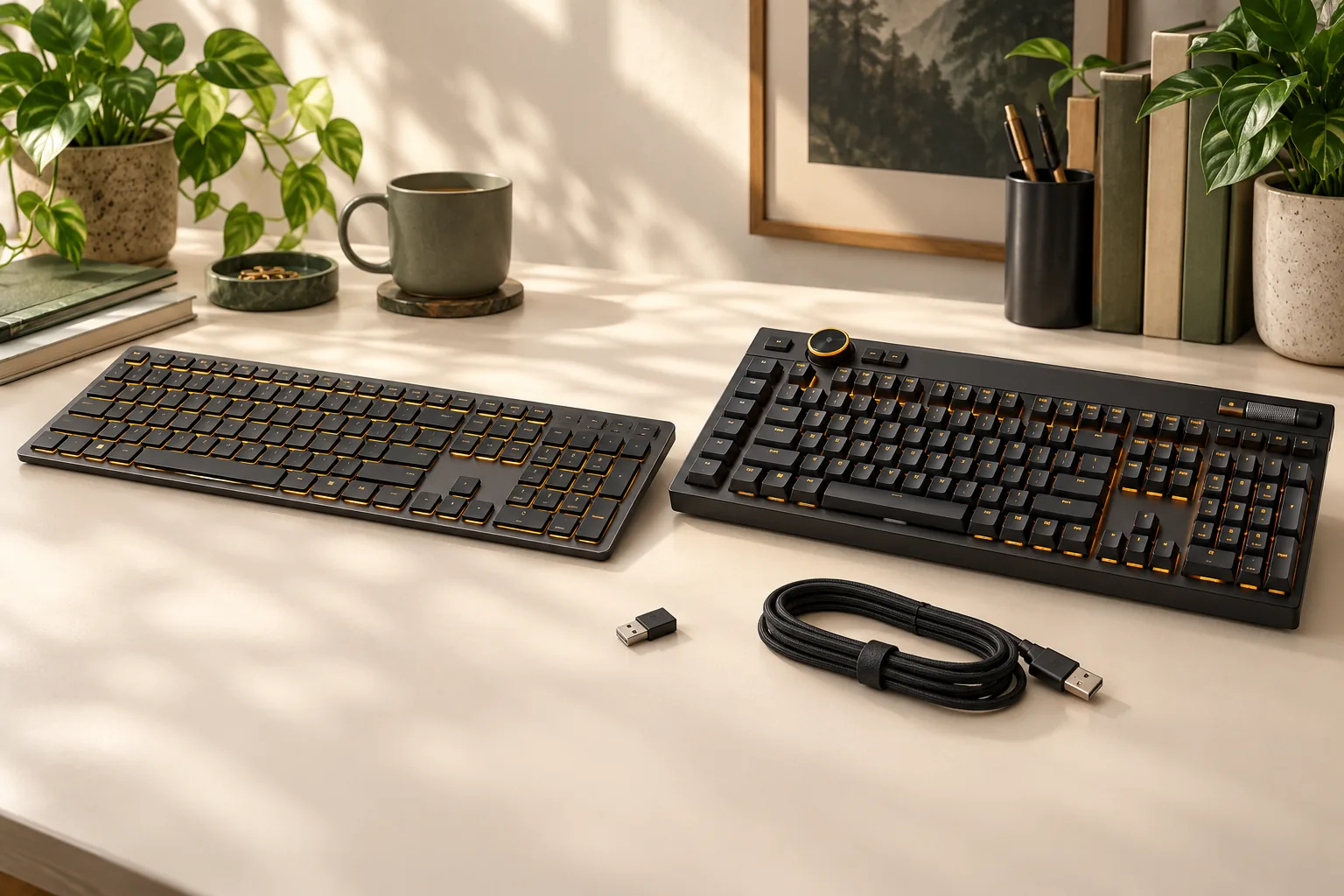
CORSAIR lists the following contents for K65 PLUS WIRELESS CH-91D401L-NA:
- Keyboard
- USB wireless receiver
- USB charging/data cable
- Warranty card
- Combined switch/keycap puller
The same page identifies MLX Red switches, a North American layout, support for iCUE (CORSAIR’s control software), and four onboard profiles. This is a documented package example for that SKU. Source: CH-91D401L-NA specifications and contents.
A MAKR 75 configuration check
The MAKR 75 manual describes a 75% DIY keyboard and a barebones edition, with separate MLX mechanical switch and keycap options. It explicitly makes wireless operation conditional on the MAKR 75 Wireless Module being installed. Source: MAKR 75 manual.
For a MAKR 75 listing, establish whether switches and keycaps are included and whether the wireless module is included and installed. Keep “available as an option,” “included in this package,” and “installed” as separate answers. A combined manual’s wireless section cannot settle those package questions for you.
At checkout, match the seller’s selected configuration to your notes. Verify current price, condition, contents, and applicable return terms there; this guide does not establish a current offer.
Separate iCUE control from saved onboard settings
Ask two questions about every required function: Where do I configure it, and what must remain running for it to work? Onboard storage is memory inside the keyboard that holds supported profiles and settings. CORSAIR’s MAKR 75 manual provides a useful, model-specific explanation of how that differs from software control. Source: MAKR 75 operating modes.
| MAKR 75 mode | Documented operating condition | Where control or settings come from |
|---|---|---|
| Hardware mode | iCUE is not running, or the connected device does not support iCUE | Profiles and settings saved in onboard storage |
| Software mode | iCUE is running on a PC or Mac | Running iCUE controls the keyboard |
| Web-based mode | iCUE is not running and CORSAIR Web Hub is used | Browser configuration with profiles and settings in onboard storage |
Source: MAKR 75 operating modes and software overview. These mode descriptions apply to MAKR 75; check another model’s documentation separately.
Editing a setting and saving it are different steps
The MAKR 75 manual distinguishes software settings from Device Memory Mode settings. Its Device Memory Mode table specifies manual saving for onboard memory and automatic saving for software mode. Automatic saving in software mode therefore should not be treated as confirmation that a setting has been saved to the keyboard. Source: MAKR 75 Device Memory Mode section.
For a required MAKR 75 function, use this verification sequence:
- Find the function in the manual’s relevant control and memory sections.
- Confirm whether its required behavior is documented for hardware mode.
- Configure it in Device Memory Mode and perform the documented manual save.
- Close iCUE and verify the behavior in your intended setup.
For a shared computer where you cannot leave iCUE running, make documented hardware-mode behavior a selection requirement. If browser configuration matters, verify the selected keyboard’s Web Hub support and the requirements for your system. The MAKR 75 example does not establish universal Web Hub support or identical features across operating systems, browsers, and firmware versions.
Use a documented-or-unknown shortlist worksheet
Create one copy of this worksheet per exact configuration. Mark each answer documented, unknown, or does not meet my requirement. An unknown answer is a research task, rather than permission to fill the field from a related model.
| Field | What to record | Evidence to seek |
|---|---|---|
| Identity | Full model, suffix, edition, regional SKU | Matching product page |
| Layout | Required dedicated keys and regional layout | Model guide and exact SKU specifications |
| Switches | Exact switch name, sensing type, stated feel | Selected variant specifications |
| Connection | Your intended connection and necessary hardware | Exact manual and package contents |
| Build contents | Keyboard or kit; switches and keycaps included or separate | Selected package list |
| Optional hardware | Module included, installed, or still required | Configuration details |
| Configuration method | iCUE, documented Web Hub support, or hardware controls | Exact manual |
| Required function | Behavior with software running and after it closes; save procedure | Mode and device-memory documentation |
Worked example: Suppose you need dedicated arrows, a function row, and a North American layout. K65 PLUS WIRELESS meets the first two layout conditions, and CH-91D401L-NA documents the regional layout. Its product page also lists four onboard profiles. Sources: K65 layout guide and exact SKU page.
That makes it a candidate. It does not settle whether a particular custom action works without iCUE: keep that worksheet field unknown until the exact model documentation answers it.
Frequently asked questions
Does K65 mean a 65% keyboard?
No. CORSAIR’s comparison identifies K65 PLUS WIRELESS as 75%, K65 PRO MINI as 65%, and K65 RGB MINI as 60%. Read the complete name and documented layout together. Within these examples, PLUS retains arrows and a function row, while the MINI variants remove different dedicated key groups. Source.
Can a Corsair keyboard work without iCUE running?
MAKR 75 is documented to use hardware mode and saved onboard settings when iCUE is absent. The useful follow-up is whether your specific function is supported in that mode and saved correctly. Check the exact keyboard manual before extending this behavior to another Corsair model. Source.
Can I replace optical switches with magnetic switches?
The comparisons used here do not establish that replacement compatibility. CORSAIR identifies OPX as optical and K70 MAX’s MGX as magnetic, but those labels do not approve a cross-technology swap. Find explicit compatibility documentation for the exact keyboard edition and proposed replacement before buying parts. Source.
Choose the exact configuration
The right Corsair mechanical keyboard shortlist begins with required keys, then records the full model, switches, package, and control requirements. Keep every documented fact attached to its exact variant. Open the matching official product page or manual linked above, complete the worksheet, and resolve any unknown that affects your purchase before proceeding.