As an Amazon Associate we earn from qualifying purchases.
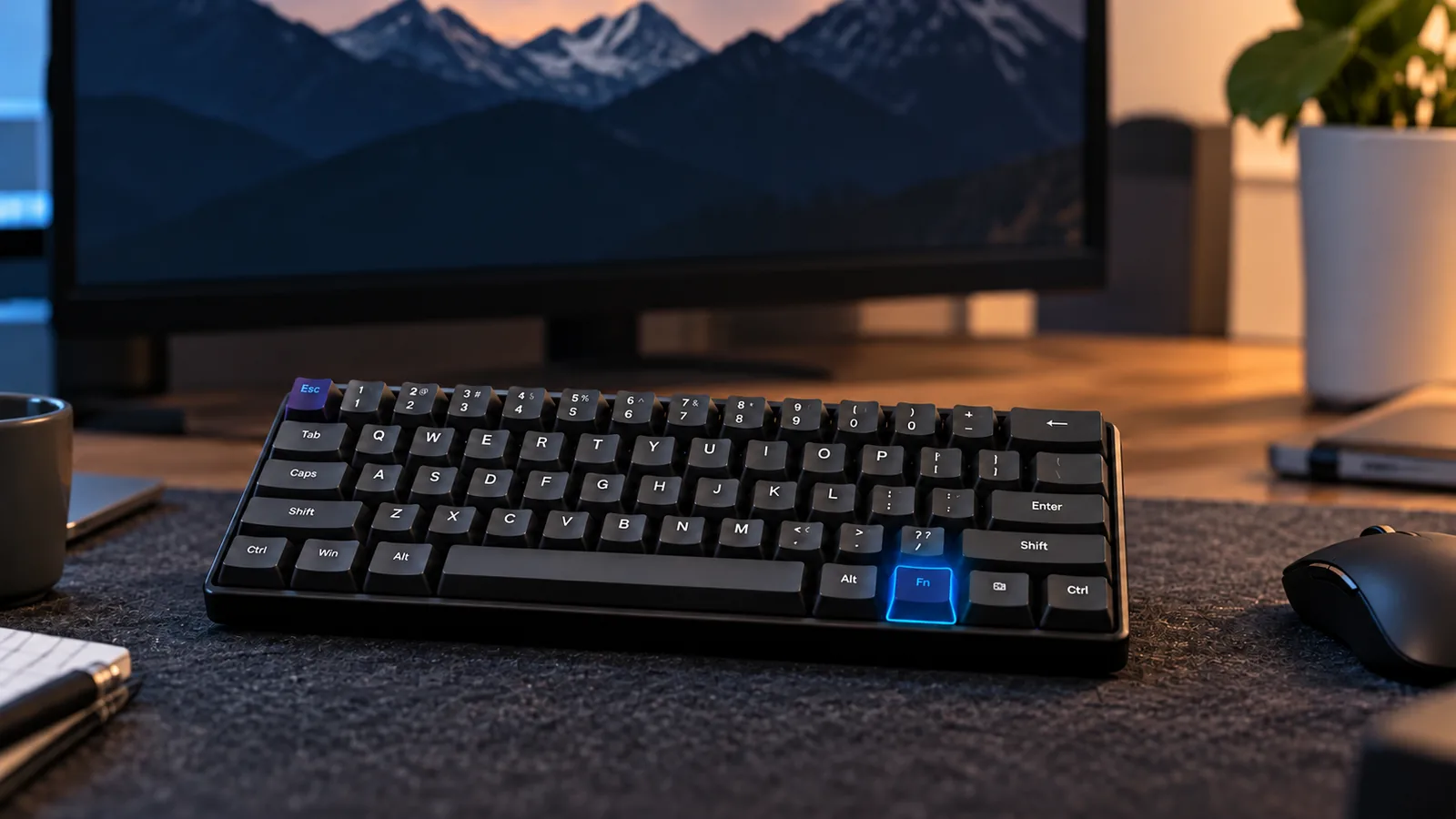
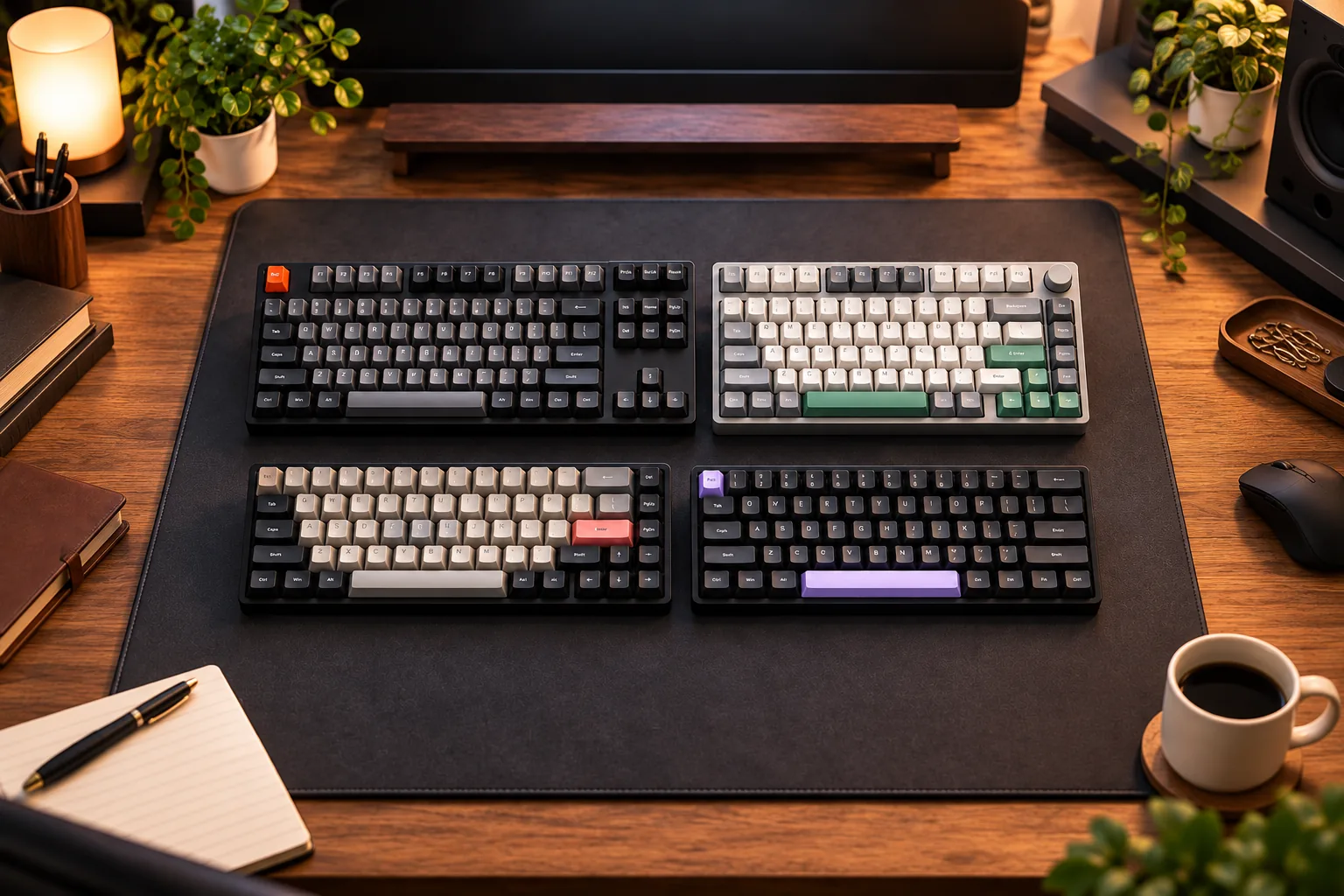
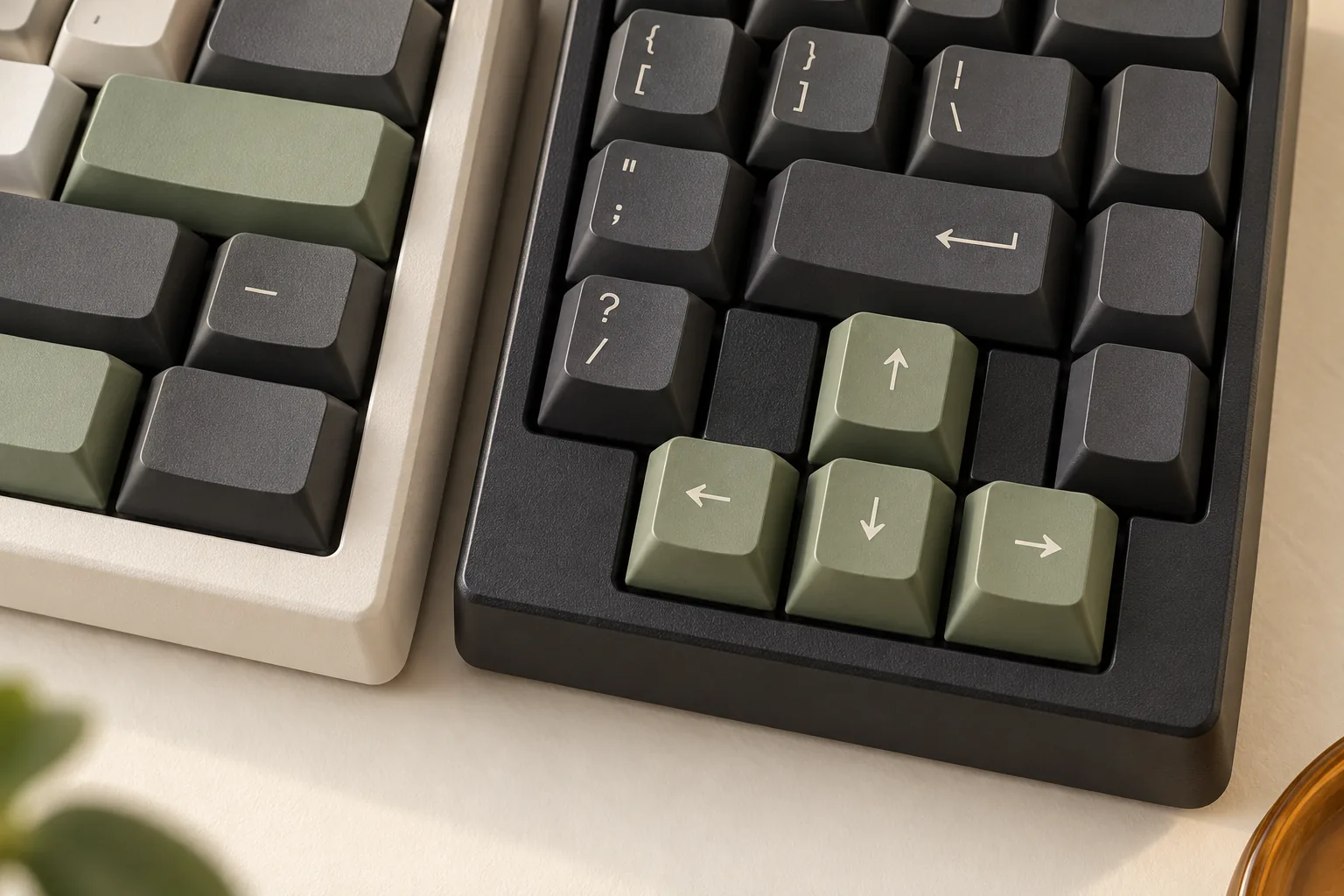
Choose a 65% mechanical keyboard if dedicated arrow keys and retained navigation keys are priorities. Choose a 60% mechanical keyboard if you prefer fewer physical keys and can account for your essential commands through its documented shortcuts. For example, Corsair’s K65 RGB MINI places arrows on Fn combinations, while Razer’s BlackWidow V3 Mini HyperSpeed retains physical arrows and selected navigation keys. Those differences matter more than the percentage label. (Corsair quick-start excerpt, Razer product excerpt)
This guide is for gamers who also edit text, use spreadsheets, or depend on keyboard shortcuts. It compares key access using manufacturer information captured on October 15, 2026. The recommendations come from documentation, without hands-on performance testing.
Quick takeaways
- Favor dedicated arrows when you want direct access during frequent editing or game actions.
- Consider 60% when every essential action has a documented shortcut you are comfortable using.
- Check function keys separately: dedicated arrows do not establish whether a keyboard has a dedicated function row.
- Before remapping, verify simultaneous inputs, saved profiles, and how to restore an overwritten command.
On this page: Layout differences · 60% shortcuts · Gaming worksheet · Profiles and remapping · Buying checklist · FAQs · Your choice
Layout differences in named mechanical keyboards
A layout’s practical value comes from which commands have physical keys and which require shortcuts. A function layer is an alternate set of commands accessed through the Fn key. The K65 RGB MINI’s documented Fn arrows and the BlackWidow V3 Mini HyperSpeed’s dedicated arrows illustrate the distinction. (Corsair quick-start excerpt, Razer product excerpt)
For a conventional mechanical comparison, consider these specific examples. Corsair identifies the NA K65 RGB MINI, part CH-9194010-NA, as a wired 60% keyboard with 61 keys and Cherry MX Red mechanical switches. Razer identifies the BlackWidow V3 Mini HyperSpeed as a 65% mechanical keyboard with arrows and Del, PgUp, PgDn, and Ins. (Corsair product information, Razer product excerpt)
| Key-access question | Corsair K65 RGB MINI NA, 60% | Razer BlackWidow V3 Mini HyperSpeed, 65% |
|---|---|---|
| How do I access arrows? | Documented Fn + U/H/J/K combinations | Dedicated arrow keys |
| How do I access Delete? | Fn + Backspace | Dedicated Del key |
| How do I access Page Up and Page Down? | Fn + P and Fn + semicolon | Dedicated PgUp and PgDn keys |
| Is there a dedicated function row? | F1–F12 are documented through Fn + numeric keys | Razer explicitly says there is no function row; verify its exact F-key shortcuts |
| What about Home and End? | Fn + left bracket and Fn + apostrophe | Check the model’s documentation; neither appears in the retained-key list cited here |
The table uses the Corsair quick-start excerpt and Razer’s official product excerpt. Treat each entry as model specific.
For frequent arrow use, the Razer example offers the direct physical access you are looking for. For occasional navigation, the Corsair example gives you documented alternatives to evaluate. If your work depends on Home, End, or function keys, inspect those commands individually before deciding that a 65% layout meets your needs.
How a 60% mechanical keyboard accesses missing keys
Start with the actual shortcut list. The official NA K65 RGB MINI quick-start excerpt documents these combinations; check the legends for your regional version. (Corsair quick-start excerpt)
| Command | Documented K65 RGB MINI shortcut |
|---|---|
| Up arrow | Fn + U |
| Left arrow | Fn + H |
| Down arrow | Fn + J |
| Right arrow | Fn + K |
| F1–F12 | Fn + numeric key, following the keyboard’s legends |
| Delete | Fn + Backspace |
| Home | Fn + left bracket |
| End | Fn + apostrophe |
| Page Up | Fn + P |
| Page Down | Fn + semicolon |
These mappings give you a concrete way to judge the layout. If you regularly reach for Page Up while reading, locate Fn and P on the candidate keyboard. If you use arrows constantly, consider whether those combinations suit your routine before committing to the smaller physical key inventory. If these compromises do not fit your routine, compare other layouts with the keyboard size and footprint guide.
Corsair also documents two function layers on this exact RGB MINI product, with macro assignments on Fn + key or Fn + Fn2 + key. That provides additional assignment options, but it does not establish that another keyboard uses the same layers or controls. (Corsair product information)
Separate the shortcut from its behavior. Knowing which combination produces an arrow does not answer whether a layer is momentary, toggled, or latched, or how it interacts with other held keys. Resolve those questions through the exact model’s instructions or a practical check before relying on them.
Check your gaming bindings and daily navigation
For a mechanical gaming keyboard in a 60% layout, audit the actions you actually use. Include gameplay, menus, and any shortcuts you need while another key remains pressed. A command that works alone still needs checking in the combination your game requires. Use the simultaneous-key registration checks to record and verify the combinations you need.
Use this worksheet for each candidate. The Corsair examples below come from its documented shortcut excerpt; the final column describes checks to perform, not verified gaming results.
| Action to inventory | Documented 60% example | What to verify for your use |
|---|---|---|
| Move through text or menus | K65 RGB MINI: Fn + U/H/J/K | Can you reach the required arrow combination comfortably? |
| Select text with modifiers | Start with the documented arrow shortcut | Does the full combination work with your required Shift or Ctrl input? |
| Trigger an F-key binding | K65 RGB MINI: Fn + numeric key | Can you trigger it while maintaining any required movement or modifier? |
| Delete an item or character | K65 RGB MINI: Fn + Backspace | Does it produce the intended command in the application or game? |
| Use Page Up or Page Down | K65 RGB MINI: Fn + P or semicolon | Is direct access important enough to favor retained navigation keys? |
| Use a remapped command | Record the proposed assignment | Does it preserve the original action, and does it persist in the required profile mode? |
Work through a combined gaming action
Suppose you bind an action to an F-key and need it while holding a movement key. Write down the complete input sequence, including the keyboard’s Fn combination. Then verify whether the movement input continues as intended and whether the game receives the desired F-key.
If you cannot verify that combination, leave it unresolved in your comparison. Try an available in-game binding alternative or choose a candidate with a documented path you can confirm. Do not assume that dedicated arrows settle an unrelated F-key requirement.
Include the work between games
Now consider a hypothetical routine involving text selection, Home/End, and Page Up/Down. Check each command against the candidate’s map, then identify which ones you want on physical keys. The Razer example retains arrows and selected navigation keys, while the Corsair RGB MINI documents the listed commands through Fn combinations. (Razer product excerpt, Corsair quick-start excerpt)
Mark each action as direct key, documented shortcut, or unresolved. Give the greatest weight to actions you use frequently or must combine with other inputs. This makes your layout choice specific to your routine.
Check profiles and remapping before changing keys
The Corsair K65 PRO MINI offers a useful behavior example, with an important distinction: part CH-91A401A-NA is a wired 65% keyboard with 67 keys and Corsair OPX optical switches. Corsair explicitly lists arrow and utility keys. Keep this optical model separate from the Cherry MX Red RGB MINI and the Razer mechanical example when comparing switch technology. (Corsair PRO MINI product information)
Similar names do not establish identical shortcuts
The PRO MINI manual documents Fn + numeric keys for F1–F12, Fn + P for Print Screen, Fn + left bracket for Home, Fn + apostrophe for End, and Fn + semicolon for Pause. Notice that Fn + P and Fn + semicolon have different documented functions from those on the RGB MINI. (PRO MINI manual, RGB MINI quick-start excerpt)
That difference is a reason to keep the exact manual beside your worksheet. Avoid transferring shortcuts between products because their names look similar.
Verify the mode in which an assignment must work
The PRO MINI operates in software mode while iCUE is running. When iCUE is not running, it uses profiles and settings saved in onboard hardware storage. Its manual specifies 8 MB of storage and says profile capacity varies with content complexity; the product page’s “up to 50” profiles is a limit, not a promise of 50 complex profiles. (PRO MINI manual, product information)
Before depending on an assignment, check it in the mode you intend to use. Record the original mapping, make one change, and confirm the command with the software running and closed if both situations matter to you. This is a verification procedure, not a claim that every assignment behaves identically in both modes. The model-specific keyboard software guide provides the checks for finding the right tool and preserving settings.
Preserve a recovery path
The PRO MINI manual warns that saving a macro to an existing key or shortcut overwrites its function until cleared. It also says hotkeys cannot be overwritten through onboard macro recording. Read those restrictions before choosing an assignment target. (PRO MINI manual)
Keep factory reset separate from ordinary layer use. The documented PRO MINI reset involves holding Esc while connecting USB and releasing Esc after two seconds; it restores factory defaults and removes custom settings. Use it only as a deliberate recovery action after accounting for settings you need to preserve. (PRO MINI manual)
Verify the exact keyboard before ordering
Use the official product pages and manuals linked above to finish these checks:
- Identity: Match the full model, part number, regional layout, and switch technology to the selected listing.
- Key access: Confirm arrows, F-keys, Delete, Home/End, and page navigation against your worksheet.
- Layer behavior: Resolve any required hold, toggle, exit, or simultaneous-input behavior for the exact keyboard and firmware.
- Saved assignments: Confirm how required mappings are stored and what happens without configuration software.
- Physical fit: Check actual dimensions against your desk. Avoid calculating space savings from the percentage labels.
- Order details: Review the selected seller, condition, included pieces, delivered cost, and applicable return and warranty terms at checkout.
If replacement parts matter to your purchase, verify their fit separately. A layout percentage is not enough information to approve a keycap set or switch replacement. Keep that check tied to the exact keyboard and replacement part. For keycaps, use the keycap compatibility checklist to verify mounting, layout coverage, and clearance.
Frequently asked questions
Do all 60% keyboards use the same arrow shortcuts?
Do not assume a shared arrow map. The NA Corsair K65 RGB MINI documents Fn + U/H/J/K for up, left, down, and right. Those are useful examples for that keyboard; use another candidate’s own manual and regional legends to establish its controls. (Corsair quick-start excerpt)
Does a 65% keyboard give me dedicated function keys?
Dedicated arrows do not establish a dedicated function row. Razer explicitly describes the BlackWidow V3 Mini HyperSpeed as retaining arrows while omitting the function row, home cluster, and numpad. If F-key access drives your decision, verify its documented shortcuts separately from its retained physical keys. (Razer product excerpt)
Is a 60% keyboard the better gaming choice?
Choose it when its documented controls satisfy your bindings, including required combined inputs, and you prefer fewer physical keys. Favor dedicated arrows when direct arrow access is part of your routine. This is a key-access recommendation; the cited layout information does not establish a gaming-performance winner. (Corsair shortcuts, Razer layout)
How do I return from a function layer?
Follow instructions for the exact keyboard and firmware. A shortcut list alone does not establish hold, toggle, or latch behavior, so verify the return action before relying on it. For the K65 PRO MINI, factory reset restores defaults and removes custom settings; keep it separate from routine layer use. (PRO MINI manual)
Choose by the actions you need
Favor 65% when the exact model retains the arrows and navigation keys you want to press directly. Favor a 60% mechanical keyboard when its documented shortcuts cover your essential commands and the required combined inputs check out. Open the exact candidate’s manual and complete the action worksheet before ordering; resolve every essential command marked unresolved.