As an Amazon Associate we earn from qualifying purchases.
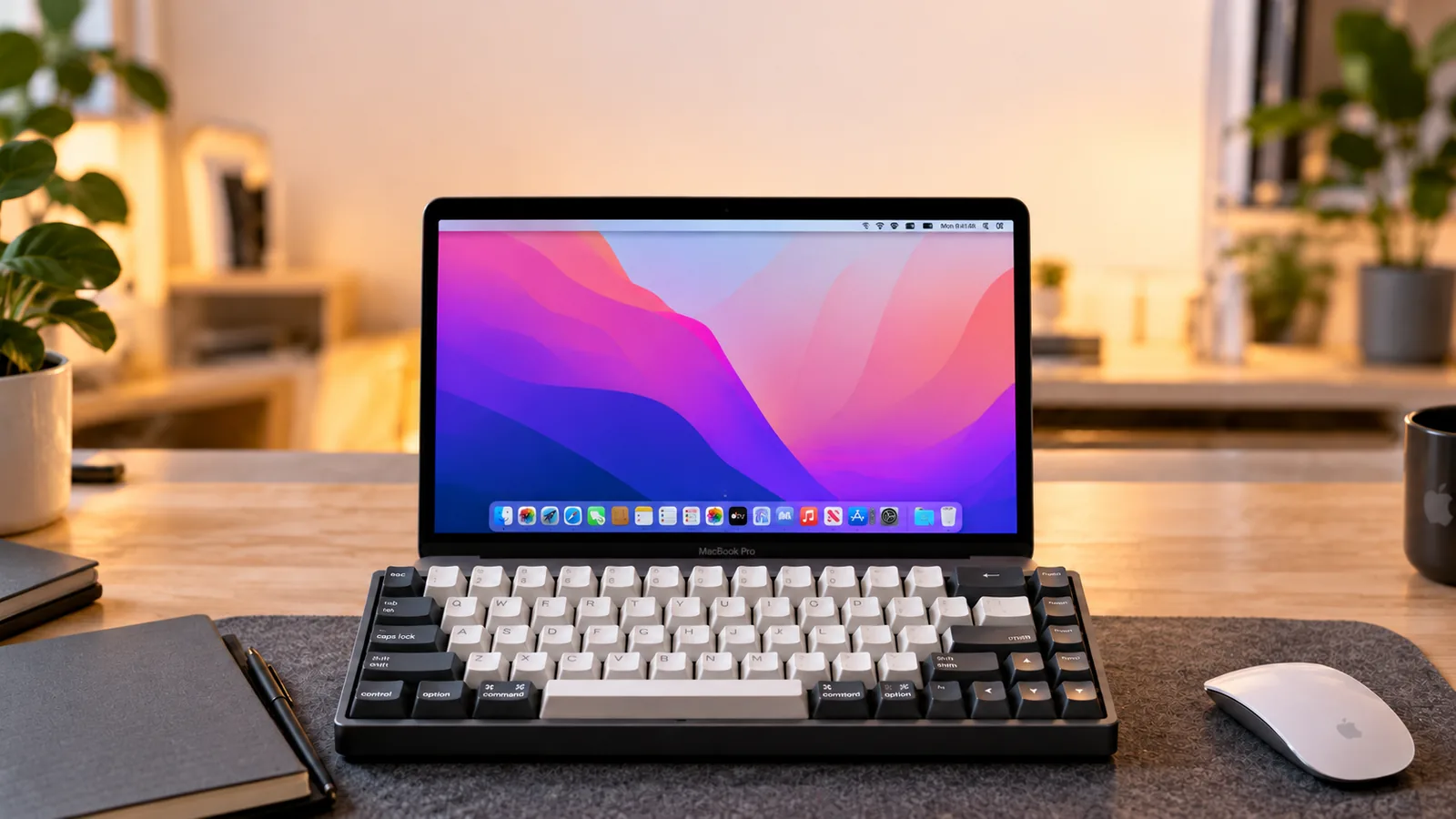
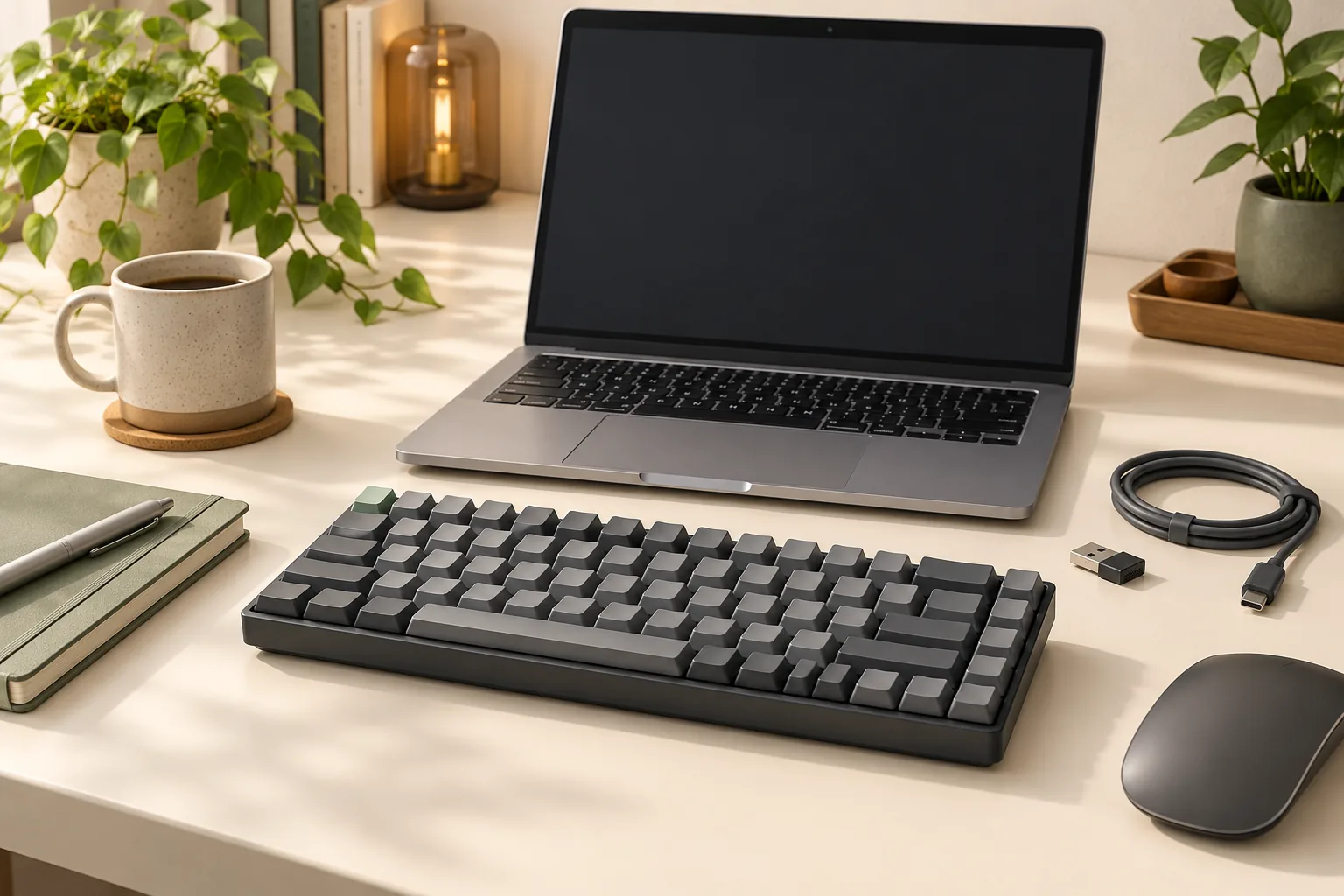
The best mechanical keyboard for Mac should meet your layout, connection, and height requirements together. For a low-profile Bluetooth option, consider the Logitech MX Mechanical Mini for Mac. For a low-profile keyboard with a documented USB-C host connection, consider the Das Keyboard MacTigr. Then check the exact layout, function-key behavior, and software requirements against your own Mac setup.
This guide is for Mac desktop, MacBook, and MacBook Pro users choosing an external mechanical keyboard. It uses Apple, manufacturer, and retailer documentation captured on October 15, 2026. The recommendations reflect documented features; no hands-on testing was performed.
The two examples were selected to compare Bluetooth and USB-C typing while keeping low-profile switches in view. Manufacturer specifications supply the feature comparison, clearly model-specific support instructions supply the setup details, and retailer information serves only to cross-check the US product identity. Inconsistent receiver references in Logitech’s setup article are excluded from the recommendations.
Quick takeaways
- Need Bluetooth and low-profile switches? The MX Mechanical Mini for Mac documents both, with switching among up to three devices. Logitech product details
- Need typing over a USB-C cable? MacTigr documents a USB-C host connection. The Mini’s cable is for charging only. MacTigr specifications · Logitech setup guide
- Need custom actions? Check the application requirements separately from the keyboard’s connection and built-in controls. Logi Options+
In this guide: Requirements grid · Command and Option · Typing connections · Software · Low-profile fit · Buying checklist · FAQ
Choose the best mechanical keyboard for Mac with one requirements grid
Treat Mac compatibility as a set of requirements: the intended Command and Option actions, your preferred function-row behavior, a documented typing connection, and the physical layout you want. Add software support when you need custom actions. This gives you a concrete way to compare candidates before ordering.
Start by marking each requirement as essential or optional. If wireless typing is essential, a documented wired connection cannot satisfy that requirement. If typing over USB is essential, a charging port alone is insufficient. These two low-profile examples illustrate the distinction.
| Requirement | Logitech MX Mechanical Mini for Mac | Das Keyboard MacTigr |
|---|---|---|
| Mac layout | Manufacturer describes a Mac key layout | Manufacturer lists a 105-key US layout |
| Low-profile switches | Tactile Quiet low-profile mechanical switches | Cherry MX Low-Profile Red switches |
| Documented typing connection | Bluetooth Low Energy | USB-C host connection; one USB-C port required |
| USB-C role | Included USB-C-to-USB-C charging cable; setup guide explicitly says charging only | Host connection plus a built-in two-port USB-C hub |
| Device switching | Bluetooth switching among up to three devices | Wireless switching is not established by the cited specifications |
| Function controls | Fn + Esc swaps media-key and F-key behavior | Manufacturer documents dedicated volume and sleep controls; confirm your required F-key behavior separately |
Sources: Logitech product page, Logitech model setup guide, and Das Keyboard specifications.
The table supports a conditional shortlist. The Mini is the candidate here for Bluetooth switching and low-profile switches. MacTigr is the candidate here for low-profile switches with USB-C typing. Neither comparison establishes a performance winner.
Check Command and Option separately from Fn
Printed Command and Option legends are a useful starting point. Next, check whether the keys perform the actions you expect. Apple documents changing modifier-key actions in macOS through System Settings → Keyboard → Keyboard Shortcuts → Modifier Keys. The same panel includes No Action and Restore Defaults. Apple modifier-key instructions
For a reversible setup check:
- Connect the keyboard and try the modifier combinations you use regularly.
- Open the Modifier Keys panel and inspect the available assignments.
- Change an assignment if needed, then repeat the same shortcut.
- Use Restore Defaults if you want to undo the changes.
Apple’s instructions establish modifier reassignment. They do not establish how a third-party keyboard’s Fn key behaves. Keep Fn behavior as a separate item on your checklist.
Decide what the function row should do first
For the MX Mechanical Mini for Mac, Logitech documents Fn + Esc as the shortcut that swaps between direct media controls and F-keys. Direct media controls are the default. If you regularly use F-key shortcuts, this is a specific control to check during setup. Logitech F-key instructions
MacTigr’s manufacturer documents dedicated volume and sleep controls, but those details do not establish a complete function-key map. Ask for documentation covering the exact keys your applications require before choosing it for a specialized shortcut workflow. MacTigr controls and specifications
Verify how the keyboard sends your typing
The decisive connection question is: What carries keystrokes to the Mac? Write down the answer for each candidate before comparing convenience features.
The MX Mechanical Mini for Mac product page documents Bluetooth Low Energy and switching among up to three Mac or iPad devices. Its setup guide says the USB-C cable is for charging only. Consequently, plugging in that cable does not give you a USB typing connection. Logitech connectivity details · Charging-cable clarification
MacTigr’s manufacturer specifications identify a USB-C connector, require one USB-C port, and list a built-in two-port USB-C hub. That establishes a documented host-connected alternative. It does not establish wireless operation. Das Keyboard connection specifications
Apply the connection requirement to your desk
Suppose you alternate between a MacBook and a desktop Mac, want low-profile switches, and prefer wireless typing. The Mini belongs on your shortlist because its documented features cover those requirements. You would still need to verify your operating systems and any required customization before ordering.
Now suppose your desk requires keyboard input through a USB-C cable. MacTigr belongs on that shortlist because its documentation identifies that host connection. The Mini fails this particular requirement even though it includes a USB-C charging cable. Neither example implies a measured difference in latency or reliability.
Wake behavior, reconnection after sleep, and operation at the login screen remain separate verification questions. If one is essential to your workflow, ask the manufacturer about your exact Mac, macOS version, and connection mode.
Separate basic typing from Options+ customization
For a Logitech purchase, evaluate three layers separately: the keyboard’s typing connection, its documented Fn controls, and actions configured through Logi Options+.
The Options+ download page captured on October 15, 2026 labels its Mac download macOS 14 or later. This is an application download requirement. It does not establish the minimum macOS version for basic Bluetooth typing on the MX Mechanical Mini for Mac. Options+ download information
That distinction matters if you keep an older Mac in service or use a work computer where software installation needs approval. Confirm basic keyboard compatibility for that operating system independently. Then check whether the specific software feature you want is supported and permitted on that computer.
Match permissions to the features you need
Logitech’s permissions article explains Accessibility and Input Monitoring permissions for software functions. It also says background Login Items are needed for customization to continue working properly. Review those requirements if custom actions are part of your buying decision. Options+ permissions on macOS
The same article discusses Screen & System Audio Recording for particular screenshot and presentation functions. Those passages should not be treated as a blanket requirement for ordinary keyboard typing. Its references to older macOS security policies also do not replace the download page’s application requirement. Feature-specific permission explanations · Options+ download requirement
For a managed Mac, give your IT team the exact feature list you need: modifier assignments, direct F-keys, or application-specific actions. That makes the approval question concrete.
Verify low-profile fit and the exact US layout
Both examples are documented as low-profile mechanical keyboards. Logitech identifies Tactile Quiet switches for the Mini, while Das Keyboard specifies Cherry MX Low-Profile Red switches for MacTigr. These are manufacturer descriptions, rather than comparative measurements of comfort or sound. Logitech switch description · MacTigr switch specifications
For a physical reference, Das Keyboard lists MacTigr at 436 × 127 × 27 mm. Compare those dimensions with the space on your desk and the position where you intend to type. Treat the listed height as a product dimension; it does not predict your comfort. MacTigr physical specifications
Match the listing to the regional version
A CDW page captured on October 15, 2026 identifies the Space Gray MX Mechanical Mini for Mac in US QWERTY as manufacturer part 920-010831. Use that as a retailer identity cross-check when comparing a US listing. It does not establish another seller’s package contents or purchase terms. CDW US model identification
Das Keyboard lists MacTigr’s US layout as 105 keys and limits its double-shot PBT keycap specification to the US version. Keep those details attached to that regional model. The specifications do not establish replacement-keycap interchangeability. MacTigr layout and keycap specifications
If replacement keycaps or switches matter to you, request documentation for the exact model, layout, and replacement part before buying accessories. A low-profile label alone is insufficient evidence of fit.
Complete this checklist before ordering
Use the following questions as a worksheet. Record the answer and supporting product or support page for each essential requirement. Leave an unanswered item unresolved rather than assuming that a broad Mac-compatible label covers it.
- Modifiers: Are Command and Option where you want them, and can the needed assignments be made through macOS?
- Function row: Do you want direct media controls or direct F-keys? Is the relevant toggle documented for this model?
- Typing connection: Will you use Bluetooth or USB data? Is the USB cable documented for typing or charging?
- Software: Does the required application support your macOS version, and can you grant the permissions your chosen features need?
- Physical fit: Does the exact regional layout contain the keys you need, and do the documented dimensions suit your desk?
- Unresolved behavior: Have you confirmed essential wake, reconnection, login-screen, firmware, or replacement-part requirements with the manufacturer?
Before paying, also check the selected seller, condition, package contents, delivery terms, and return policy. Use the linked official pages as a starting point for model questions. Reconcile the exact product and regional package before relying on accessory descriptions.
Frequently asked questions
Can the MX Mechanical Mini for Mac type through its USB-C cable?
No. Logitech’s model setup guide explicitly describes the cable as charging only. Its product page documents Bluetooth Low Energy for wireless typing. If USB typing is essential, consider MacTigr’s documented USB-C host connection, then check the rest of your requirements.
Does macOS modifier reassignment also change a keyboard’s Fn behavior?
Apple’s modifier-key instructions do not establish third-party Fn behavior. They document changing modifier actions and restoring defaults in macOS. Check the keyboard’s own documentation for Fn controls; Logitech specifically documents Fn + Esc for switching the Mini’s media-key and F-key behavior. Apple instructions · Logitech Fn instructions
Can I use the Options+ requirement to judge an older Mac’s typing compatibility?
No. The captured Options+ download page specifies macOS 14 or later for the application. That does not answer the separate minimum-OS question for basic keyboard typing. For an older Mac, ask Logitech to confirm the exact keyboard, operating system, and connection mode before ordering. Options+ download requirement
Make the choice around your essential requirements
Choose the best mechanical keyboard for Mac by resolving layout, typing connection, low-profile fit, and optional software together. The Mini offers the documented Bluetooth example here; MacTigr offers the documented USB-C host alternative. Complete the checklist for your exact Mac and regional model, then resolve any unanswered essential requirement before ordering.