As an Amazon Associate we earn from qualifying purchases.
Setting the Stage for Mac Mechanical Keyboards
The appeal of mechanical keyboards, with their distinct feel and sound, extends increasingly to Mac users. However, integrating these peripherals into a macOS environment presents unique considerations beyond simply plugging in a device. Unlike Windows-centric setups, Mac users often encounter specific challenges related to key mapping, software compatibility, and layout distinctions.
This guide aims to clarify these Mac-specific requirements and features. We will explore the critical factors that influence a mechanical keyboard's compatibility and functionality with your Apple ecosystem. By understanding these nuances, you can navigate the market with confidence and select a keyboard that seamlessly integrates with your workflow and preferences.
Understanding Mac-Specific Mechanical Keyboard Challenges
Integrating a standard mechanical keyboard into a macOS environment often presents distinct challenges that can impact user experience and workflow. Unlike peripherals designed primarily for Windows, many mechanical keyboards prioritize Windows compatibility, leading to several friction points for Mac users.
-
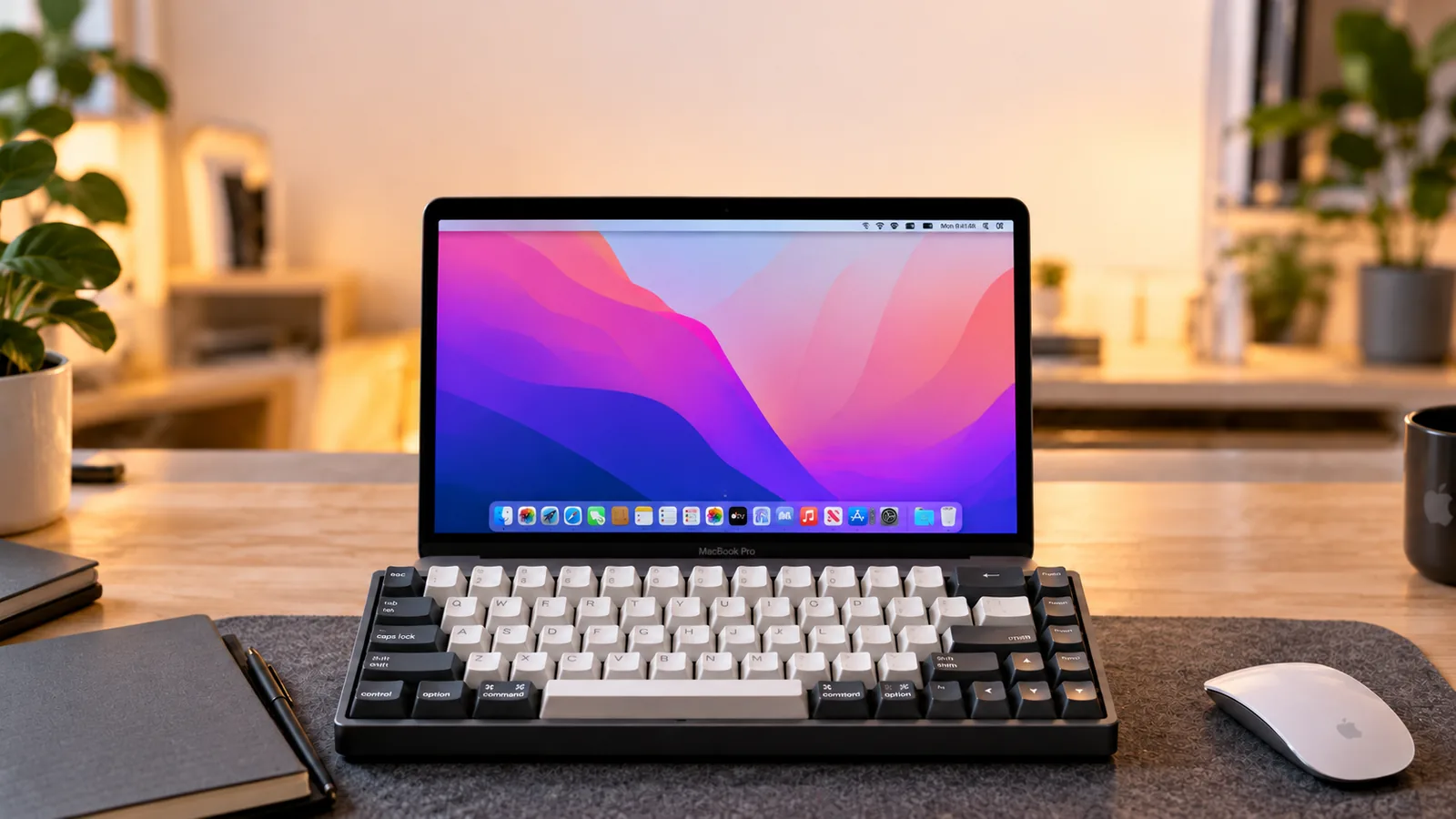
Key Legend Discrepancies: A primary visual difference lies in the keycap legends. Standard mechanical keyboards typically feature Windows-centric labels such as "Ctrl," "Alt," and the "Windows" key. macOS, however, uses "Control," "Option," and "Command." This mismatch can cause initial confusion and hinder muscle memory, as the physical labels do not correspond to the macOS functions.
-
Default Key Mapping Issues: Beyond visual labels, the default functional mapping of keys can diverge. A key labeled "Alt" on a Windows-focused keyboard might not automatically register as the "Option" key on macOS, or the "Windows" key might not consistently act as "Command." This often necessitates manual remapping within macOS settings or through third-party software to achieve the expected functionality, adding an extra setup step.
-
Software Compatibility for Customization: Many mechanical keyboards include proprietary software for advanced customization, such as remapping keys, setting macros, or controlling RGB lighting. This software is frequently Windows-only, leaving Mac users without access to these features or requiring them to seek out less robust macOS-compatible alternatives or open-source solutions. The behavior of function keys (F1-F12), which often control system-level actions like brightness or volume on Macs, can also be inconsistent without proper software support.
-
Connectivity Considerations: While most mechanical keyboards offer USB-C, Bluetooth, or 2.4GHz wireless connectivity, their performance with macOS can vary. Bluetooth stability, in particular, might differ from one keyboard to another, potentially leading to intermittent connections. For users with multiple Apple devices, seamless multi-device pairing is a key convenience, and not all keyboards handle this integration with the macOS ecosystem optimally.
-
'Windows-First' Design Philosophy: The root of these challenges often stems from a 'Windows-first' design approach prevalent in the mechanical keyboard market. This means that macOS users frequently encounter keyboards that require adaptation and workarounds rather than offering native, out-of-the-box compatibility tailored for Apple's operating system.
Essential Compatibility Features for macOS
Selecting a mechanical keyboard for a Mac involves more than just switch type or aesthetic. Ensuring seamless integration with macOS requires attention to specific features that enhance usability and prevent common compatibility frustrations. Prioritizing these elements can significantly improve your typing experience.
- macOS-Specific Keycaps or Swappable Legends: Look for keyboards that either come with keycaps featuring native macOS legends (e.g.,
Command,Option,Control) or offer easily swappable keycaps. This avoids confusion when muscle memory expects a specific symbol or function. - Dedicated macOS Mode or Advanced Remapping: A keyboard with a dedicated macOS mode optimizes modifier key behavior and function row assignments. Alternatively, support for open-source firmware like QMK/VIA provides extensive key remapping capabilities, allowing you to customize layouts to match your Mac workflow precisely. This addresses issues where standard PC layouts might cause Mac-specific keys to "act up."
- Multi-OS Support: If you use your keyboard with other operating systems, such as Windows or Linux, ensure it offers reliable multi-OS toggling. This feature allows for quick switching between different key layouts and functions without manual reconfiguration.
- Stable Wireless Connectivity: For a clutter-free desk, reliable wireless options are crucial. Prioritize keyboards with Bluetooth 5.0 or newer for enhanced stability and range, or consider those with a 2.4GHz wireless dongle for a low-latency connection, which can be beneficial for responsive input.
- USB-C Connectivity: Modern Mac devices predominantly use USB-C ports. A mechanical keyboard equipped with a USB-C port ensures direct, convenient wired connection and charging, eliminating the need for adapters and promoting a streamlined setup.
Beyond Compatibility: Choosing Your Ideal Mac Typing Experience
The previous section addressed the foundational aspects of mechanical keyboard compatibility with macOS. With basic functionality established, the next step involves refining your choice to align with your personal typing style, workflow, and aesthetic preferences. Selecting the right mechanical keyboard for your Mac extends beyond mere connectivity; it involves understanding how switch types, form factors, and build materials contribute to your overall user experience. This deeper dive helps ensure your chosen keyboard not only works with your Mac but also enhances your daily interactions.
Switch Types and Their Mac Use Cases
Mechanical keyboard switches are the core of the typing experience, influencing both feel and sound. For Mac users, the choice of switch can significantly impact productivity and comfort, depending on their primary activities and work environment.
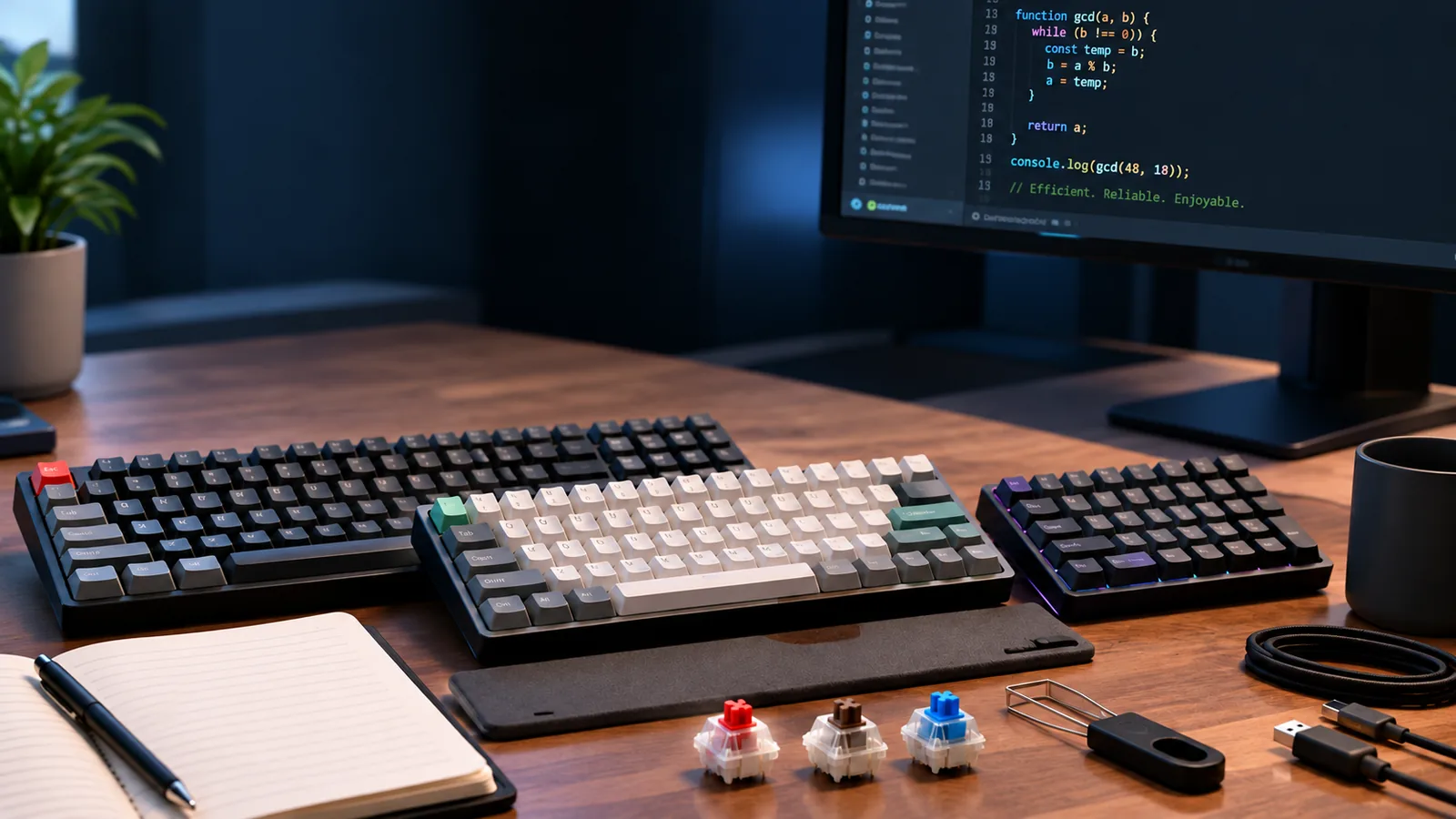
- Linear Switches: These switches offer a smooth, consistent keystroke from top to bottom, without any tactile bump or audible click. They are often favored for rapid, continuous typing and gaming due to their unimpeded travel. For Mac users engaged in extensive coding, writing, or graphic design, where a quiet and fluid input is preferred to maintain focus, linear switches can minimize auditory distractions in shared workspaces.
- Tactile Switches: Characterized by a noticeable "bump" partway through the keystroke, tactile switches provide feedback that a key press has registered without requiring the key to bottom out. This tactile feedback can enhance typing accuracy and reduce errors, making them a popular choice for Mac users who prioritize precision in tasks like data entry, detailed text editing, or programming. They offer a balance between responsiveness and a less intrusive sound profile than clicky switches.
- Clicky Switches: These switches combine a tactile bump with an audible "click" sound, providing both physical and auditory confirmation of actuation. While highly satisfying for some typists, their distinct sound can be disruptive in quiet environments. Mac users who work in private offices or value strong auditory feedback for a more engaging typing experience might find clicky switches appealing, but they are generally less suitable for open-plan offices or collaborative spaces.
Form Factors and Layouts for Mac Desktops
The physical size and key arrangement, or form factor, of a mechanical keyboard directly impacts desk space, ergonomics, and access to macOS-specific functions. Choosing an appropriate layout involves balancing compactness with the need for dedicated keys and shortcuts.
- Full-size (104/108 keys): These keyboards include a dedicated number pad, function row, and navigation cluster. Ideal for Mac users who frequently perform data entry, use spreadsheet applications, or rely on a numpad for specific software shortcuts. The trade-off is a larger footprint, which can push the mouse further away, potentially affecting ergonomics.
- Tenkeyless (TKL, 87 keys): Removing the number pad, TKL keyboards offer a more compact design while retaining the function row, arrow keys, and navigation cluster. This form factor is a popular choice for many Mac users, providing a good balance between desk space savings and full access to essential macOS function keys (e.g., brightness, media controls, Mission Control) without needing an
Fnlayer. - 75% Layout: A more condensed version of a TKL, where keys are tightly packed, often eliminating some spacing between key clusters. It typically retains the function row and arrow keys. This layout saves even more desk space than a TKL, making it suitable for Mac users with limited desk real estate who still require dedicated F-keys for macOS. Adaptation to slightly altered key positions might be necessary.
- 65% Layout: These keyboards omit the function row and numpad but retain dedicated arrow keys and a few navigation keys (e.g., Delete, Page Up/Down). While very compact, Mac users will need to utilize an
Fnkey combination to access F-keys, which are frequently used for system controls and application-specific shortcuts in macOS. This requires a workflow adjustment. - 60% Layout: The most compact common layout, eliminating the function row, numpad, arrow keys, and navigation cluster. All these functions are accessed via
Fnlayers. While offering maximum desk space and portability, a 60% keyboard demands significant muscle memory adaptation for Mac users who rely heavily on F-keys, arrow keys, or dedicated navigation for efficient macOS interaction.
Build Quality and Materials
The materials and construction of a mechanical keyboard contribute to its durability, acoustic properties, and overall aesthetic integration with a Mac setup. These factors influence both the longevity of the device and its premium feel.
- Aluminum Chassis: Keyboards with aluminum frames or full aluminum cases typically offer superior rigidity and weight. This contributes to a more solid feel, reducing keyboard flex and often improving acoustics by dampening vibrations. The metallic finish of aluminum keyboards frequently complements the aesthetic of Apple's product line, providing a cohesive look for Mac users who value a premium, minimalist desk setup. While generally more expensive, aluminum offers enhanced durability and a higher-end tactile experience.
- Plastic Chassis: Plastic-bodied keyboards are generally lighter and more affordable. The quality of plastic can vary significantly, from basic ABS to more robust PBT. While they may not offer the same rigidity or premium feel as aluminum, modern plastic chassis can still be very durable and provide excellent performance. For Mac users on a budget or those prioritizing portability, plastic options offer a practical and versatile choice, often available in a wider range of colors and designs. The acoustics of a plastic case can be more resonant or hollow compared to aluminum, but this can often be mitigated with internal dampening.
Navigating Potential Trade-offs and Installation Hurdles
Adopting a mechanical keyboard for a macOS setup can introduce specific challenges and limitations that users should anticipate. Understanding these potential hurdles helps in making an informed selection and prepares for any necessary adjustments.
Software Learning Curve
Customizing a mechanical keyboard for optimal macOS workflow often involves a learning curve related to key remapping and macro creation. While some keyboards offer intuitive software, others might require delving into more advanced tools like QMK/VIA firmware or third-party utilities such as Karabiner-Elements. This effort is necessary to align key functions (e.g., mapping a Windows key to Command or setting up specific macOS shortcuts) and can be a time investment to achieve a personalized and efficient typing experience.
Connectivity Reliability
Wireless mechanical keyboards, particularly those relying on Bluetooth, can sometimes present connectivity challenges. Users might experience occasional latency or intermittent disconnections, especially when pairing with older Mac models or in environments with significant wireless interference. While 2.4GHz wireless connections often offer greater stability, they typically require a USB dongle, which may occupy a valuable port on some Mac setups.
Limited Native Options
Compared to the extensive market for Windows-compatible mechanical keyboards, the selection of truly Mac-native options is more constrained. While this segment is growing, users may find fewer choices that feature macOS-specific key legends (Command, Option, Control) out-of-the-box or offer a design aesthetic that seamlessly matches Apple's ecosystem. This often means Mac users might need to compromise on certain features or adapt a Windows-first design to their workflow.
Firmware Updates
Maintaining ongoing compatibility and performance for a mechanical keyboard can sometimes necessitate firmware updates. These updates address bugs, improve stability, or enhance feature sets. Mac users should be aware that checking for and applying these updates might be required. In some instances, the proprietary tools for performing these firmware updates are Windows-only, potentially requiring access to a Windows machine or a virtual environment to complete the process.
Common Questions About Mechanical Keyboards for Mac
Navigating the world of mechanical keyboards as a Mac user often brings up specific questions about compatibility and functionality. Here are answers to frequently asked concerns to help clarify your choices.
-
Can any mechanical keyboard work with a Mac? Most standard USB mechanical keyboards will provide basic typing functionality when connected to a Mac. However, full compatibility, especially regarding macOS-specific keys like Command and Option, and multimedia controls, often requires either manual remapping or a keyboard designed with macOS support. Keyboards with dedicated Mac modes or firmware are generally the most seamless.
-
How do I remap keys for macOS functionality like Command and Option? You have several options for remapping keys to suit macOS:
- macOS System Settings: The simplest method is to use
System Settings > Keyboard > Keyboard Shortcuts > Modifier Keys. Here, you can swap the functions of your Control, Option, Command, and Caps Lock keys globally for your external keyboard. - Keyboard-Specific Software: Many mechanical keyboard manufacturers offer their own software. If macOS-compatible, this software often provides more granular control over key assignments, macros, and lighting effects.
- Third-Party Utilities: Applications like Karabiner-Elements offer powerful and extensive remapping capabilities, allowing for complex key combinations and contextual adjustments.
- macOS System Settings: The simplest method is to use
-
Are wireless mechanical keyboards reliable for Mac? Wireless mechanical keyboards can be reliable for Mac users, but performance can vary.
- Bluetooth: Offers convenience and cable-free setups, but can sometimes experience minor latency or connection drops, especially in environments with many wireless devices. Ensure your Mac's Bluetooth version is compatible with the keyboard for optimal performance.
- 2.4GHz Wireless: Typically uses a dedicated USB dongle and often provides a more stable and lower-latency connection, closer to wired performance. This is often preferred for tasks where responsiveness is critical. Battery life is also a key consideration for any wireless model.
-
Why choose a mechanical keyboard for Mac over Apple's Magic Keyboard? The decision often comes down to personal preference for typing experience and customization:
- Typing Feel: Mechanical keyboards offer a diverse range of switch types (linear, tactile, clicky) with varying actuation forces, travel distances, and feedback. This allows for a highly personalized typing feel that many find more satisfying and precise than the Magic Keyboard's low-profile, scissor-switch mechanism.
- Durability and Longevity: Mechanical switches are generally rated for tens of millions of keystrokes, often exceeding the lifespan of membrane or scissor-switch keyboards.
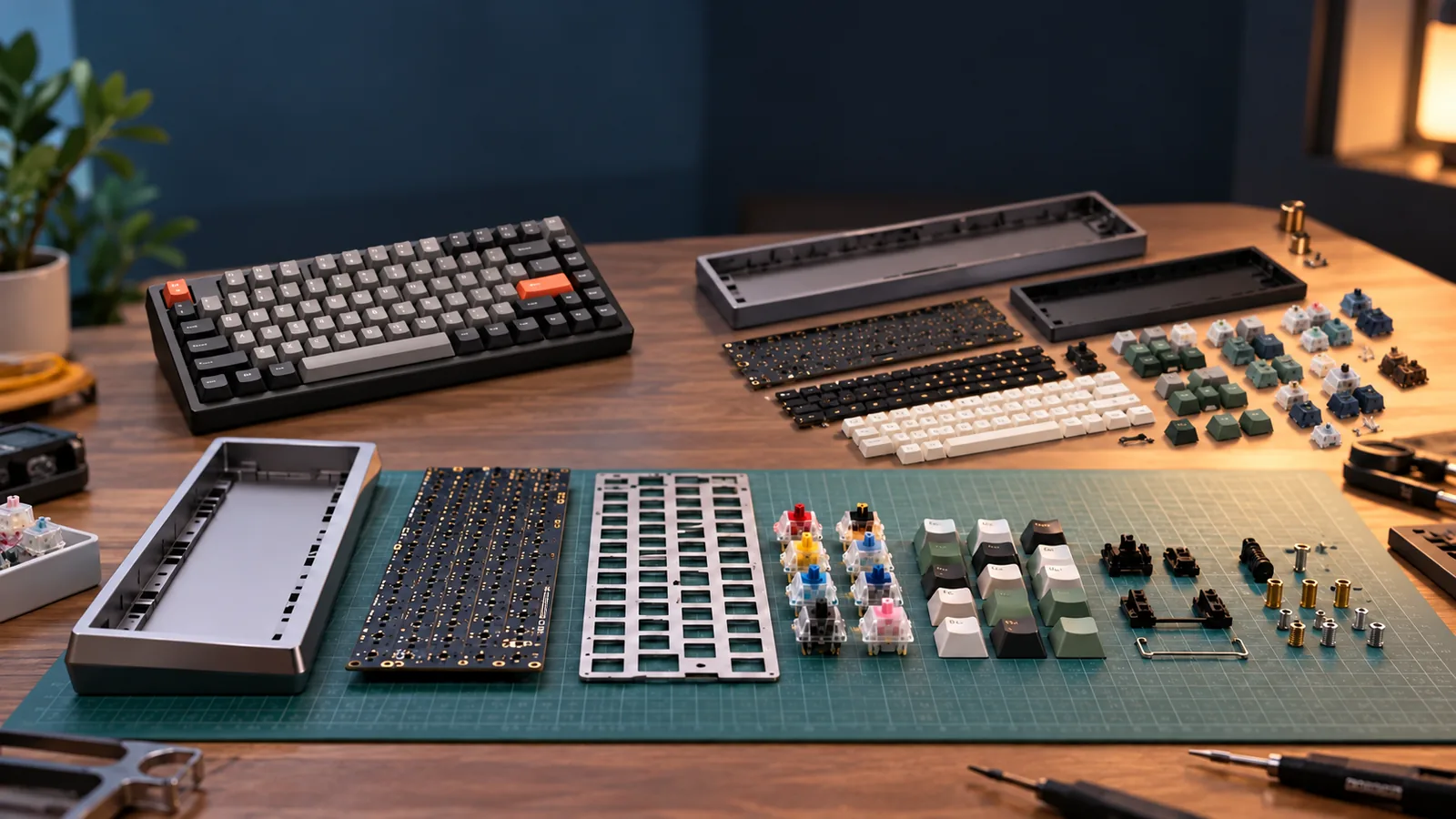
- Customization: Many mechanical keyboards allow for swapping keycaps, and some even feature hot-swappable switches, enabling users to easily change the feel and sound of their board without soldering.
- Ergonomics: A wider variety of form factors, angles, and sometimes split designs are available, which can cater to different ergonomic needs.
-
What are the best switch types for Mac users? There isn't a single "best" switch type, as it's highly subjective and depends on individual preference and use case.
- Linear Switches: Offer a smooth, consistent keystroke from top to bottom without any tactile bump or audible click. Often favored by gamers or those who prefer a fluid typing motion.
- Tactile Switches: Feature a noticeable "bump" partway through the keypress, providing feedback without an audible click. Many typists prefer tactile switches for their confirmation of actuation, which can aid accuracy.
- Clicky Switches: Provide both a tactile bump and an audible "click" sound. These can be very satisfying for some users but might be disruptive in shared or quiet environments. Consider your primary activities (typing, coding, gaming) and your environment when evaluating switch types. Trying different switches, if possible, can help determine your preference.
Your Personalized Path to a Mac-Friendly Mechanical Keyboard
Selecting a mechanical keyboard for your Mac involves more than just picking a design; it requires a structured approach to ensure compatibility and satisfaction. By considering your specific needs and priorities, you can navigate the available options and make an informed decision that aligns with your workflow and preferences.
Define Your Primary Use Case
Your main activity on the keyboard should guide many of your choices. If the keyboard is primarily for work or general typing on your Mac, you might prioritize ergonomic features, a comfortable keycap profile, and switch types known for their tactile feedback or quiet operation. For coding, a full-size or 96% layout with a dedicated numpad and easily accessible function rows might be beneficial, alongside robust programmability for macros. Gaming on a Mac, while less common for mechanical keyboards, would typically favor linear switches for rapid, consistent key presses and low-latency wired connectivity. Understanding these distinctions helps narrow down suitable layouts, switch types, and essential features.
Prioritize Connectivity
The way your keyboard connects to your Mac is a critical decision point, balancing reliability with flexibility. Wired connections offer the most straightforward plug-and-play experience, ensuring consistent performance without battery concerns or potential wireless interference. This can be particularly appealing for stationary desktop setups where ultimate reliability is paramount. Conversely, wireless options, primarily Bluetooth or 2.4GHz dongles, provide a cleaner desk aesthetic and enhanced portability. For Mac users, Bluetooth connectivity often allows for seamless switching between multiple Apple devices, such as a MacBook and an iPad. However, wireless solutions require battery management and, in some cases, may introduce minimal latency, which could be a factor for competitive gaming.
Budget vs. Features
Identifying your non-negotiable features early helps manage expectations within your budget. Entry-level mechanical keyboards for Mac might offer basic functionality and standard layouts, often with ABS keycaps and simpler switch options. As you increase your budget, you gain access to features like premium build materials (e.g., aluminum cases), hot-swappable switch sockets for easy customization, PBT keycaps for durability, and more sophisticated RGB lighting. Crucially for Mac users, higher-end options often come with more robust and macOS-compatible software for key remapping, macro creation, and layer programming, which can significantly enhance productivity. Compromises might involve choosing a less premium material for the case or opting for a more common switch type if advanced customization software isn't a strict requirement.
Test Drive If Possible
The tactile feel and acoustic profile of mechanical switches are inherently subjective experiences that cannot be fully conveyed through specifications or reviews. If feasible, trying different switch types in person can be invaluable. Visiting electronics stores, attending local keyboard meetups, or utilizing switch testers can help you determine whether you prefer the smooth, consistent travel of linear switches, the distinct bump of tactile switches, or the audible click of clicky switches. This hands-on experience allows you to assess how a switch's feel and sound align with your personal preferences and intended use, minimizing the risk of dissatisfaction after purchase.
Elevate Your Mac Experience with the Right Mechanical Keyboard
Navigating the landscape of mechanical keyboards for your Mac doesn't have to be a complex endeavor. By understanding the specific requirements and potential compatibility nuances of macOS, you can confidently select a keyboard that not only enhances your typing experience but also integrates seamlessly into your Apple ecosystem. The right mechanical keyboard offers a tangible upgrade in tactile feedback, responsiveness, and overall user satisfaction, transforming routine tasks into more engaging interactions.
To ensure your choice aligns with your needs, consider the following:
- Layout and Key Functionality: Prioritize keyboards with native macOS key legends or those that offer robust remapping capabilities for Command, Option, and Control keys.
- Connectivity Options: Evaluate whether wired, Bluetooth, or 2.4GHz wireless best suits your setup, keeping in mind macOS compatibility for each.
- Customization Software: Verify that any desired customization software (for macros, RGB, or key remapping) is compatible with macOS, or if the keyboard supports hardware-level programming.
Applying these compatibility and feature criteria discussed throughout this guide will empower you to make an informed decision. The goal is to find a peripheral that not only feels good under your fingers but also functions harmoniously with your Mac. Ultimately, a carefully chosen mechanical keyboard can significantly enhance your daily productivity and enjoyment, making every keystroke on macOS a more deliberate and satisfying action.
Frequently Asked Questions About mechanical keyboard for Mac
Is mechanical keyboard for Mac the right choice for every user?
No. The right fit depends on layout, switch feel, sound tolerance, operating-system support, connection needs, desk space, and whether the user values repairability or customization.
What should I verify before buying mechanical keyboard for Mac?
Confirm the physical layout, switch and socket compatibility, keycap support, firmware features, connection modes, operating-system mappings, warranty, and return policy using current manufacturer documentation.