As an Amazon Associate we earn from qualifying purchases.
Quick answer: Choose the Logitech MX Mechanical keyboard for its integrated numeric keypad. Choose the standard MX Mechanical Mini for a compact keyboard with documented support across multiple operating systems. Choose MX Mechanical Mini for Mac when you prefer a Mac key layout, Tactile Quiet switches, and documented Bluetooth pairing with Mac computers and iPad.
This guide is for buyers deciding among these three low-profile mechanical keyboards for everyday computer work. The useful differences are size, key layout, switch selection, wireless connection, and documented accessories.
Research basis: Logitech documentation and an attributed PCWorld review, checked October 15, 2026. These recommendations compare documented features; this guide does not report hands-on testing.
On this page:
- Compare the three models
- Decide whether you need a numpad
- Choose your switches
- Match your operating systems
- Separate wireless input from charging
- Use the buying worksheet
- Frequently asked questions
Compare the Logitech MX Mechanical keyboard models
Start with the exact product name. The standard Mini and Mini for Mac have different documented switch and layout choices.
| Model | Size and layout | Documented switches | Choose it when… |
|---|---|---|---|
| MX Mechanical | Full-size, with integrated numpad | Tactile Quiet, Clicky, or Linear | You want a built-in number pad and documented multi-OS support. |
| MX Mechanical Mini | Compact, space-saving layout | Tactile Quiet, Clicky, or Linear | You prefer a smaller keyboard and want the standard model’s OS and switch choices. |
| MX Mechanical Mini for Mac | Compact Mac key layout | Tactile Quiet | You prefer Mac-specific key labeling and plan to use its documented Mac/iPad Bluetooth connection. |
The recommendations in the last column follow from those documented differences. They are selection guidance, rather than measured rankings of typing quality.
Start with your numpad needs
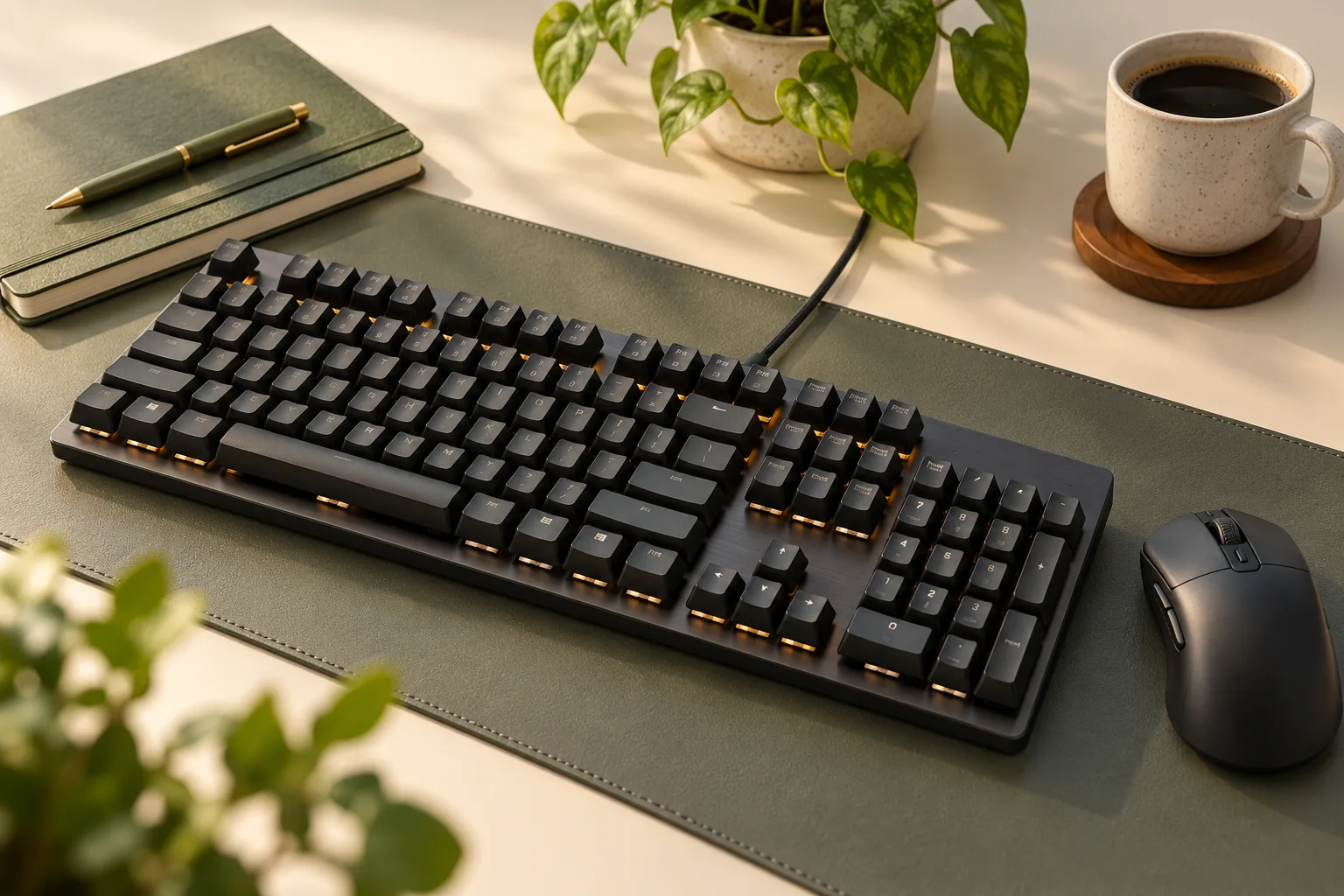
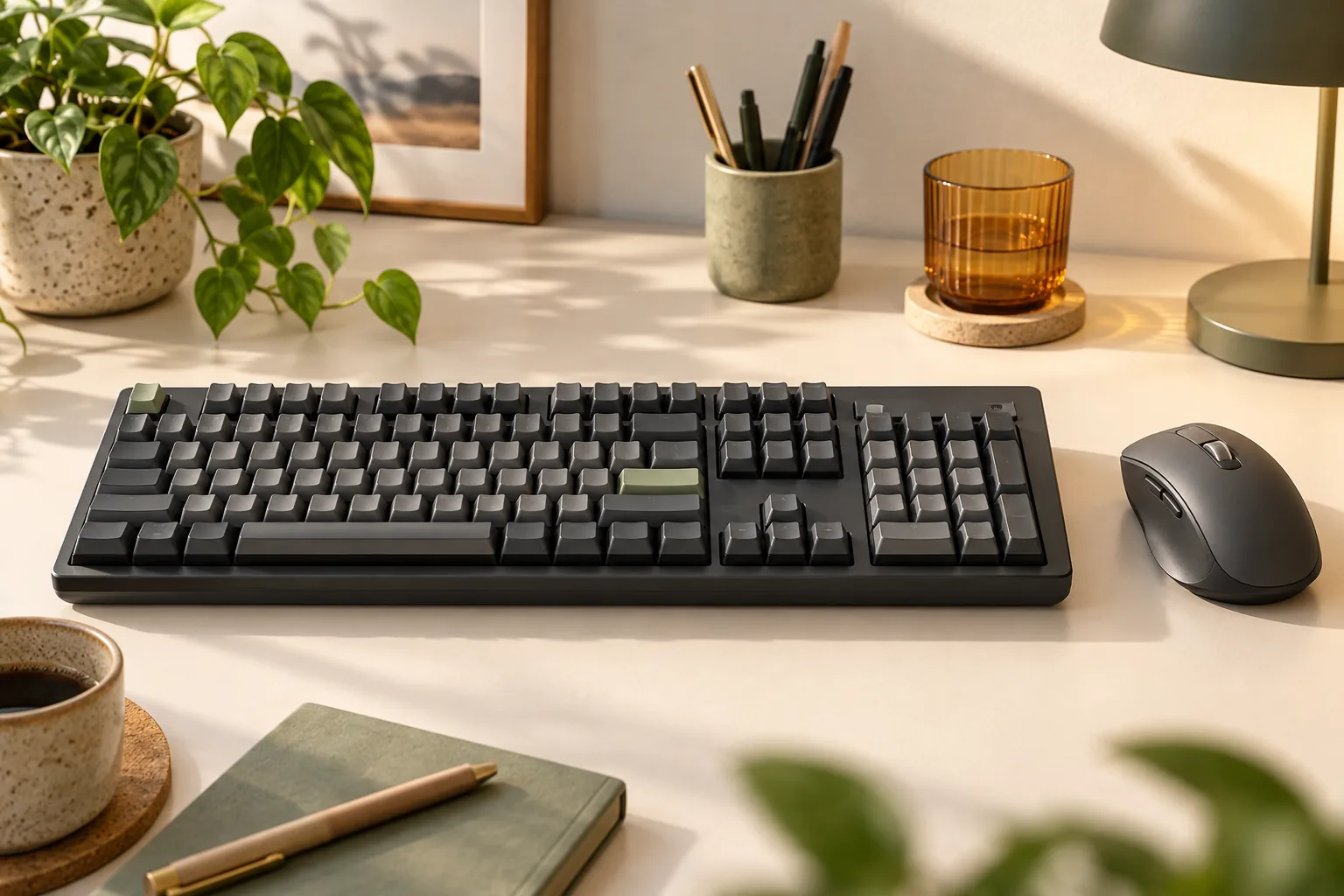
The full-size MX Mechanical is the clear starting point if an integrated numpad is a requirement. Logitech explicitly distinguishes it from the space-saving standard Mini on its full-size product page. Decide whether you actually use a separate number pad before comparing smaller details.
For example, imagine a workday that includes entering invoice amounts and checking spreadsheet figures. If you already rely on a numpad for those tasks, keeping that layout may matter more to you than reducing the keyboard’s footprint. That makes the full-size model a sensible candidate without claiming that it will improve your speed.
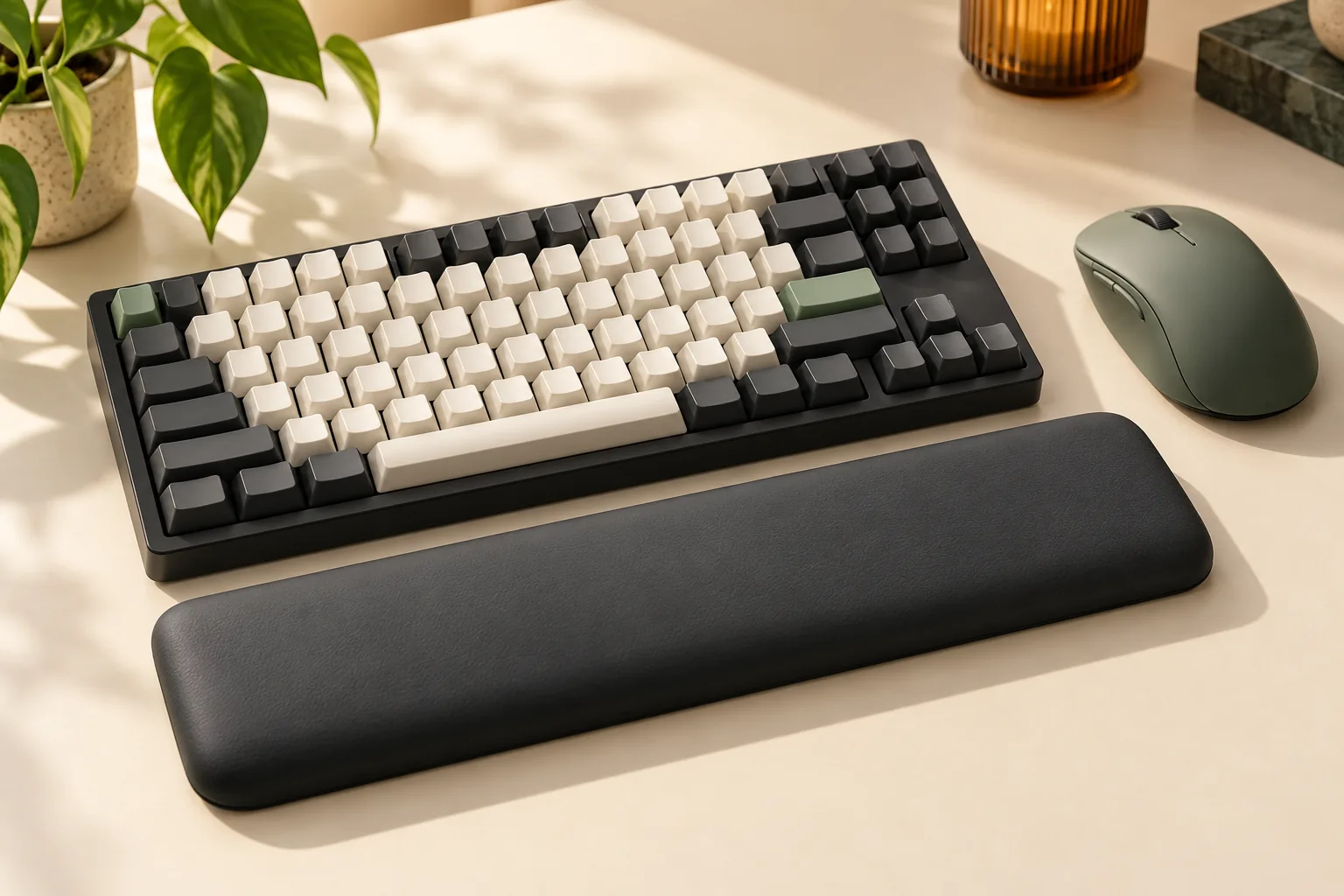
If most of your work involves prose, messages, or shortcuts, ask whether you would miss the number pad. Logitech positions the standard MX Mechanical Mini as the space-saving alternative. Compare the exact key-layout image with your current keyboard, especially the keys you use without looking.
Treat compactness as a layout preference. It does not, by itself, establish better comfort or productivity for your particular desk and typing habits.
Compare switch choices without assuming silence
The standard MX Mechanical and MX Mechanical Mini each list Tactile Quiet, Clicky, and Linear options. Logitech describes them as having different feel and sound. The Mini for Mac specifically documents Tactile Quiet low-profile mechanical switches and describes tactile feedback you can feel.
This creates a useful selection rule: if Clicky or Linear is a requirement, start with one of the two standard models. If you want the Mac-specific layout, evaluate it with the documented Tactile Quiet switches. Do not assume that every switch offered on the standard Mini is also offered on Mini for Mac.
Tactile Quiet is not a guarantee of a silent keyboard. In PCWorld’s September 15, 2026 review, Mattias Inghe reported chassis rattle while typing on a full-size Tactile Quiet sample. That is an observation about the reviewer’s sample, not a measured noise comparison across all three models.
If sound is a deciding factor, try the exact model and switch combination when possible. A review of the full-size keyboard cannot establish how either Mini will sound in your room.
Match the key layout to your operating systems
Standard MX Mechanical and Mini for mixed systems
Logitech lists Windows, macOS, ChromeOS, Linux, and iPadOS compatibility for both the standard full-size model and standard Mini. Both product pages also document switching among up to three devices. These are the better-documented starting points when your device list crosses several operating systems.
PCWorld’s full-size review also describes Windows and Mac functions sharing bottom-row keys on its reviewed keyboard. If key labels matter to you, inspect the exact listing’s layout rather than choosing from the operating-system name alone.
Mini for Mac for a Mac key layout
The MX Mechanical Mini for Mac page documents a Mac key layout, Bluetooth Low Energy pairing with MacBook, iMac, and iPad, and switching among up to three devices. That makes it a logical candidate for someone who prefers Mac labeling and uses those devices.
Mac users can still consider the standard models because Logitech explicitly lists macOS compatibility for them. Searching for “Logitech MX Mechanical keyboard for Mac” therefore does not establish a separate full-size Mac edition. For a numpad-equipped Mac setup, evaluate the documented standard MX Mechanical; the separately named Mac model compared here is the Mini.
Check software needs separately
The product pages describe Logi Options+ features including Fn-key customization, backlighting effects, app-specific profiles, and Smart Actions. The Mac model’s page explicitly identifies Options+ as available on Windows and macOS; the standard Mini page describes its customization features.
Keyboard input compatibility and software customization are separate checks. Do not assume the same advanced features on Linux, ChromeOS, or iPadOS. Likewise, the software’s availability on Windows does not establish full Windows input support for Mini for Mac.
Separate wireless input, charging, and accessories
Standard models: Bluetooth or Logi Bolt
A search excerpt for Logitech’s manufacturer datasheet hosted by Distrelec, captured October 15, 2026, specifies Bluetooth or Logi Bolt for the standard MX Mechanical and MX Mechanical Mini. It explicitly excludes Logitech Unifying receiver technology and lists a Bolt receiver as included with both documented standard models.
That answers the receiver-technology question for those standard models. It does not guarantee the contents of every US retail package. If you need receiver-based input, confirm that the exact listing names a Logi Bolt receiver and states whether it is included; an existing Unifying receiver is not a substitute.
Full-size MX Mechanical: the cable charges
Logitech’s named MX Mechanical getting-started guide explicitly says its USB-C cable is for charging only. It also says you can continue typing while charging. For this full-size model, plugging in the charging cable does not create wired USB keyboard input.
This distinction matters if your workplace requires a wired keyboard. Continued use while charging does not satisfy that requirement. The full-size guide’s cable statement also should not be transferred to either Mini as though it were model-specific documentation for those keyboards.
Mini for Mac: documented Bluetooth and a C-to-C cable
The Mini for Mac product page confirms Bluetooth Low Energy pairing and an included USB-C-to-USB-C charging cable. Receiver compatibility, receiver inclusion, and USB data input are not established by the documentation used for this comparison.
Plan around the documented Bluetooth connection. If receiver use is essential, ask Logitech to confirm the exact model and package before ordering. The standard models’ Bolt documentation is not sufficient evidence for a receiver recommendation for Mini for Mac.
Complete this before ordering
Use this worksheet on the exact product listing you intend to buy. It separates the model decision from accessories that still need confirmation.
| Check | What to record | Purchase condition |
|---|---|---|
| Product identity | MX Mechanical, MX Mechanical Mini, or MX Mechanical Mini for Mac | The cart uses the same exact name you compared. |
| Number pad | Whether you require an integrated numpad | Choose full-size MX Mechanical if this is essential. |
| Key layout | Language, regional layout, and key labels | Listing images match your preferred layout. |
| Switch | Tactile Quiet, Clicky, or Linear, as documented for that model | The selected variant matches your intended switch. |
| Devices | Each computer or tablet you will use | Its OS and connection method are documented for that model. |
| Receiver | Technology, compatibility, and inclusion | Confirm the exact package if receiver use is required. |
| Charging cable | Included cable and connector ends | Your available charging connection matches the cable. |
| Customization | Fn changes, profiles, or Smart Actions you need | Confirm current Options+ support for your computer. |
The model, switch, and connection checks above follow the full-size, standard Mini, and Mini for Mac documentation, with standard-model receiver details limited to the datasheet excerpt.
Also check whether you are viewing a standalone keyboard or a bundle. Logitech has an MX Mechanical and MX Master 3S combo page; bundle contents should be checked against that offer. Do not use a combo’s description to fill gaps in a standalone keyboard’s accessory list.
As a worked example, suppose you want a compact keyboard for a Windows work computer and a MacBook, and you specifically want Linear switches. The standard Mini is the documented starting point because its page lists both operating systems and Linear switches. Your remaining checks are the exact regional layout, connection method, and package contents.
Frequently asked questions
Should I choose Mini for Mac just because I use an iPad?
An iPad alone does not settle the choice. Logitech documents iPadOS compatibility for the standard Mini and Bluetooth pairing with iPad for Mini for Mac. Compare your other devices, preferred key layout, and switch choice. Check customization separately instead of assuming desktop software features on iPad.
Can I use my old Logitech Unifying receiver?
For the standard MX Mechanical and MX Mechanical Mini, the captured manufacturer datasheet excerpt explicitly excludes Unifying and identifies Bluetooth or Logi Bolt. That statement covers those two named standard models. It does not resolve Mini for Mac receiver compatibility, which needs its own confirmation.
What if I need guaranteed wired USB typing?
The full-size MX Mechanical support guide explicitly describes a charging-only cable, so that model does not meet a wired-input requirement. This comparison also does not establish wired USB input for either Mini. Require explicit documentation for the exact model before treating any charging connector as a data connection.
Make your final selection
Choose your Logitech MX Mechanical keyboard by settling the layout first, then checking switches, operating systems, and connection requirements. Use the worksheet to compare your chosen variant with its official product page. If an essential receiver or cable detail remains unresolved, get model-specific confirmation from Logitech before placing the order.