As an Amazon Associate we earn from qualifying purchases.
The best keyboard stabilizers for your build must match your exact keyboard revision, supported mounting interface, and required wire sizes. Start with the board’s documentation, then compare the replacement kit. Glorious GSV2 has documented screw-in support on the GMMK 2; the MonsGeek M1 V5 Rapid Disassembly/Quick Release Barebone Non-VIA explicitly excludes screw-in stabilizers. Those two examples show why the board determines your shortlist. (Glorious installation guide, MonsGeek specifications)
This guide is for mechanical keyboard owners choosing replacement stabilizers or deciding whether existing parts deserve inspection and tuning. It covers fit, package contents, installation access, and replacement decisions. Recommendations are based on manufacturer documentation, with no hands-on performance testing.
Quick takeaways
- Confirm the exact board and revision before comparing brands.
- Check mounting support, PCB thickness, plate clearance, and required wire inventory.
- Separate package contents from the parts your layout actually uses.
- Inspect compatible, undamaged parts before buying replacements; use the manufacturer’s instructions for any tuning.
Jump to: Mount compatibility · Wire sizes · GSV2 details · Installation access · Tune or replace · Buying worksheet · FAQ
Choose the best keyboard stabilizers by mount support
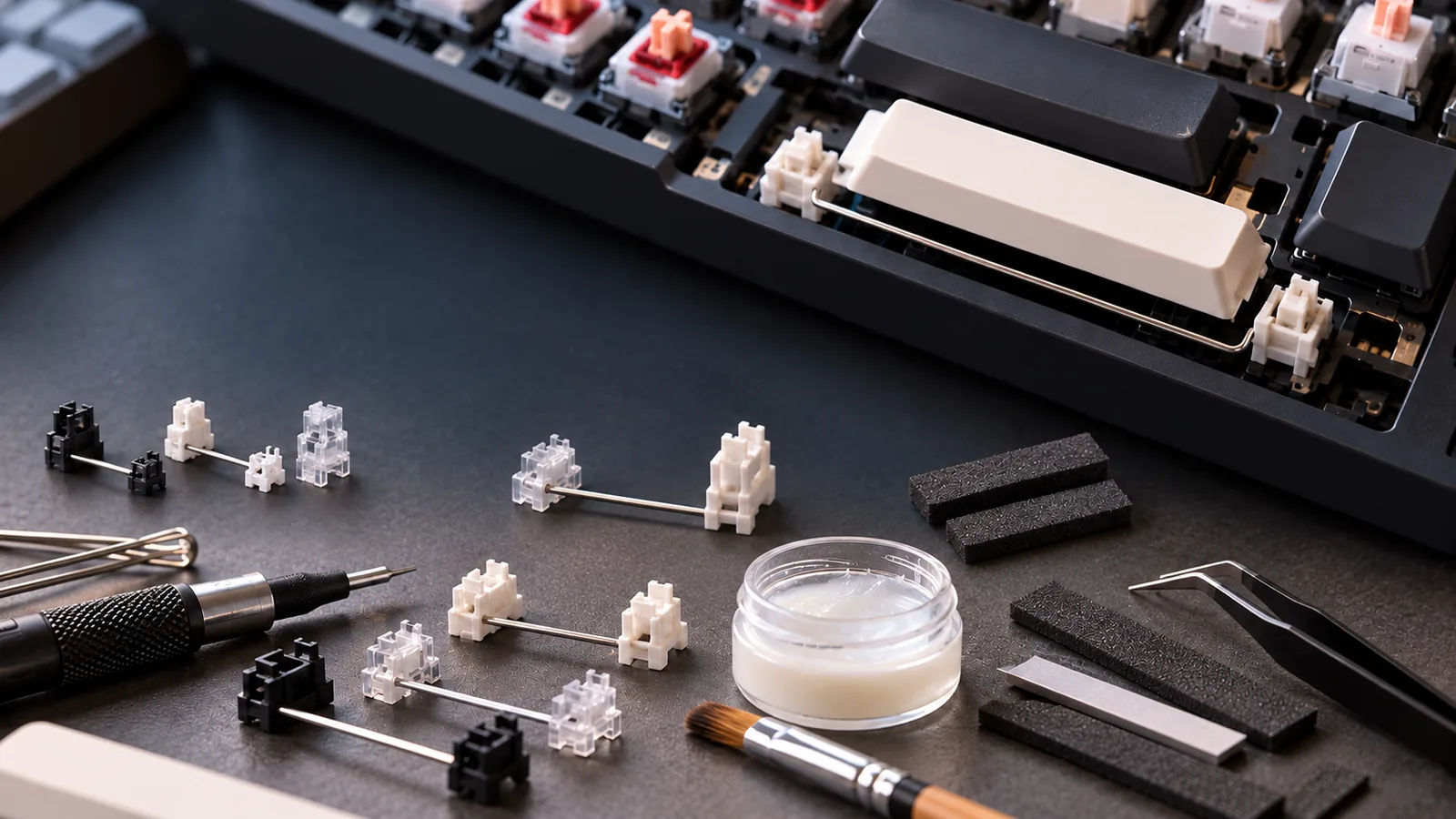
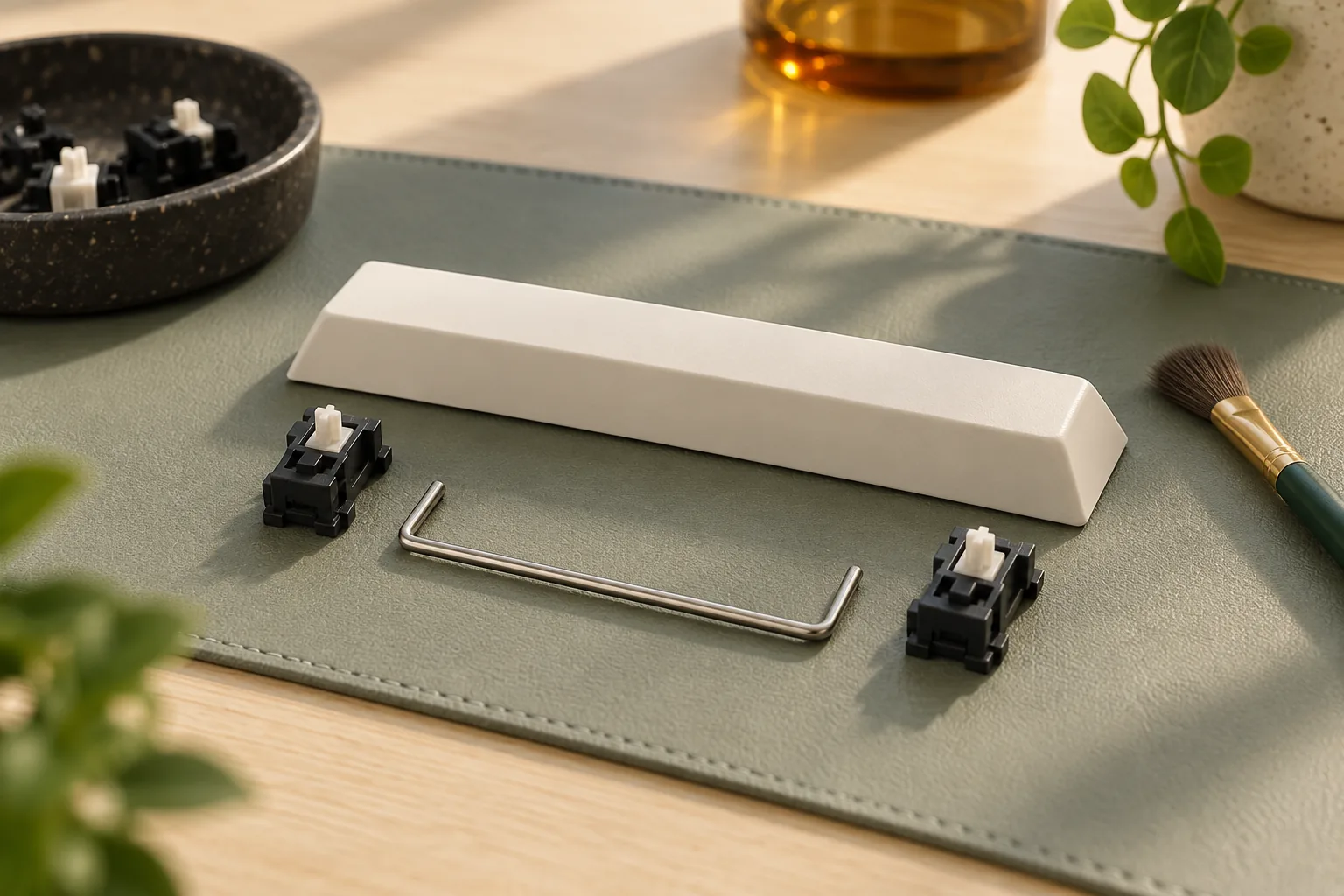
Mechanical keyboard stabilizers support larger keys, helping limit tilting or wobbling when pressed. Their fit depends on the keyboard’s plate and printed circuit board, or PCB. The first buying question is where the stabilizer attaches and whether the board provides the required mounting features. (MonsGeek stabilizer guide)
Distinguish the mounting labels
| Mounting label | What to verify before buying | Selection consequence |
|---|---|---|
| Plate-mounted | Correct stabilizer cutouts in the plate and explicit support for the proposed replacement | Choose a documented plate-mounted replacement for a board that requires this interface. |
| PCB screw-in | Correct PCB mounting holes, supported PCB thickness, and clearance through the plate | Consider screw-in parts only after all of these checks pass. |
| PCB clip-in | Exact documentation approving the proposed PCB clip-in part for the board | Keep this category separate from plate-mounted listings; the examples here establish no specific PCB clip-in replacement fit. |
MonsGeek’s guide documents the plate-cutout requirement for plate-mounted stabilizers and the mounting-hole and clearance requirements for screw-in stabilizers. Treat a listing’s mounting label as the beginning of the check: it does not establish compatibility with your particular board. (MonsGeek stabilizer guide)
Use exact specifications to resolve conflicting advice
The M1 V5 Rapid Disassembly/Quick Release Barebone (Non-VIA) specification lists a 1.2 mm PCB, a PC plate, preassembled plate-mounted stabilizers, and no support for screw-in stabilizers. For this exact model, rule out a screw-in purchase. Do not extend that conclusion to VIA, ISO, or other similarly named versions. (MonsGeek M1 V5 specifications)
This matters because MonsGeek’s general stabilizer guide recommends screw-in replacements in broad terms. The model-specific exclusion settles the buying decision for the Non-VIA board. A general upgrade preference cannot supply mounting support that the exact product specification excludes. (MonsGeek guide, M1 V5 specifications)
Thickness is another separate check. MonsGeek warns that stabilizers designed for a 1.6 mm PCB can fit poorly on a 1.2 mm PCB. Matching thickness still leaves mounting geometry and clearance to confirm; thickness alone is insufficient evidence of fit. (MonsGeek stabilizer guide)
Count wire sizes and required stabilizers
Build a key-by-key inventory from your exact layout documentation. Record the stabilized keys, the required size labels, and how many assemblies of each size you need. Avoid choosing a package solely because its listing mentions your keyboard’s layout category.
Keep size labels such as 2u, 6.25u, and 7u separate from wire dimensions expressed in millimeters. Glorious lists both kinds of information for GSV2, making it possible to compare the required size inventory against the supplied parts. Use the manufacturer’s labels and measurements as published rather than substituting your own conversion. (Glorious GSV2 specifications)
For a hypothetical layout requiring four 2u stabilizers and one 6.25u spacebar stabilizer, your purchase requirement would be:
- Four compatible 2u assemblies.
- One compatible 6.25u assembly.
- The mounting hardware specified for those installed parts.
A kit containing an additional 2u assembly and a 7u option would leave those parts unused in this example. Their presence would not change the layout’s requirements. This inventory exercise checks package coverage; you must establish board compatibility separately.
If you cannot identify the spacebar size or stabilized-key count, resolve that question before ordering. A short message to the keyboard manufacturer with the exact model and layout is more useful than guessing from a product photo.
Read the Glorious GSV2 kit correctly
Glorious GSV2 is a candidate for a documented compatible screw-in build. The manufacturer’s product excerpt specifies standard PCB screw-in mounting, MX-compatible stems and MX-style keycap compatibility, pre-clipped feet, and no pre-applied lubricant. Its named compatibility list includes GMMK PRO, GMMK 2, and GMMK Numpad. Those names do not establish fit for unrelated boards or other generations. (Glorious GSV2 product specifications)
The captured manufacturer inventory lists:
| Supplied item | Quantity | Published wire dimension |
|---|---|---|
| 2u stabilizer with wire | 5 | 25.6 mm |
| 6.25u stabilizer with wire | 1 | 101.6 mm |
| 7u stabilizer with wire | 1 | 116.0 mm |
| Screws | 12 | Not applicable |
| Washers | 12 | Not applicable |
Source: Glorious GSV2 product specifications, manufacturer excerpt captured October 15, 2026. These are published specifications, not independently measured dimensions.
Treat the two spacebar sizes as alternatives to compare with your layout. Their inclusion does not mean both belong in your installation. Likewise, compare the supplied hardware with the installation instructions for the parts you will actually use.
The preparation details also affect your choice. Pre-clipped describes the supplied feet; unlubed describes the absence of pre-applied lubricant. Neither establishes how the finished keyboard will sound. If you want a different preparation state, verify the exact product listing before purchasing instead of assuming every replacement kit arrives ready in the same way. (Glorious GSV2 specifications)
Check installation access before ordering
A compatible part can still involve more disassembly than you want to undertake. Glorious’s GMMK 2 installation-guide excerpt explicitly confirms GSV2 screw-in compatibility and describes removing keycaps and switches, opening the board, and separating components to reach the installation area. (GMMK 2: GSV2 Installation Guide)
Use that documented example to assess the work involved, then open the complete official instructions for your exact board before starting. Check the required tools, access steps, and reassembly sequence. If the guide does not match your keyboard, obtain the correct instructions first.
The useful distinction is between the stabilizers currently installed and the interfaces the board officially supports. The GMMK 2 guide documents a supported replacement route. It does not establish a universal route for every keyboard supplied with plate-mounted stabilizers. (Glorious installation guide)
Decide whether to inspect, tune, or replace
Describe the problem before choosing a remedy. MonsGeek distinguishes rattling, ticking, and binding, with different possible causes. These descriptions help organize an inspection; a sound alone cannot confirm which part needs attention. (MonsGeek stabilizer guide)
| Symptom | Possible explanation in MonsGeek’s guide | Bounded next step |
|---|---|---|
| Rattling | Loose wire or insufficient lubrication | Verify correct seating and inspect under the exact part instructions. |
| Ticking | Wire contacting the housing | Check assembly and fit before choosing a manufacturer-approved tuning step. |
| Binding or restricted travel | Wire movement caught or restricted | Check for an obstruction or incorrect assembly; resolve the restriction before continuing. |
Use the following decision sequence:
- Confirm compatibility. If the installed parts are unsupported, choose a documented compatible replacement before attempting tuning.
- Inspect condition and seating. Follow the board’s access instructions and check whether the assembly is seated correctly and can travel without obstruction.
- Consider tuning compatible, undamaged parts. Follow instructions for the exact stabilizer and keyboard combination.
- Replace damaged parts with supported parts. Recheck mount, wire sizes, hardware, and installation access before ordering.
These are selection and inspection recommendations based on the manufacturer’s compatibility and symptom guidance. They are not a diagnosis or a promise that a particular adjustment will eliminate noise. (MonsGeek stabilizer guide)
A newly purchased set also needs the right fit and assembly. Choose it because it solves a documented compatibility, condition, or package requirement; the specifications here provide no measured sound ranking.
Complete this stabilizer buying worksheet
Copy this worksheet into your notes and fill it using the keyboard and stabilizer manufacturers’ documentation. It combines the mounting checks above with the package inventory check.
| Check | What to record | Decision if unresolved |
|---|---|---|
| Exact keyboard | Full model, revision, and layout variant | Confirm identity before selecting parts. |
| Supported mount | Explicit approval for the proposed mounting interface | Hold the purchase pending confirmation. |
| Mounting features | Required plate cutouts or PCB holes and plate clearance | Seek model-specific fit confirmation. |
| PCB thickness | Board thickness and proposed part support | Resolve a mismatch before ordering. |
| Wire inventory | Required size and quantity for every stabilized key | Complete the count first. |
| Kit contents | Matching assemblies, wires, screws, and washers | Identify any missing required items. |
| Preparation | Supplied lubrication state and relevant part instructions | Decide whether the preparation work suits you. |
| Installation | Exact guide, tools, access, and reassembly requirements | Obtain matching instructions. |
| Seller terms | Exact package, condition, support, return cost, and current total | Verify directly before checkout. |
The worksheet can support a decision to keep your existing parts. If they are compatible and undamaged, use the inspection route before assuming a replacement purchase is necessary. Current prices, stock, seller support, and return terms are not evaluated here.
Frequently asked questions
Are screw-in stabilizers always the best replacement?
Choose screw-in stabilizers only when your exact board supports the proposed parts. The GMMK 2 has a documented GSV2 installation route, while the M1 V5 Rapid Disassembly/Quick Release Barebone Non-VIA explicitly excludes screw-in stabilizers. Start with that model-specific support check. (Glorious guide, MonsGeek specifications)
Does the GSV2 kit come pre-lubed?
The captured Glorious manufacturer specification says GSV2 has no pre-applied lubricant and does have pre-clipped feet. Those are separate preparation details. Check the exact package you intend to order, then consult the manufacturer’s preparation instructions before deciding whether it suits your build. (Glorious GSV2 specifications)
Can I choose a mechanical keyboard stabilizer from its noise alone?
Use the noise to describe the symptom, then inspect fit, seating, and condition. MonsGeek associates rattle, ticking, and binding with different possible causes. Those associations do not establish a remote diagnosis, so follow the exact manufacturer instructions before deciding whether to tune or replace. (MonsGeek guide)
Make your selection
Choose the best keyboard stabilizers by confirming the board first, matching the required wire inventory second, and assessing preparation and installation access third. Keep compatible, undamaged parts on the inspection path; replace damaged or unsupported parts with documented supported replacements. Complete the worksheet against your exact board documentation before placing an order.
Sources and method: Manufacturer evidence was captured October 15, 2026. MonsGeek’s M1 V5 specifications and stabilizer guide, published March 14, 2025, were available as page text. Glorious GSV2 specifications and the GMMK 2 installation guide, published March 31, 2022, were available as manufacturer search excerpts. Recommendations use those documented details rather than measured performance results.