As an Amazon Associate we earn from qualifying purchases.
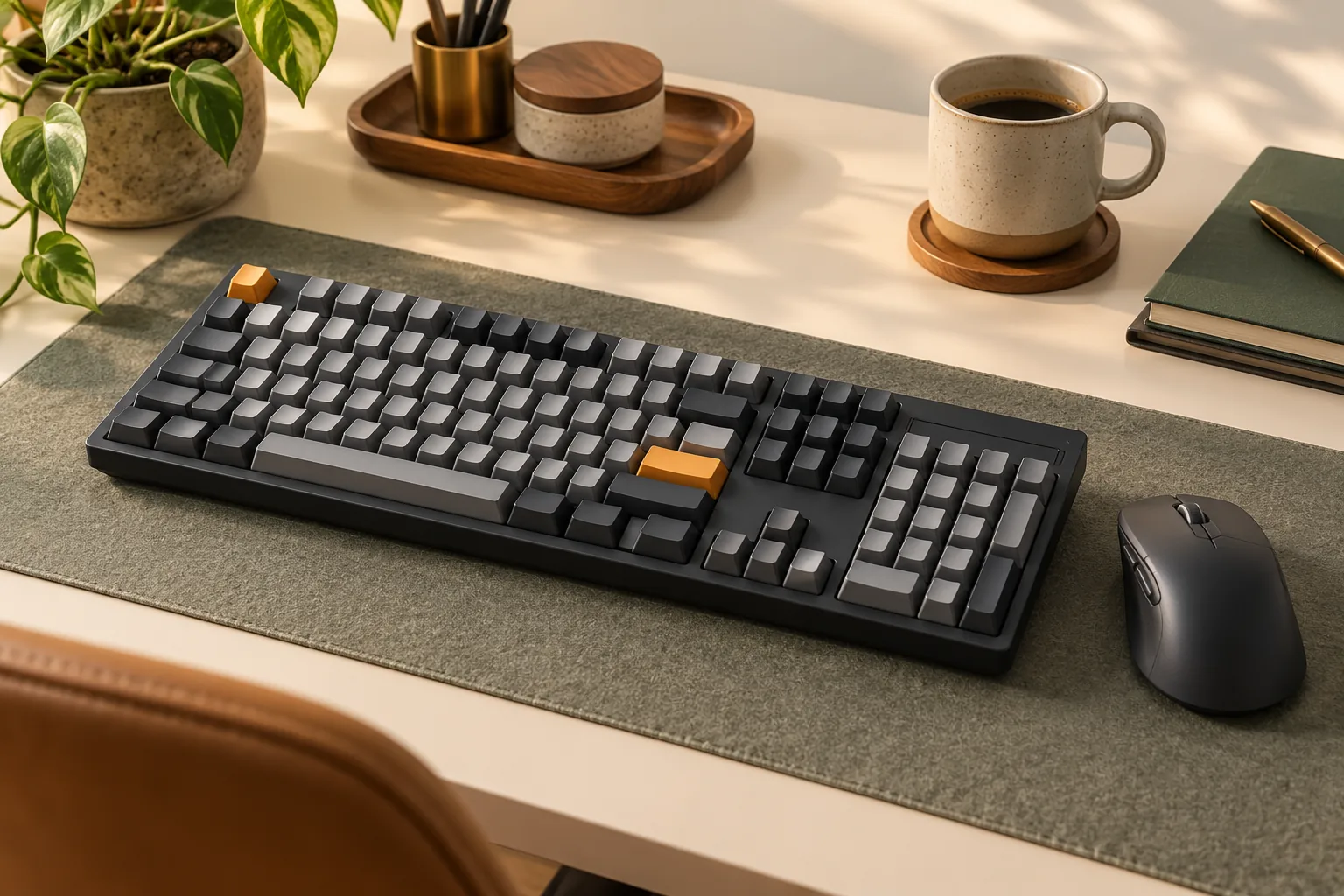
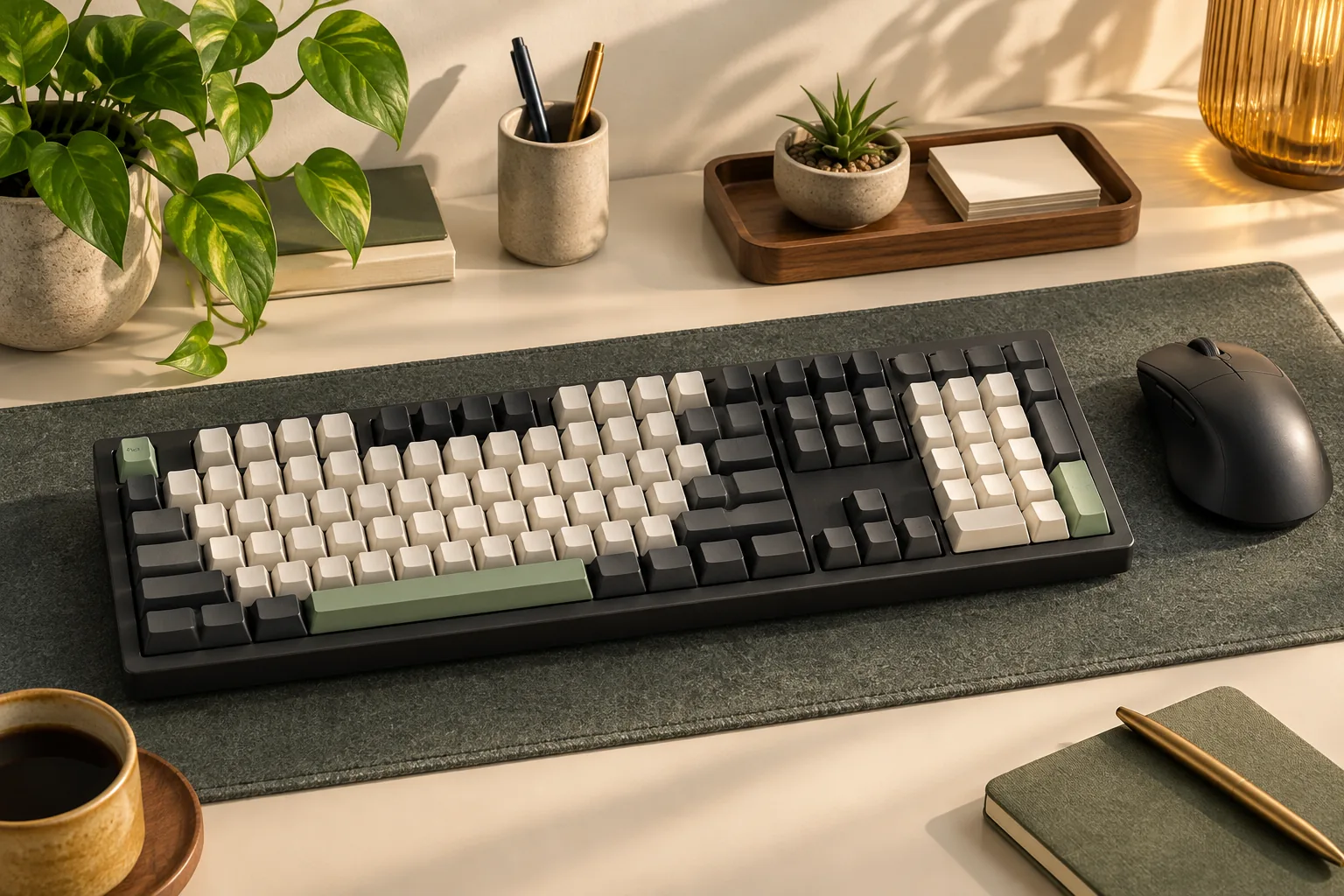
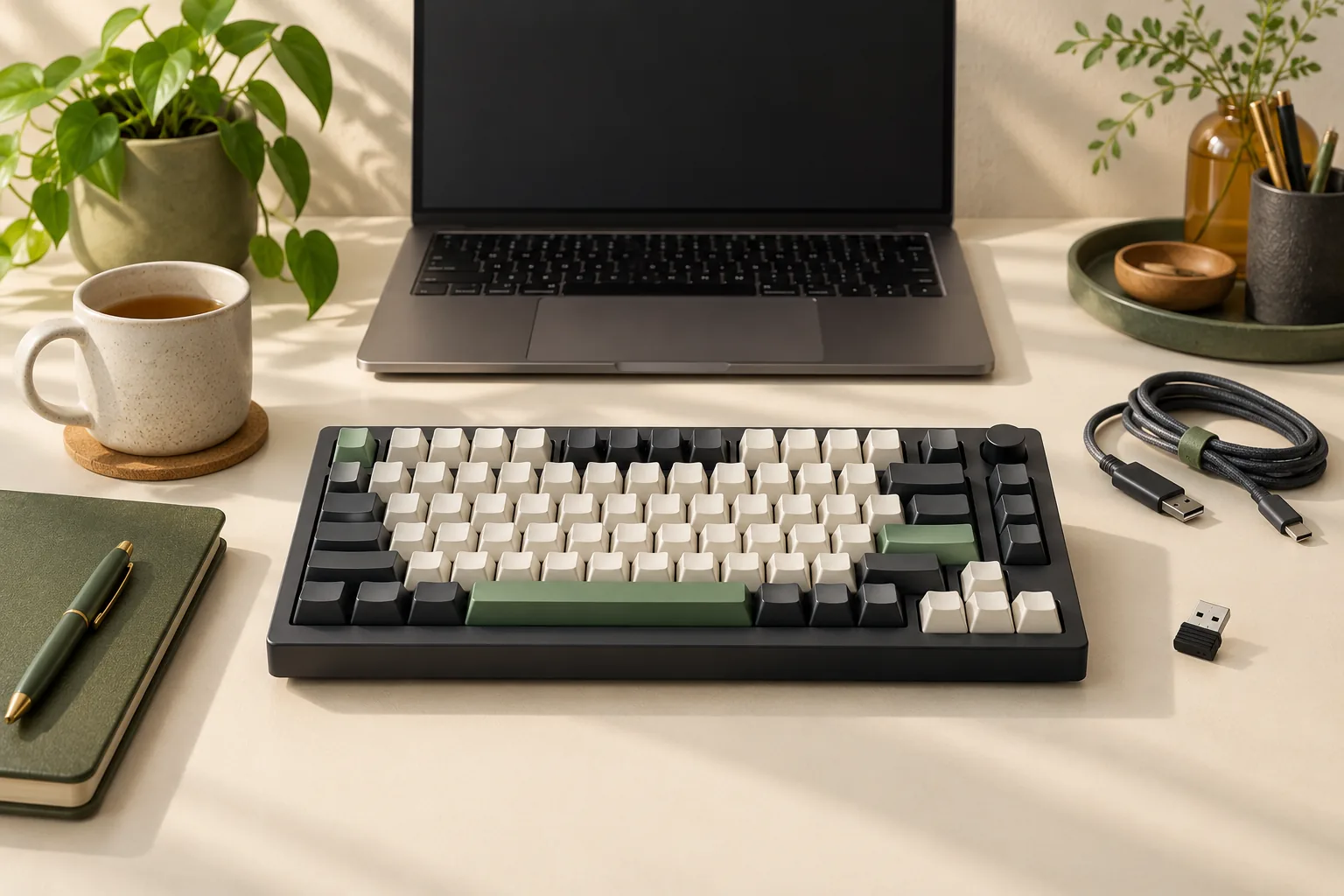
The Keychron Q1 Max QMK/VIA wireless custom mechanical keyboard combines 2.4 GHz wireless, Bluetooth connections to up to three devices, remapping, and replaceable mechanical switches. Your first buying decision is the build: choose fully assembled for included switches and keycaps, or barebone to supply those parts yourself. Keychron lists these options on its Q1 Max product page.
This guide is for buyers choosing a Q1 Max configuration and planning their first remaps or component changes.
Key takeaways
- Fully assembled: Choose this when you want the supplied switches and keycaps.
- Barebone: Budget for compatible switches and keycaps separately.
- Wireless use: Match the documented connections to your devices.
- Remapping: Prepare a cable and a current supported browser.
- Replacement parts: Check the exact model, physical layout, and component compatibility.
About this guide: Recommendations draw on excerpts from Keychron’s official product and support pages captured October 15, 2026. They are research-based recommendations, without hands-on testing or measured sound and performance results.
On this page: Build options · Wireless connections · Launcher setup · Layout files · Replacement parts · Buying checklist · FAQs
Start with the exact Q1 Max model
Keep Keychron Q1 Max as the model name throughout your purchase and setup checks. Use its product information when selecting the build, then look for that same name in support resources. A page labeled only Q1, Q1 Pro, or Q1 HE should not substitute for Q1 Max documentation.
Keychron describes the Q1 Max as a full-metal mechanical keyboard and identifies a CNC aluminum body. Its product information also names QMK/VIA customization and the Launcher Web Configurator. Those are documented construction and customization features; they do not establish how the keyboard will sound or feel with your selected parts. See the official Q1 Max description.
A useful starting record is simply the exact model, assembled or barebone selection, physical layout, color, and switch selection. Keep it available when checking parts and support files.
Assembled or barebone: Choose the starting point
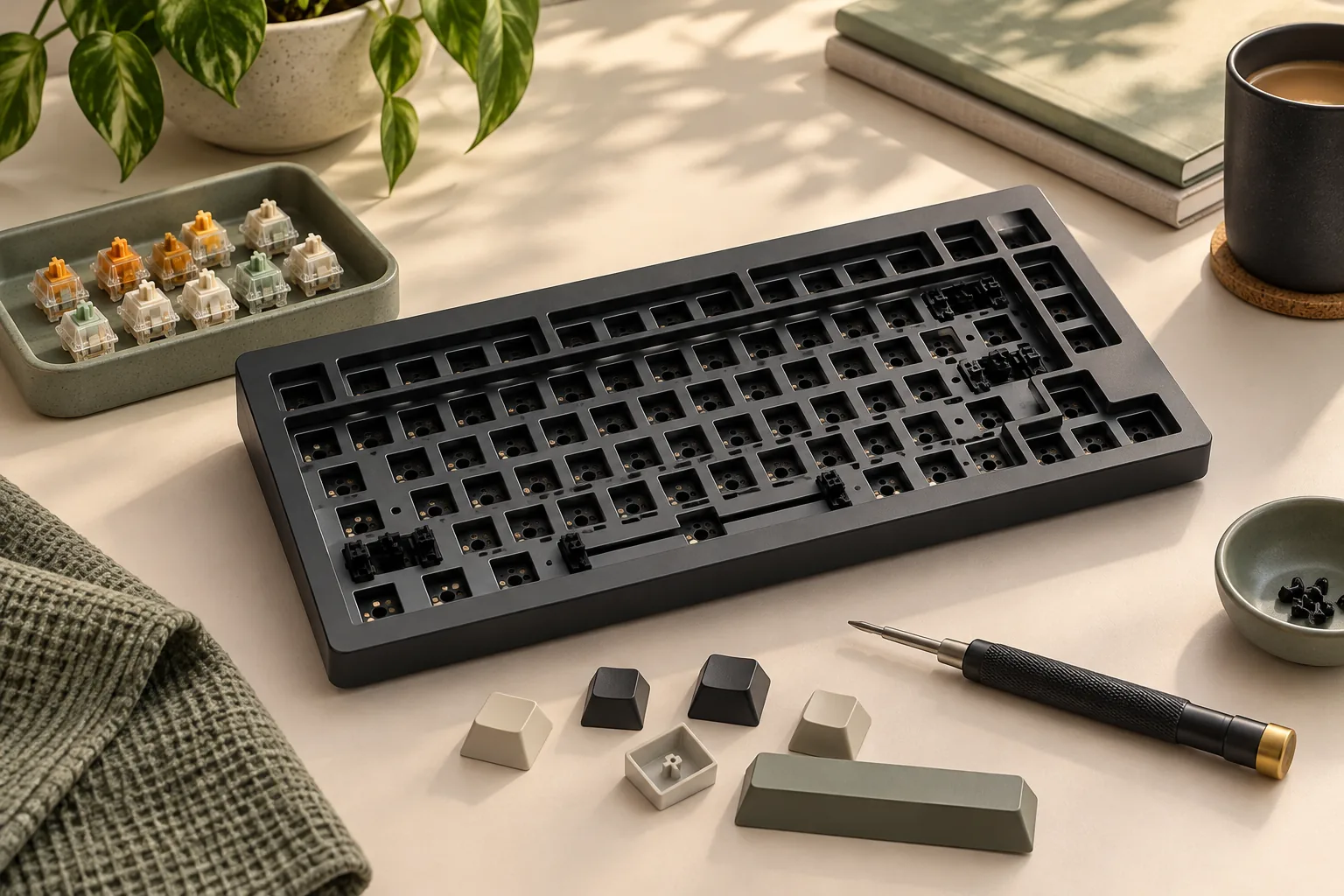
A barebone Q1 Max omits switches and keycaps. That makes it a starting point for a build using separately selected parts. The fully assembled options suit buyers who want those component choices included in the keyboard purchase. Keychron lists Fully Assembled Knob, Fully Assembled Knob with Side-Printed Keycaps, and Barebone Knob options on the product page.
| Configuration | Switches and keycaps | Choose it when | Check before ordering |
|---|---|---|---|
| Fully Assembled Knob | Included in the assembled configuration | You want to start with the supplied parts | Exact switch selection, keycaps, and physical layout |
| Fully Assembled Knob with Side-Printed Keycaps | An assembled option identified by its side-printed keycaps | You specifically want that keycap option | The selected variant’s switches, layout, and keycap description |
| Barebone Knob | Switches and keycaps are excluded | You want to select both separately | Compatibility and the complete parts budget |
Configuration basis: Keychron Q1 Max product information, captured October 15, 2026.
Choose fully assembled if you have not settled on replacement switches or keycaps. It reduces the number of separate component decisions you need to resolve before starting. You can evaluate later changes against the exact keyboard you bought.
Choose barebone if choosing those parts is central to your project. Before ordering, identify both the switch set and the keycap set you intend to use. An unresolved keycap fit question is a reason to pause the parts purchase and request confirmation.
Compare complete purchase plans rather than the keyboard listing alone. For barebone, include the switches and keycaps you still need. For assembled, include any replacement parts you already intend to buy; this comparison does not assume either route is cheaper.
Match wireless connections to your devices
Keychron documents 2.4 GHz wireless and Bluetooth connections to up to three devices, with Mac, Windows, and Linux named in the Q1 Max product description. These capabilities make connection planning relevant whether you use one computer or move among several devices. The source is the exact Q1 Max product page.
Write down the devices you expect to use and the connection you want for each. For example, a buyer might want 2.4 GHz for a desktop and Bluetooth for a laptop. That is a planning example, rather than a tested pairing arrangement or a guarantee about a particular computer.
If your buying decision depends on a specific device-switching shortcut, receiver arrangement, or workplace connection restriction, confirm that detail before purchasing. The documented connection types answer the broad compatibility question; your intended setup may require a more specific check.
Keep wireless typing and configuration preparation as separate requirements. A desk setup can prioritize wireless use while still keeping a cable available for the remapping workflow described below. The wireless feature list alone does not establish a wireless programming procedure.
Prepare for remapping with Launcher
Keychron’s product information describes VIA key remapping and macros and identifies Launcher as a web configurator. For a practical starting workflow, its official Launcher guide begins with a cable connection and a current version of Chrome, Opera, or Edge. The guide describes key and knob customization, macros, and lighting controls.
Before starting, have the keyboard, a suitable connection cable, and access to one of those browsers. On a managed computer, check whether you are allowed to use the web configurator. This is a preparation check, not a promise that every managed environment permits it.
The documented basic remapping sequence is:
- Connect the keyboard by cable. Open Launcher through Keychron’s official guide using a current Chrome, Opera, or Edge browser.
- Select Keymap after connecting. Choose the key you want to change on the displayed keyboard.
- Assign the desired function. Select the replacement function from the available categories.
- Check the displayed result. Keychron’s guide identifies the updated function on the onscreen keyboard as confirmation of the modification.
These steps summarize the captured official Launcher instructions.
For a first change, choose a function you can easily recognize and verify. Record the original assignment before changing it, then try the result in the application where you plan to use it. Treat a more involved macro as a separate task after the basic mapping behaves as intended.
Match the keymap JSON to your physical layout
If your VIA setup calls for a keymap JSON file, match the complete model and layout name. Keychron’s firmware and JSON index has a Q Max section that separately lists Q1 Max Knob ANSI (US), ISO, and JIS keymap JSON files.
Use the physical layout recorded for your selected keyboard to choose among those entries. A US shopping location or the language you type does not replace checking the actual variant. If the seller’s layout description is unclear, resolve it before selecting a file.
Use this sequence when locating the relevant entry:
- Find the JSON Files area.
- Find Q Max series, then Q1 Max.
- Match Knob and ANSI (US), ISO, or JIS to your keyboard.
The index establishes that separate files are listed. It does not, by itself, establish that your keyboard needs a firmware update or that every setup requires a manual JSON import. Follow the applicable official instructions for the exact model if further setup is needed.
Check switches, keycaps, and stabilizers separately
Preserve the qualification on switch compatibility
Keychron says the Q1 Max supports hot-swapping—replacing switches without soldering—with almost all 3-pin and 5-pin MX-style mechanical switches. Keep “almost all” in your buying decision. The claim is broad compatibility within a specified switch category, rather than approval of every switch sold as mechanical. See Keychron’s Q1 Max hot-swap description.
When comparing replacement switches, check that the listing identifies the appropriate MX-style mechanical design and pin configuration. Ask for exact Q1 Max compatibility confirmation if the listing leaves the switch type unclear. A similar product name or appearance is insufficient evidence of fit.
Verify the keycap set independently
Switch compatibility does not settle whether a complete replacement keycap set matches your selected keyboard. Before buying caps, compare the set’s layout coverage and key sizes with the exact Q1 Max variant. Ask the seller to confirm any unclear keys rather than relying on the word “universal.”
Exact replacement keycap dimensions are not established by the sources used here, so this guide does not approve a particular aftermarket set. For a barebone build, resolve that question before treating the parts list as complete.
Identify the stabilizer mounting style
Keychron identifies the Q1 Max’s stabilizers as PCB-mounted screw-in stabilizers in its product description. Record that mounting style if you are researching replacement stabilizers. It is a useful compatibility detail, but it does not establish that every screw-in stabilizer kit fits.
Use this checklist before ordering
Use the worksheet below to turn the feature list into a specific purchase decision. Record a confirmed answer for each applicable row; unresolved compatibility questions should stay open until the seller or official support answers them.
| Check | What to record | If the answer is unclear |
|---|---|---|
| Exact keyboard | Keychron Q1 Max and selected variant | Request the complete model description |
| Build | Fully assembled or barebone knob | Confirm whether switches and keycaps are included |
| Physical layout | ANSI (US), ISO, or JIS | Request the exact layout identification |
| Connections | Intended connection for each device | Confirm any device-specific requirement |
| Remapping access | Cable and current Chrome, Opera, or Edge available | Resolve access before depending on Launcher |
| Separate switches | Exact switch model and compatibility confirmation | Hold the switch purchase |
| Separate keycaps | Confirmed coverage for the selected keyboard | Request confirmation of uncertain key sizes |
| Seller terms | Current total, availability, shipping, returns, and warranty terms | Read the selected seller’s current terms |
For example, a buyer who wants wireless use and a few changed shortcuts, but has no particular replacement parts in mind, has a clear reason to start with a fully assembled option. A buyer who already has switches and keycaps should verify both sets against the exact Q1 Max configuration before choosing barebone.
Check the selected listing’s package contents separately, including any accessories your setup requires. The assembled-versus-barebone distinction should not be treated as a complete accessory inventory.
Frequently asked questions
Does the Q1 Max barebone include switches or keycaps?
No. Keychron explicitly excludes switches and keycaps from the barebone version. Choose fully assembled if you want those parts supplied with the keyboard, or identify compatible sets before ordering barebone. Confirm the exact selected configuration on the Q1 Max product page and your seller’s listing.
Can I use the Q1 Max wirelessly and remap it with Launcher?
The Q1 Max has documented wireless connections, while Keychron’s Launcher guide starts remapping with a cable. Plan for both: your preferred wireless connection for use and a cable for configuration. Follow the official Launcher guide rather than assuming wireless typing establishes wireless programming support.
Which Q1 Max JSON file should I choose?
Choose the Q1 Max Knob entry matching your physical layout: ANSI (US), ISO, or JIS. Those entries are separately listed in the Q Max section of Keychron’s official index. Verify the keyboard variant first, and use a JSON file only when the applicable setup instructions call for it.
Choose your Q1 Max configuration
Choose fully assembled when you want the supplied switches and keycaps; choose barebone when selecting both yourself is part of the goal. Match the documented wireless options to your devices, prepare the cable-based Launcher workflow, and verify replacement parts and layout files against the exact Q1 Max. Use the checklist to review your selected configuration on the official product page before ordering.