As an Amazon Associate we earn from qualifying purchases.
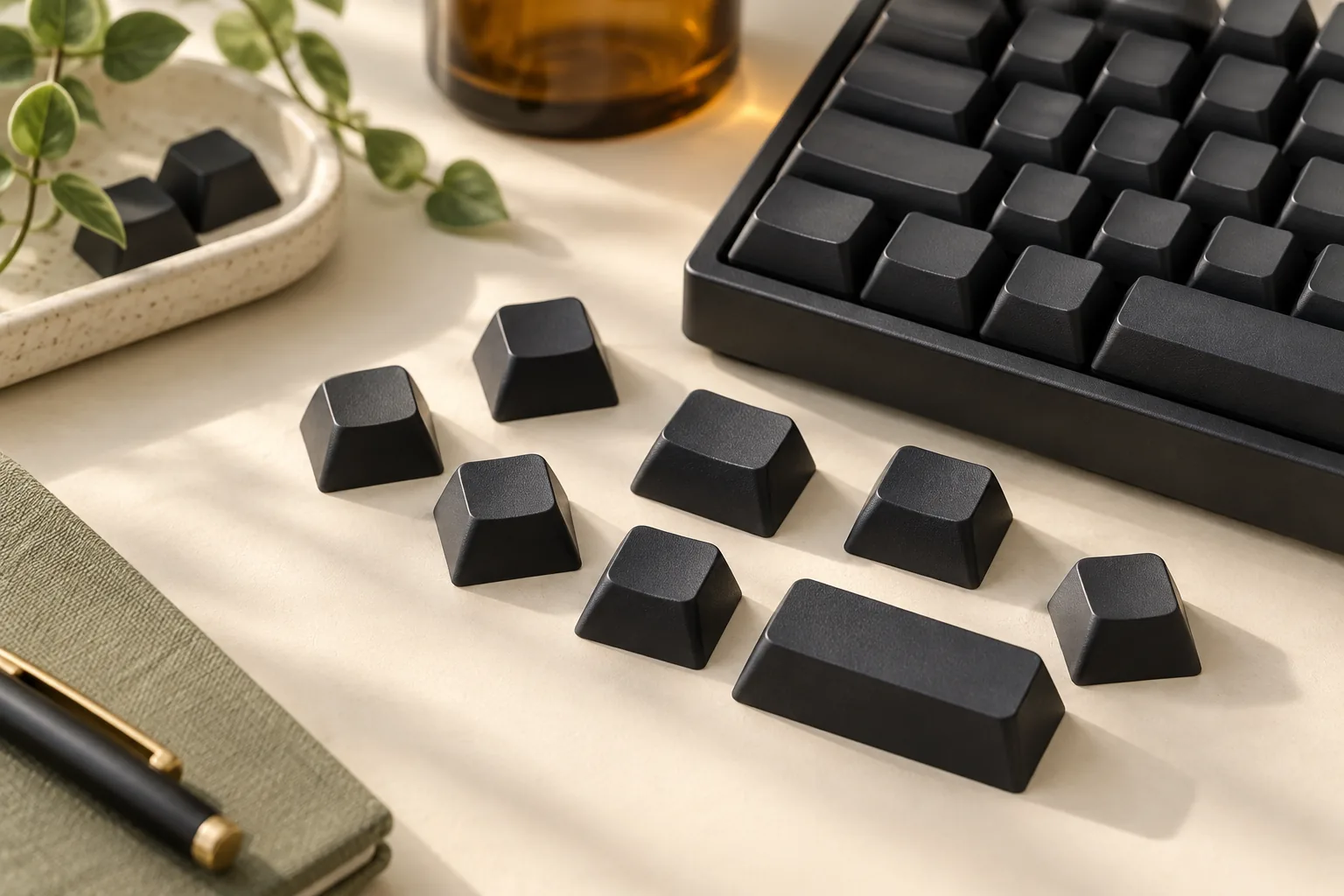
Black blank keycaps suit you if you are comfortable using your keyboard without printed labels and can verify every required cap against the exact kit inventory. Check blank status, black color, and PBT material separately. Before buying, match the kit’s documented rows, widths, stems, and stabilized keys to your keyboard; a matching key count alone is insufficient.
This guide is for buyers replacing keycaps who want a practical way to check coverage and keep unmarked caps organized. Its product examples illustrate buying checks, with no complete-fit verdict for an unspecified keyboard.
Quick buying rules
- Confirm that the selected caps have no legends, including side printing.
- Require an inventory that identifies the rows and widths your keyboard needs.
- Preserve the kit’s row organization during installation, including any homing keys.
Evidence checked October 15, 2026. This guide uses captured product descriptions and catalog information, including manufacturer search excerpts. The worksheets and installation sequence are editorial guidance; no hands-on testing is claimed. Links are not affiliate links.
On this page: Everyday use · Product checks · Row inventory · Coverage worksheet · Installation organization · Questions
Will blanks suit your everyday use?
Start with the labels you actually consult. Think beyond letters: punctuation, number-row symbols, secondary functions, and keys used by someone else all belong in the decision. Being comfortable with ordinary text does not answer whether you want to remember an occasional shortcut or function-layer command.
Use this editorial self-check before choosing a set:
- Write a representative passage. Include the punctuation and numbers you use in normal work, and notice when you look for a printed label.
- Walk through occasional tasks. Consider media controls, application shortcuts, and secondary functions you use less often.
- Consider other users. Ask whether anyone sharing the keyboard needs visible labels.
- Choose a reference method. Decide whether keeping a layout reference nearby is acceptable for your use.
If visible labels remain useful, keeping a labeled set is a reasonable choice. If you are comfortable without them, move on to coverage checks. Treat this exercise as a preference check, with no promised typing-speed improvement or adaptation period.
Check black blank keycaps for three separate attributes
Blank describes the absence of legends—the letters, symbols, or other markings on a cap. Black describes color, while PBT identifies the listed material. Treat these as separate purchase fields: a black catalog can include printed products, and a PBT description does not itself establish that a set is blank. KeebFinder’s black-keycap catalog illustrates the distinction by including white-on-black and side-printed entries.
Check the exact selected variant’s title, description, and photographs for agreement. For a fully unmarked set, inspect both the top and sides. If the product’s material or legend description is unclear, ask the maker or seller to identify the selected kit before ordering.
Two documented examples serve different purposes
The following examples establish particular product fields. Their descriptions do not establish complete coverage for your keyboard.
| Example | Documented identity | What to verify next |
|---|---|---|
| YMDK 61 ANSI blank keycap family | Maker search evidence names blank PBT, OEM-profile, 61 ANSI keycaps for MX switches; the captured Amazon listing identifies the Black variant. | Obtain the exact row, width, and stabilized-key inventory for that variant. |
| Signature Plastics DCS PBT Blank Ergo Keycap Set | Maker search evidence identifies 76 sculptured DCS blank PBT caps, Cherry MX fit, and a row-by-row Ergo inventory. | Compare that specific Ergo inventory with your layout; confirm the selected color separately. |
The captured Amazon YMDK landing names the black 61-key product and separately displays a related 108-key product. Keep those candidates separate. A related product’s key count does not supply the smaller kit’s inventory or establish that either includes your required keys.
That Amazon page also presents a generated customer-review summary reporting mixed fit feedback. This is retailer-generated review synthesis, with no controlled compatibility test or manufacturer fit map. Use the exact kit documentation to resolve your own coverage questions.
Read blank PBT keycaps by row and width
The Signature Plastics example makes row organization concrete. Its captured manufacturer search excerpt describes sculptured DCS caps and lists the following inventory. Here, 1u, 1.5u, and 2u follow the maker’s “1-space,” “1.5 space,” and “2 space” width descriptions.
| Maker row | Documented caps | Row total |
|---|---|---|
| Row 1 | Sixteen 1u caps; two 1.5u caps | 18 caps |
| Row 2 | Fourteen 1u caps; two 1.5u caps; four 2u caps | 20 caps |
| Row 3 | Eight ordinary 1u caps; two 1u homing-bump caps; six 1.5u caps | 16 caps |
| Row 4 | Twenty 1u caps; two 1.5u caps | 22 caps |
Source: Signature Plastics DCS PBT Blank Ergo product excerpt, captured October 15, 2026. The row totals are arithmetic from the listed quantities and sum to the maker’s stated 76 caps.
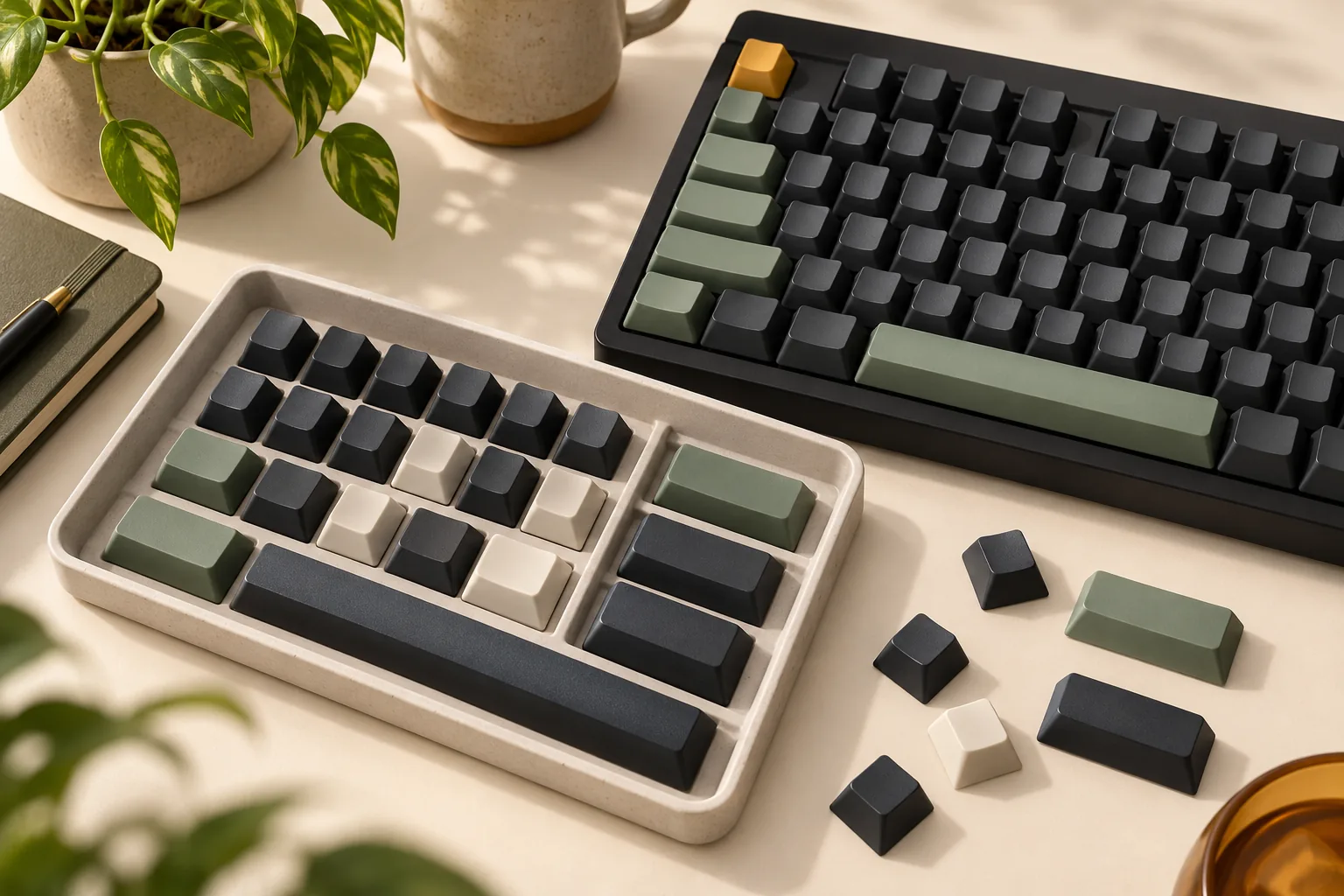
Notice how Row 3 separates ordinary 1u caps from the two with homing bumps. A sorting record should preserve that distinction instead of combining every same-width cap into one pile. Likewise, keep the Row 1 and Row 4 groups separate even where their listed widths overlap.
This inventory belongs to the DCS Ergo kit. It supplies an example of useful documentation, without establishing standard ANSI coverage, a YMDK row map, or a row-number translation between profiles. Use each kit’s own row convention and the layout diagram for your exact keyboard.
For a practical matching exercise, write down each position’s required row and width, then assign a documented cap to it. Mark homing-bump positions separately if you want those cues. Stop wherever the assignment depends on an undocumented cap or an assumed row substitution.
Complete a keyboard coverage worksheet
Place your keyboard’s exact model and layout revision beside the selected kit’s inventory. Use this worksheet to turn a broad compatibility description into specific questions. Record answers from maker documentation or a written seller response rather than relying on similar-looking product photographs.
| Check | Compare before purchase | Pause when… |
|---|---|---|
| Product identity | Exact kit, color, material, and blank variant | The selected option differs from the description you checked. |
| Stem interface | Keyboard switch specification and the cap’s stated interface | Compatibility is assumed from appearance alone. |
| Row position | Each required position and the kit’s documented row | The row is missing or its designation is unclear. |
| Key width and shape | Spacebar, bottom-row keys, Shift, Enter, and other required positions | A needed width or shape is undocumented. |
| Stabilized keys | Keyboard mounting requirements and cap underside details | Mount locations or compatibility remain unconfirmed. |
| Homing keys | Desired positions and the kit’s documented homing caps | Required tactile cues are absent or unspecified. |
| Complete coverage | Every keyboard position assigned to a documented cap | The total count matches, but individual assignments do not. |
The product descriptions explain why several checks are needed: YMDK’s exact maker result identifies the product family without supplying a full row map, while Signature Plastics’ Ergo excerpt provides specific rows and widths for a different kit.
For example, suppose your keyboard needs a particular Shift width in a particular row. If the seller confirms only “MX compatible,” leave that position unresolved until the inventory answers both questions. Apply the same approach to the spacebar and its mounting details.
A useful seller message is: “For this exact kit and color, please provide the row-and-width inventory and confirm the required stabilized-key mounts for my keyboard model and layout.” Include your layout diagram or the maker’s specifications if available. Keep the response with your purchase records.
Keep unmarked caps organized during installation
The following sequence is an editorial organization method. Follow your keyboard maker’s removal and installation instructions, and resolve uncertain fit before mounting a cap. Use the keycap removal and replacement guide alongside the keyboard maker’s instructions during the swap.
- Save the references. Keep the keyboard layout, selected kit inventory, and any seller clarification together. Photograph the existing layout before removing caps.
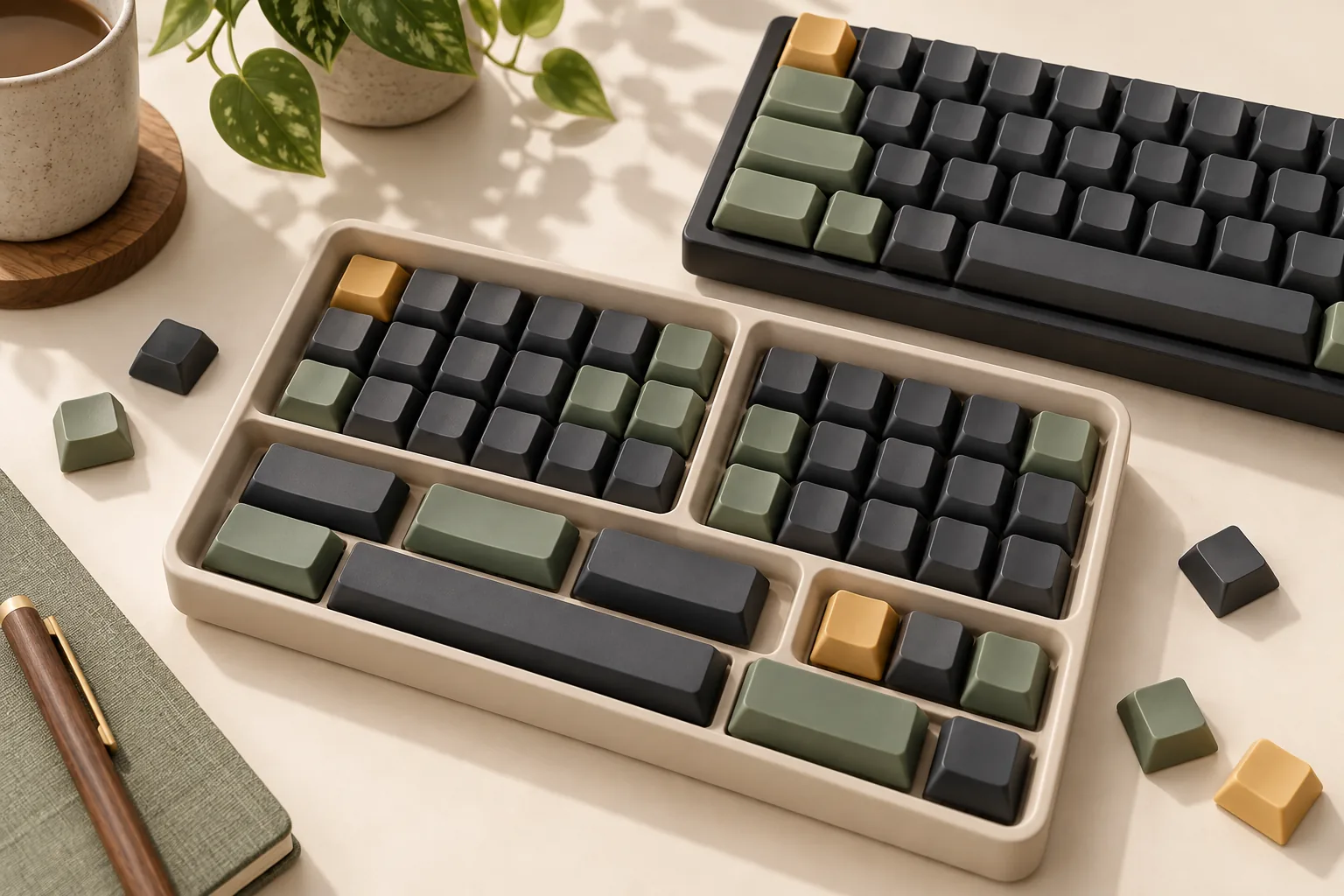
- Photograph the new kit in its tray. Preserve the original arrangement as a reference, while checking it against the maker’s row map rather than assuming the tray proves placement.
- Create separate row groups. Label containers or work areas with the kit’s own row designations. Within each row, separate widths and any homing caps.
- Assign caps before mounting. Match each keyboard position to the worksheet. For the documented DCS Ergo example, keep the two Row 3 homing-bump caps identifiable throughout sorting.
- Verify after placement. Compare the completed arrangement with your references and check the intended keys and functions. Investigate uncertain placement using the exact documentation before continuing.
If a group becomes mixed, return to the photographs and maker inventory. Keep uncertain caps separate until identified; avoid completing the board by guessing from the number of caps left. Retain the tray and your records for later removal, cleaning, or replacement questions.
Resolve lighting, care, and seller questions
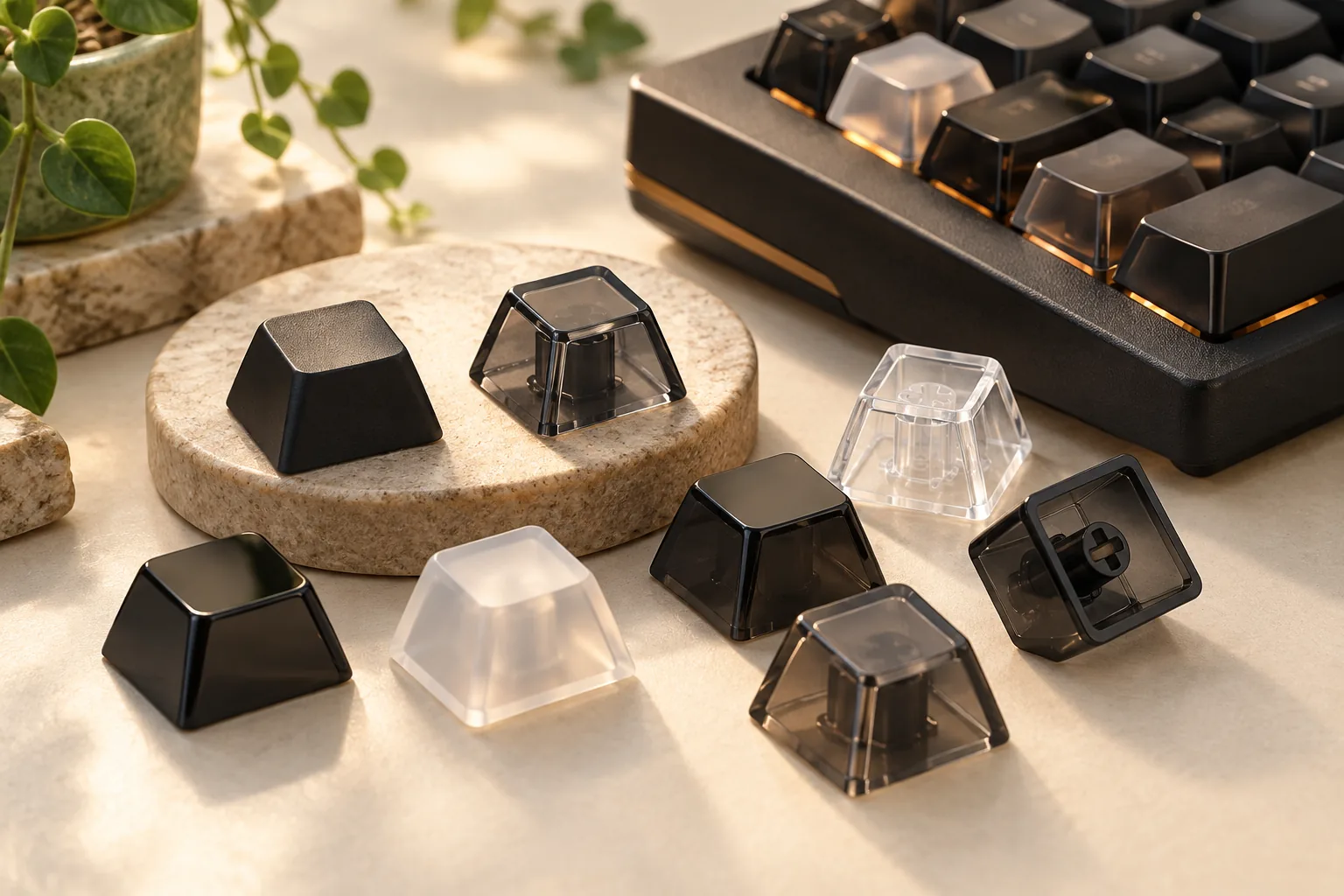
If lighting matters to your purchase, ask the maker how the exact selected cap handles light. The descriptions used here do not establish light transmission. Similarly, obtain care instructions for the exact product before choosing cleaning chemicals or a cleaning method.
Before checkout, confirm the selected seller’s current terms, including what happens if the delivered inventory differs from the description. Ask whether a missing or damaged cap can be replaced in the required row, width, and color. This guide makes no current price, stock, delivery, return-policy, or replacement-support promise.
Frequently asked questions
Are all black keycaps blank?
No. The captured KeebFinder black catalog includes legended products, including white-on-black and side-printed entries. Use color to narrow your search, then verify no-legends status on the exact selected product. For a fully unmarked set, check the sides as well as the top surfaces.
Can I put any blank cap in any row?
Do not assume interchangeability. The DCS PBT Blank Ergo description identifies sculptured caps in specific row groups. Preserve the row and width assignments documented for your kit. If you want to move a cap, ask the maker about that exact substitution rather than applying another profile’s row map.
Does a PBT label establish sound or durability performance?
No performance conclusion is established by the evidence used here. These product descriptions identify PBT material, but this guide contains no sound, wear, or typing measurements. Choose using documented product fields and complete coverage; request product-specific evidence for any performance claim that affects your purchase.
Your next step
Choose black blank keycaps when using an unmarked layout suits your work and every required position has a documented match. Keep color, material, and blank status separate, then preserve the kit’s row organization. Before ordering, complete the coverage worksheet for one exact kit and ask the maker or seller to resolve every remaining gap.