As an Amazon Associate we earn from qualifying purchases.
Choose a Glorious modular mechanical keyboard by its generation, PRO or HE suffix, physical layout, and prebuilt or barebones package. An unversioned “GMMK” label does not identify one interchangeable product: the documented GMMK 1 Compact, GMMK 2, original GMMK PRO, and GMMK 3 family have different switch and software requirements. (GMMK 1 guide, GMMK 2 listing, GMMK 3 FAQ)
This guide is for buyers comparing listings or planning to reuse switches and keycaps. It focuses on identifying the right keyboard and package, with specific examples you can check against manufacturer documentation.
Quick choice: Start with the full model name. Choose a prebuilt package if you want installed switch and keycap sets; check the selected configuration. Choose barebones when you intend to supply the missing parts. Verify switch compatibility and configuration software before ordering.
Editorial method: This is a documentation-based comparison using sources captured October 15, 2026, including official support text and dated product-page and guide search excerpts. Recommendations concern documented compatibility and buying requirements; they are not hands-on performance findings.
Jump to:
- Identify the version
- Prebuilt or barebones
- Switch compatibility
- Layout and keycaps
- Software and firmware
- Listing worksheet
- Buying questions
Identify your Glorious modular mechanical keyboard
Read the model name as a sequence of separate choices. “GMMK 3” establishes a different identity from “GMMK 2”; within the GMMK 3 family, PRO and HE identify separate distinctions. In particular, the non-HE GMMK 3 and GMMK 3 PRO support mechanical MX switches, while HE switch functionality belongs to HE variants. (Official family FAQ)
Use this table to identify documented examples. Each row applies to the named model or configuration.
| Exact model or example | Documented identity | Switch or software distinction | Buying implication |
|---|---|---|---|
| GMMK 1 Compact | 60%; 61 ANSI or 62 ISO keys | 3-pin hot-swap sockets; optional Windows-only Keyboard Editor; no Glorious CORE support | Match this Compact model before buying switches or downloading software. |
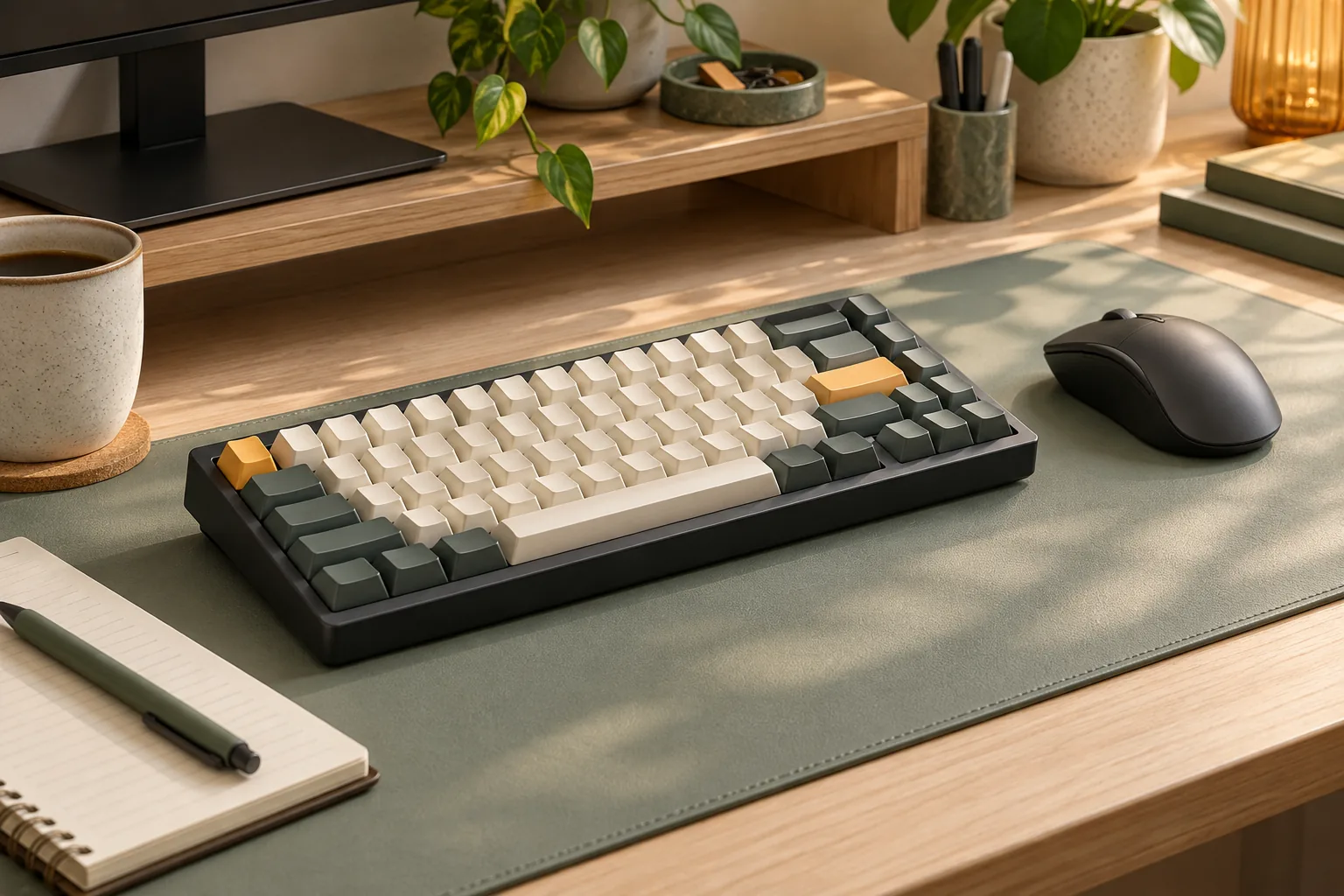
| GMMK 2 65% barebones | Wired; 67 keys | 5-pin hot-swap; Glorious CORE and QMK compatibility | Switches and keycaps are not included. |
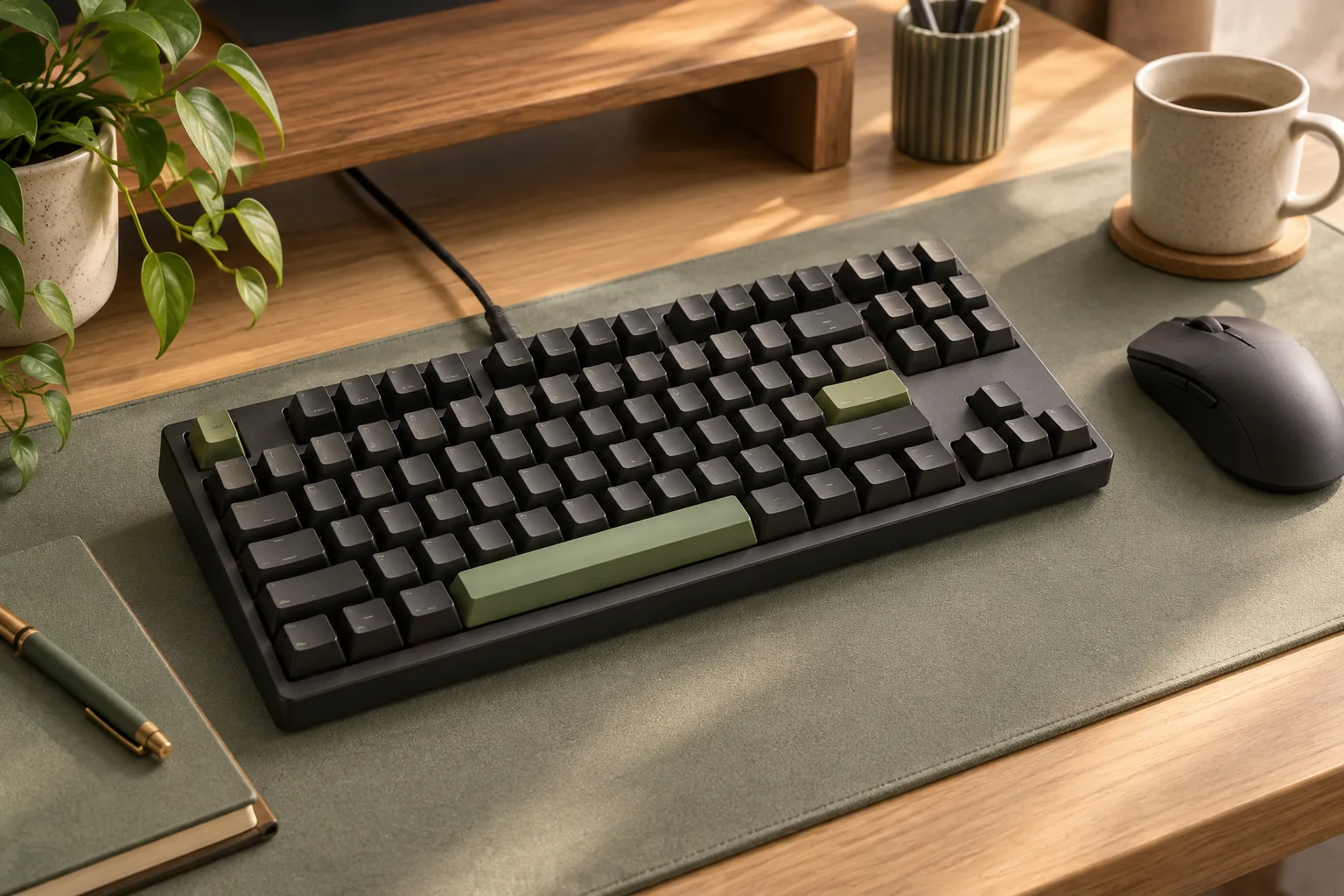
| Original GMMK PRO barebones | Wired 75%; 82 keys; programmable knob | 5-pin hot-swap; keycaps excluded | Keep this model separate from GMMK 3 PRO listings. |
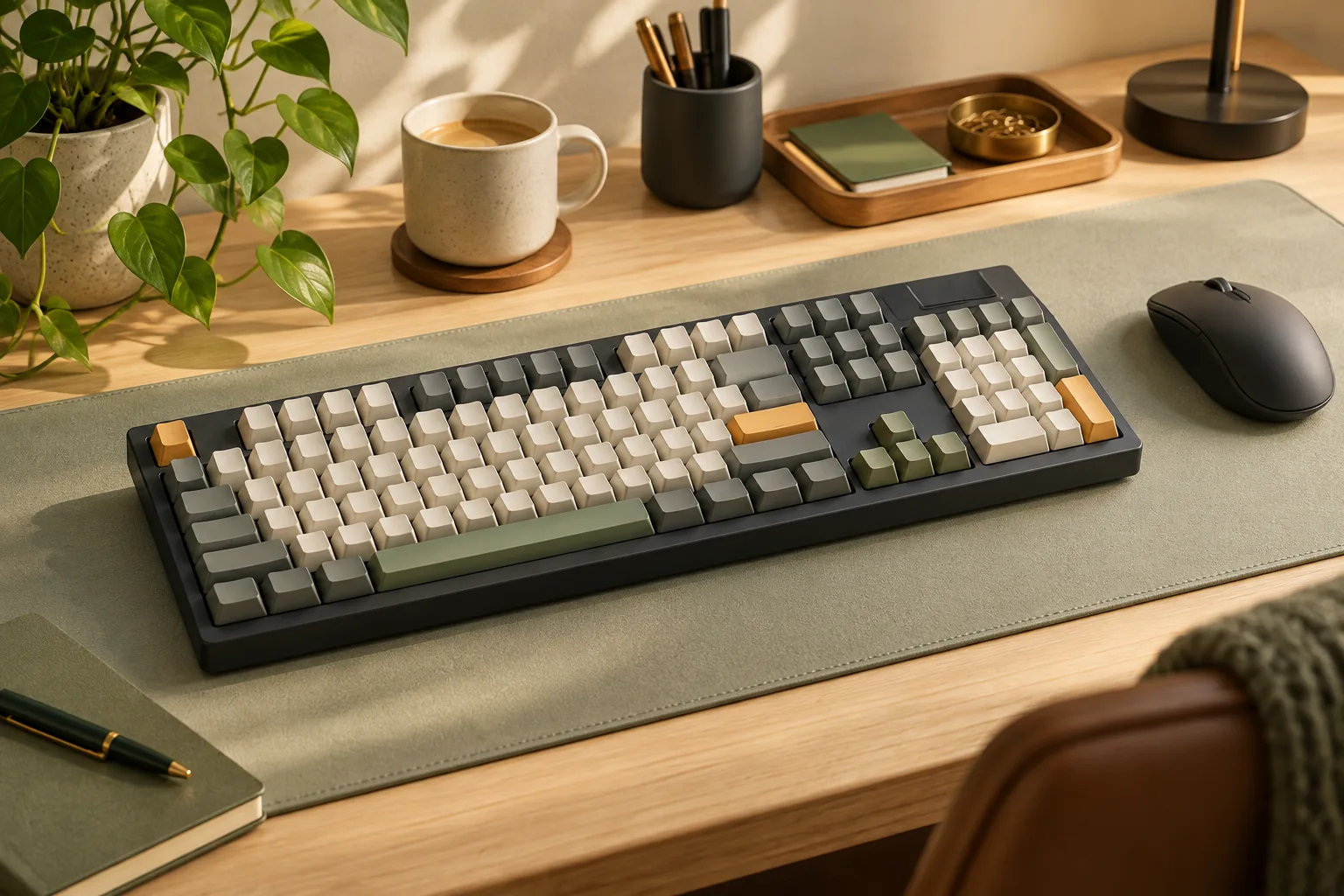
| GMMK 3 non-HE barebones | Wired polymer model; 65%, 75%, or 100% | 5-pin mechanical support; no installed switches or keycaps | Confirm the selected size and account for the missing parts. |
| GMMK 3 HE and GMMK 3 PRO HE | HE variants within the GMMK 3 family | Glorious HE compatibility is guaranteed; supported mechanical switches are also listed | Check calibration requirements before planning a mechanical-switch installation. |
The GMMK 1 Compact row does not establish socket support for every original GMMK layout or revision. Likewise, a specification for the original GMMK PRO should not be transferred to a GMMK 3 PRO simply because both names contain “PRO.”
Choose a complete keyboard or a barebones package
Decide whether you want a keyboard with installed parts or a base for parts you select yourself. The documented GMMK 2 65% barebones excludes switches and keycaps. The non-HE GMMK 3 barebones listing also excludes installed switches and keycaps. Include those missing components in your purchase plan. (GMMK 2 contents, GMMK 3 contents)
Sample switches do not make a complete set
The GMMK 3 HE help guide lists four HE sample switches with both prebuilt and barebones packages. It separately states that barebones does not include a full switch or keycap set. A box-content list mentioning switches therefore does not establish that the keyboard arrives fully populated. (GMMK 3 HE package guide)
That guide also lists a cable, switch and keycap pullers, a screwdriver, and a booklet for both packages. Four alternate macOS keycaps are listed for the prebuilt only. Treat these as details of the named package rather than a universal accessory list for every GMMK.
For a prebuilt purchase, confirm the exact installed switch and keycap option shown in the selected variant. For barebones, make a separate list of the full switch set and layout-compatible keycaps you will supply. If a seller offers a bundle, ask whether those parts arrive installed or separately packed.
Match the switch system before choosing parts
Hot-swap describes a replaceable-switch design; the model’s compatibility documentation still determines which switches you can use. Begin with the exact keyboard, then check its supported switch family.
Mechanical switch support depends on the generation
The GMMK 1 Compact guide specifies 3-pin hot-swap sockets. In contrast, Glorious documents out-of-the-box 5-pin PCB-mounted switch support for GMMK 2 and the original GMMK PRO, and explicitly excludes low-profile switches for those two models. (Compact guide, GMMK 2 and PRO compatibility)
For GMMK 3 and GMMK 3 PRO, the official compatibility article names 5-pin mechanical switches from Glorious, Gateron, Kailh, and Cherry MX. If you already own switches, compare their exact type with that list before choosing the keyboard. (GMMK 3 switch compatibility)
HE support is a separate requirement
HE means Hall Effect and identifies the magnetic-switch variants discussed here. Glorious guarantees compatibility with its own HE switches on the HE models and also lists supported mechanical switches. It does not guarantee arbitrary third-party magnetic switches. A seller’s broad “magnetic compatible” description needs more detail before it becomes a sound parts-purchase decision. (Official compatibility article)
Mechanical switches on HE models require calibration
Glorious states that mechanical switches installed in GMMK 3 HE keyboards will not register input until you run the switch calibration tool in Glorious CORE 2.1. The process is required again after later mechanical-switch swaps. The manufacturer recommends calibration for HE switches as well. (Switch-change instructions, HE setup guide)
If you are buying an HE base to reuse mechanical switches, software access is part of the setup requirement. This requirement belongs to the documented HE models; it should not be applied to every legacy GMMK.
Check the layout before reusing keycaps
Match the exact physical layout, including the selected ANSI or ISO option, before ordering replacement keycaps. The GMMK 1 Compact guide illustrates why this matters: it specifies 61 keys for ANSI and 62 for ISO. Its 60% layout also lacks a dedicated function row, numpad, and arrow keys, with function and arrow inputs accessed through Fn combinations. (GMMK 1 Compact layout)
The original GMMK PRO offers another specific fit check. Its guide identifies a 1.75u right Shift and three 1u keys to the right of the spacebar. Check that a replacement keycap set includes those sizes if that is your keyboard. (Original GMMK PRO layout guide)
Use these examples as a checking method. Compare the exact keyboard layout with the keycap kit’s size diagram, paying attention to Shift, the bottom row, and navigation keys. For stabilizer replacements, obtain model-specific fit information before ordering; a matching family name alone is insufficient confirmation.
Check software separately from basic keyboard use
Ask two questions: can the keyboard provide basic input on your computer, and can your computer run the software needed for your intended changes? Those requirements can differ.
For the documented GMMK 1 Compact, Keyboard Editor is optional for basic use and available for Windows only. The guide explicitly excludes Glorious CORE compatibility. A CORE download is therefore not the correct configuration route for that model. (GMMK 1 software guidance)
The GMMK 2 65% barebones listing identifies Glorious CORE and QMK compatibility. The original GMMK PRO guide independently confirms QMK support. These are useful candidates to investigate when QMK firmware is a requirement. (GMMK 2 software specifications, Original PRO firmware guidance)
GMMK 3 QMK documentation conflicts. The family FAQ says only non-HE variants support QMK in wired mode, while the non-HE barebones storefront table says “QMK Support: No.” If QMK determines your purchase, obtain confirmation for the exact model and supported firmware before ordering. (Family FAQ, Barebones storefront specifications)
Mac users should also check configuration-software eligibility separately. The FAQ’s CORE 2.1 macOS statement specifically names M1, M2, and M3 Macs running macOS 11 or later. That statement does not establish support for every Mac or describe all basic keyboard-input compatibility. (CORE 2.1 macOS FAQ)
Compare listings with this worksheet
Copy these fields into a note for each candidate. Resolve any field that affects your intended use before comparing total purchase cost.
| Field | What to record | What must match your needs |
|---|---|---|
| Full identity | Generation, PRO suffix, HE suffix, exact model or SKU | The product documentation you are using |
| Physical layout | Size and selected ANSI or ISO option | Required keys and replacement keycap sizes |
| Package | Prebuilt, barebones, or seller bundle | Whether full switch and keycap sets are installed or supplied |
| Switch system | Supported mechanical or HE switches | The exact switches you intend to use |
| Connection | Connection specified for the selected SKU | Your required connection method |
| Software | Configuration application and computer requirements | Access to any required setup or calibration tools |
| Firmware | Explicit support for the selected model | Your QMK requirement, if applicable |
| Missing parts | Switches, keycaps, or other separately required items | A complete purchase plan |
Connection deserves special attention for the non-PRO GMMK 3 HE. The family FAQ describes wired and wireless variants, while the model-specific HE guide documents a wired package. Obtain exact-SKU confirmation before treating a non-PRO HE listing as a wireless option. (Family FAQ, Model-specific HE guide)
Worked example: you already own mechanical switches
Suppose you want to reuse 5-pin mechanical switches and require QMK. The documented GMMK 2 65% barebones is a candidate because its listing specifies both 5-pin sockets and QMK support. You would still need to check the layout and supply compatible keycaps. (GMMK 2 specifications)
The original GMMK PRO is another candidate to investigate if its 75% layout and knob suit your needs; its documentation supports 5-pin switches and QMK. A GMMK 3 candidate requires clarification of the conflicting QMK documentation first. This comparison identifies purchase conditions rather than ranking typing feel or gaming performance. (Original PRO specifications, Original PRO QMK guide)
At checkout, verify the seller, condition, exact selected variant, final price, availability, and return terms. Confirm that the model name on the order matches the documentation you used.
Frequently asked questions
Is the original GMMK PRO the same as the GMMK 3 PRO?
They are separate model identities. The original GMMK PRO example documented here is a wired 75% keyboard with 82 keys and a programmable knob. Keep its specifications and firmware guidance attached to that exact model when comparing it with a GMMK 3 PRO listing. (Original PRO listing)
Can I use my existing mechanical switches in a GMMK 3 HE?
The official compatibility article lists supported mechanical switches for the HE models. Check your exact switches against that documentation, then account for the required CORE 2.1 calibration before mechanical input will register. Repeat calibration after later mechanical swaps. (Compatibility, Calibration instructions)
What should I ask a seller whose title only says “GMMK”?
Ask for the full generation and model, any PRO or HE suffix, layout, connection, and prebuilt or barebones status. Request the exact SKU and installed switch and keycap details where relevant. Use those answers to select the matching manufacturer guide before deciding whether the listing meets your requirements.
Make the final model check
The right Glorious modular mechanical keyboard is the exact configuration that matches your switches, layout, software, and package needs. Finish the worksheet for your preferred listing, then open its linked manufacturer documentation. Resolve any required firmware or connection uncertainty before ordering, and include missing switch and keycap sets in your purchase plan.