As an Amazon Associate we earn from qualifying purchases.
To build your first mechanical keyboard, choose an exact kit and layout, confirm its compatible parts, inspect everything before power, and follow its manufacturer's assembly and testing sequence. Decide early between a hot-swap printed circuit board (PCB), which accepts compatible switches without soldering them, and a solderable PCB. That choice changes your tools and switch installation process. Kinetic Labs' component guide explains both routes.
This guide is for beginners learning how to build a mechanical keyboard from a documented kit. It covers parts, fit checks, first power-on, assembly, and final checks. The examples use conventional mechanical keyboards; other switch technologies and soldering repairs need their own instructions.
Keep these decisions in order:
- Choose the kit, revision, layout, and PCB version before buying separate components.
- Account for missing parts before starting assembly.
- Inspect before power, test at the documented stages, and resolve problems before closing the case.
This documentation-based guide draws on CannonKeys' manufacturer instructions and Kinetic Labs' component overview. Its comparisons and checklists synthesize those sources; no hands-on testing is claimed.
Jump to: Choose your route · Parts worksheet · Inspect before power · Initial testing · Assembly · Final checks · Questions
Step 1: Choose your kit and build route
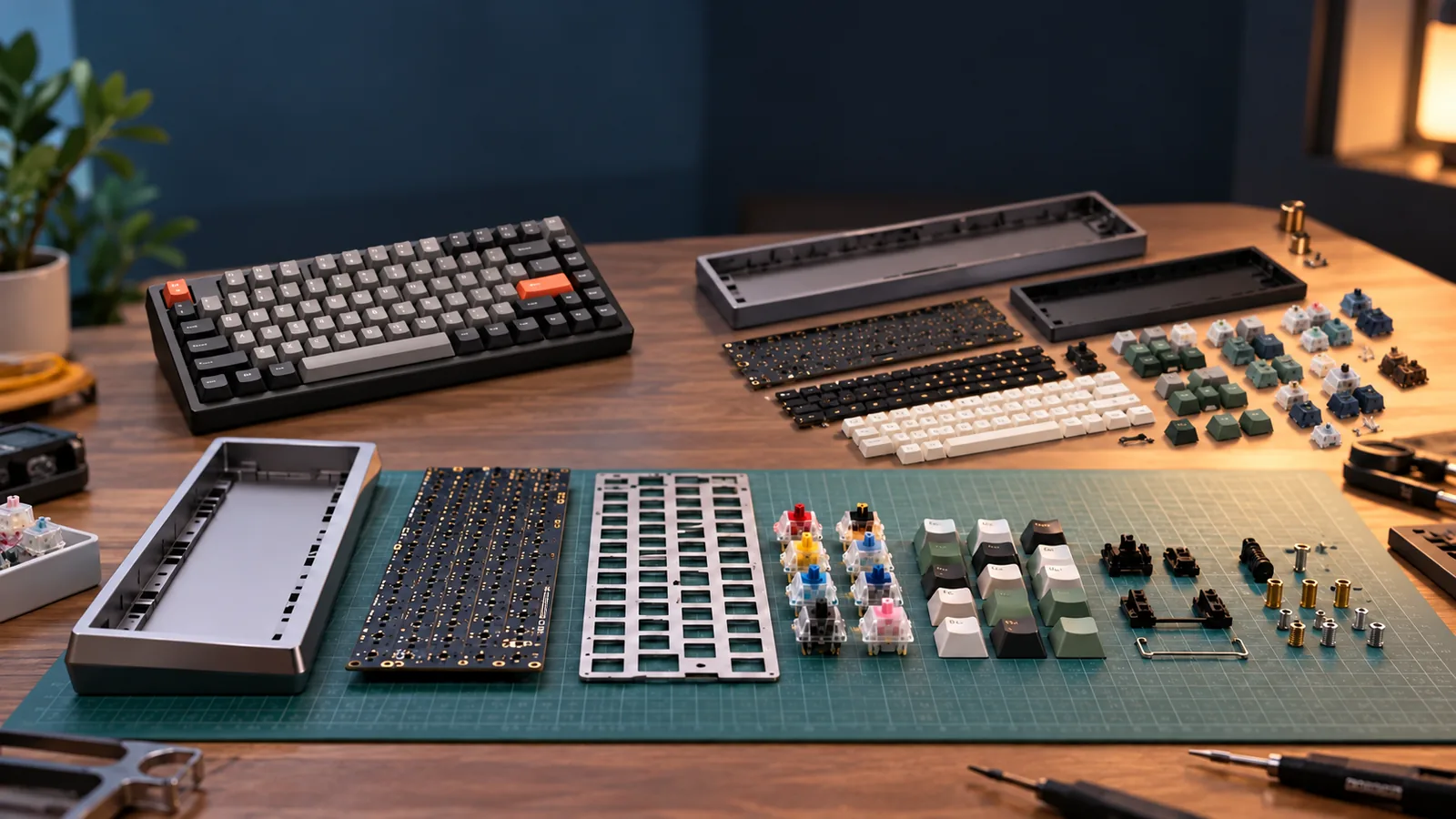
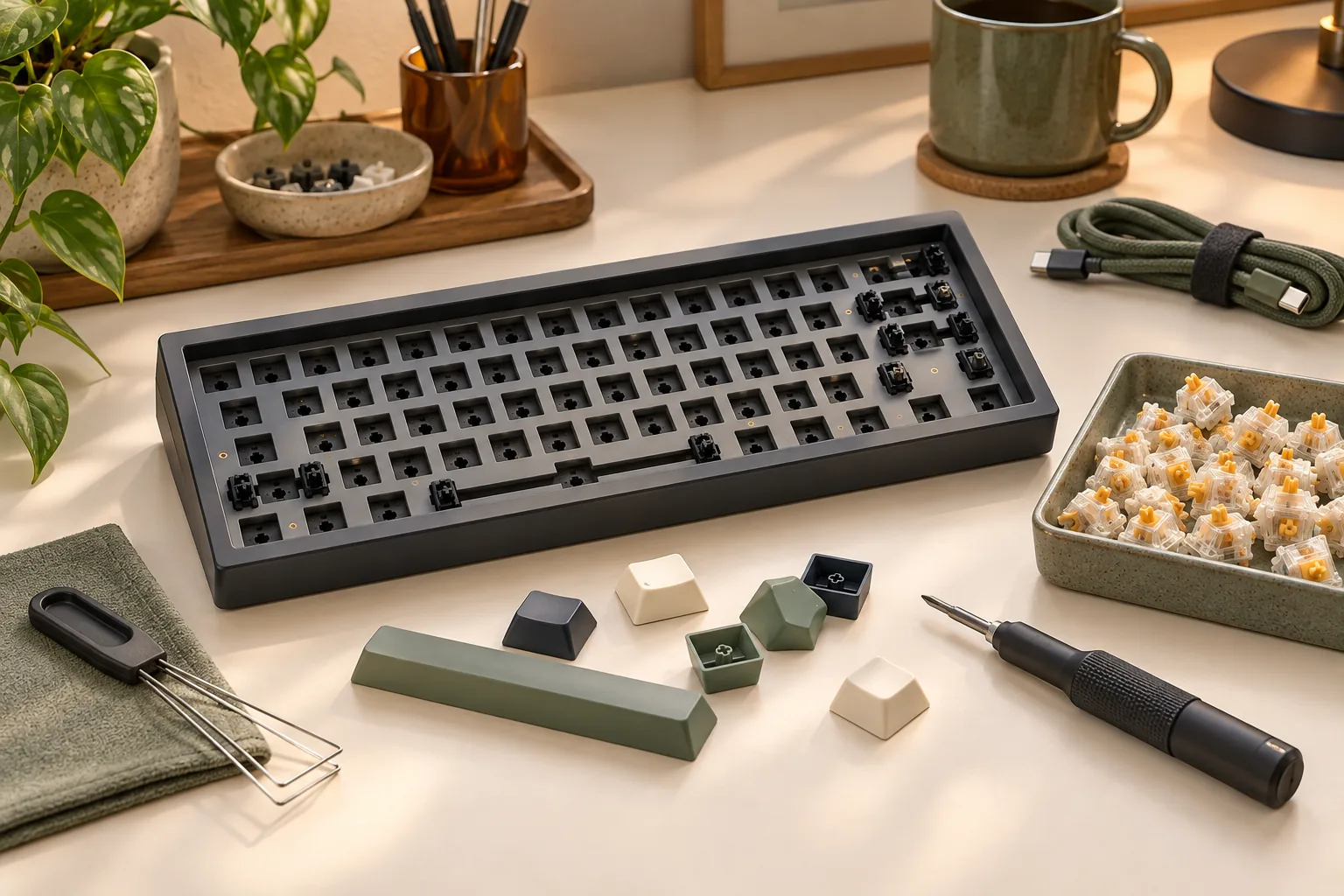
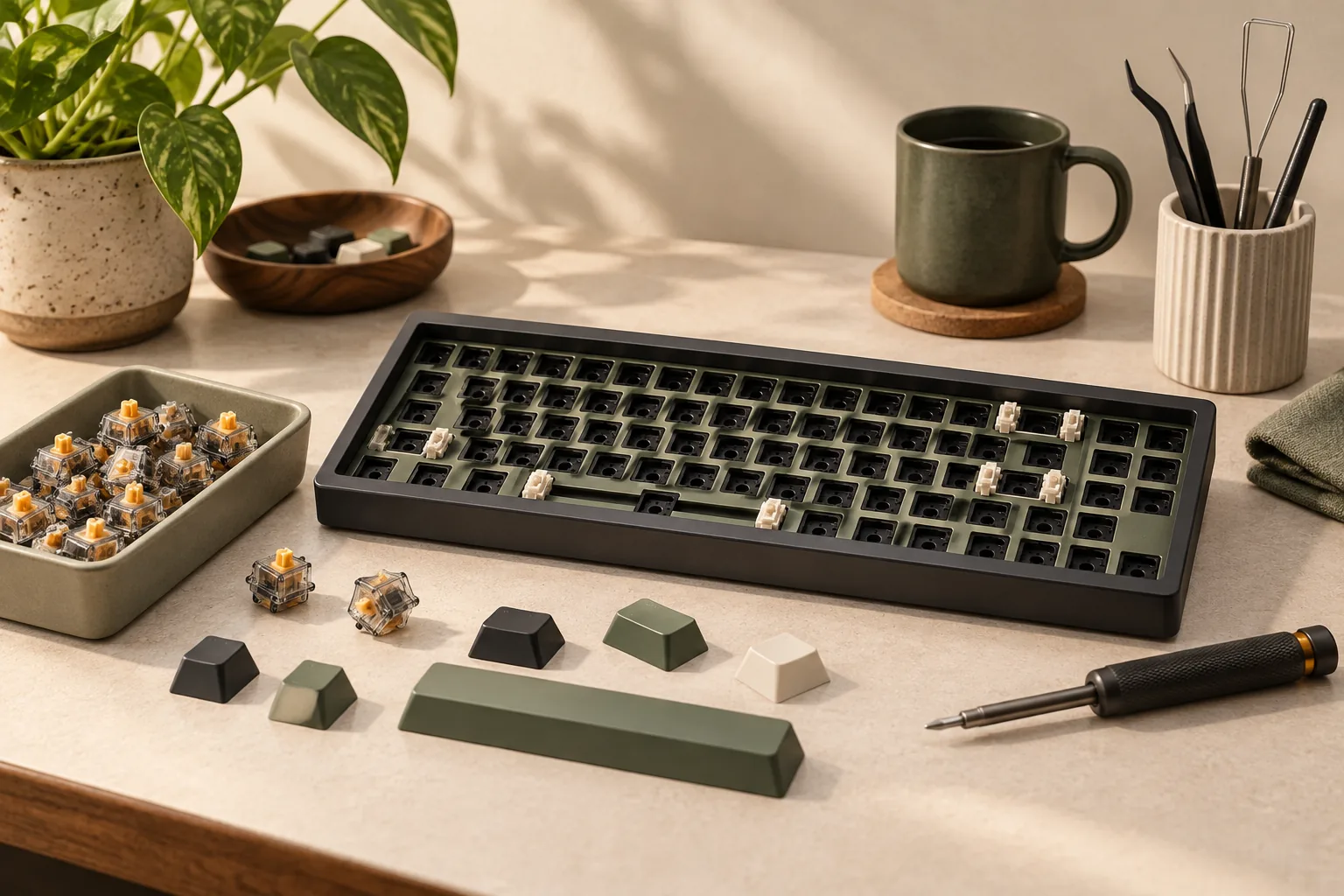
A mechanical keyboard kit supplies a specified group of components for assembling a keyboard. A conventional build includes a case, PCB, plate, stabilizers, switches, and keycaps. The case houses the internals, the plate holds switches in position, and stabilizers help keep larger keys such as Enter and the spacebar steady. The exact kit inventory determines which components you must buy separately. Kinetic Labs explains these component roles.
Start with the keys you need for everyday use. Check the actual layout for arrows, function keys, and other required positions. Then record the exact kit name, revision, layout, and PCB option. Keep its manual beside your parts list. If Keychron is on your shortlist, compare the V1, V1 Max, and Q1 Max barebones options before recording the selected configuration.
How to build a mechanical keyboard: hot-swap or soldered?
| Route | Choose it when | What to confirm before ordering |
|---|---|---|
| Mechanical hot-swap | You want to install and change compatible switches without soldering them. | The exact PCB version, supported switches and layout, and the maker's socket-support instructions. |
| Solderable mechanical PCB | You are prepared to solder switches and use the layout options documented for that PCB. | Matching plate and layout, soldering equipment, and access to suitable desoldering equipment if changes are needed. |
Kinetic Labs explains that hot-swap switches can be changed without soldering, while soldered switches require desoldering for removal. CannonKeys' Brutal V2 guide separately identifies equipment needed for its solderable route.
Resolve fit before purchase. For separately sourced parts, check that the case, PCB, and plate are documented to work together. Confirm the stabilizer mounting style, quantity, and spacebar requirements, plus the keycap set's coverage of your chosen layout. Kinetic Labs specifically calls out plate layout, stabilizer requirements, and keycap compatibility; request confirmation from the seller when documentation leaves a gap. Component compatibility guidance
Step 2: Complete your parts and tools worksheet
Copy this worksheet into your build notes. For each row, record the actual component or manual requirement, whether it is included, and any remaining purchase. The categories come from the Kinetic Labs component overview and the Brutal V2 parts lists.
Some designs use a USB daughterboard: a separate board for the USB connection. In the CannonKeys examples, a connecting lead called a JST cable links that board to the main PCB. Verify both parts against the selected kit's documentation. Balance connections · Brutal V2 connections
| Component or tool | Included: verify against your kit | Needed: resolve before building | Optional: keep separate |
|---|---|---|---|
| Case, PCB, and plate | Record exact versions and quantities. | Obtain any missing, documented matching component. | Alternative plates only after checking fit. |
| Daughterboard and connecting cable | Check whether the design uses them and whether both are supplied. | Obtain the specified parts if required. | Substitutes require compatibility confirmation. |
| Stabilizers | Verify mounting type, sizes, and quantity. | Cover the stabilized keys in your selected layout. | Tuning supplies beyond basic assembly. |
| Switches | Check whether any are included. | Supply compatible switches for the populated layout. | Extras or later switch experiments. |
| Keycaps | Check the actual set coverage. | Cover every position, including layout-specific sizes. | Cosmetic alternatives. |
| Fasteners, feet, and mounting parts | Match the manual's inventory. | Resolve missing hardware with the seller. | Use only documented optional mounting parts. |
| USB cable | Check connector and stated specifications. | Supply the cable required by the kit. | Cosmetic cable choices after requirements are met. |
| Drivers and assembly tools | Identify included tools and required sizes. | Obtain tools specified by the manual. | Convenience tools the manual treats as optional. |
| Soldering equipment | Check the chosen PCB route. | Arrange soldering and desoldering equipment for a solderable build. | Unnecessary for a build requiring no soldering. |
For a concrete example, Brutal V2 lists switches, stabilizers, keycaps, and a USB-C cable that follows USB specifications as builder-supplied parts. Its included hot-swap standoffs are marked 65% only; do not assume another layout includes them. Brutal V2 inventory
Balance has a different inventory, including a knob, rotary encoder, daughterboard, and 10 cm JST cable. The rotary encoder is the component the knob mounts onto. That list establishes Balance's contents only. Balance inventory and knob installation
For budgeting, add a quoted cost beside each needed item, then record shipping, applicable tax, and any tools you still need. Keep the exact product descriptions and purchase terms with your notes. Check the seller's damage-reporting and opening or assembly conditions before beginning; terms can differ between sellers. For switches still on that list, use the switch selection guide as a selection worksheet.
Step 3: Inspect everything before first power
Read the entire manual once before starting. Brutal V2's pre-build checklist calls for checking external flaws, confirming contents, and inspecting the PCB packaging for broken-off hot-swap sockets or USB connectors before connecting the board. Questionable external flaws should be reported immediately while the keyboard remains unbuilt and unused. Brutal V2 pre-build checklist
Use that as a preparation model while following your own kit's requirements:
- Compare delivered parts with the exact inventory.
- Inspect the case and exposed components for visible damage.
- Check packaging for detached sockets or connectors.
- Resolve missing parts or suspected damage with support before proceeding.
Follow the manufacturer's static-handling precautions. CannonKeys warns that Brutal V2's electrostatic discharge protection is not fail-safe and instructs builders to discharge excess static before use, especially while circuitry is exposed. Its guide does not provide a universal grounding procedure, so obtain clarification if you cannot determine how to meet its handling instructions. Brutal V2 handling precautions
Stop here if damage or fit is unresolved. The next step should be the test approved for your exact board.
Step 4: Follow the exact kit's initial test
Initial tests differ between kits. These examples explain what their respective manufacturers authorize; keep each procedure attached to its named board.
Balance: daughterboard connection and footprint testing
The Balance Build Guide begins by connecting the daughterboard, JST cable, and PCB, with the cable oriented correctly. It then directs the builder to connect through the daughterboard and use tweezers to test each switch footprint—the PCB location for a switch—for a keypress. Use the guide's layout and illustrations to identify the intended locations.
Balance's MO(1) function key does not produce an ordinary keypress. The documented check is to hold it and activate the 1 position, which should produce F1. CannonKeys directs builders experiencing problems during this initial phase to contact support immediately. Balance PCB test
Brutal V2: inspect first, then verify recognition
After inspection, the Brutal V2 guide instructs the builder to connect the PCB and verify that the computer detects it as a device. It also explains a possible source of confusion during key testing: the default Caps Lock position is assigned to MO(1) and sends no standalone keystroke. Holding that position with the number row checks the documented F1–F12 functions.
Before diagnosing a nonprinting key, compare the result with the exact default map. A layer key can work correctly without entering a character. Balance's and Brutal V2's examples do not establish the mapping of another keyboard.
Step 5: Assemble in your manual's order
Both CannonKeys guides install stabilizers before completing switch installation, but their wider assembly sequences differ. Follow the selected guide from beginning to end so that case preparation, mounting hardware, and cable connections happen at the intended stage. Balance sequence · Brutal V2 sequence
Brutal V2: prepare the case, then assemble the internals
Brutal V2 prepares the case and plate gaskets before internal assembly. For the internals, its documented order is:
- Install optional PCB foam if you purchased it and plan to use it.
- Install the stabilizers onto the PCB.
- Install applicable optional hot-swap standoffs, following the layout-specific instructions.
- Install the optional foam midlayer if you plan to use it.
- Position the plate assembly and secure it to any installed standoffs as directed.
- Install the switches.
The optional PCB foam comes before stabilizers; the optional foam midlayer comes after the standoff step and before the plate. Keep these separate instructions beside you rather than treating all foam as one installation step. Brutal V2 internal assembly instructions
For its hot-swap route, inspect switch pins and make them straight before insertion. The guide instructs builders to support the socket from below while inserting the switch, then confirm that the switch is properly seated in the plate and against the PCB. If something resists, pause and recheck the pin alignment and seating instead of continuing to press.
For its solderable route, the guide calls for soldering the switches and ensuring they remain seated against the PCB. Before case assembly, connect the build and check all keys, accounting for the documented layer-key exception. Brutal V2 switch installation and retest
Balance: assemble and test the soldered PCB before case preparation
Balance's sequence installs PCB-mounted stabilizers, slides the plate over them, and installs and solders the switches. It specifies unbent pins and switches seated flush with the plate. The encoder is installed and soldered afterward, with attention to keeping it straight, followed by testing the soldered PCB before case preparation. Balance PCB and plate assembly
Use a suitable soldering tutorial or qualified help for soldering technique. This sequence identifies assembly checkpoints; soldering temperatures, circuit repair, and damaged-board diagnosis require separate instructions.
Step 6: Close the case and check the finished keyboard
Complete the functional test before closing the case. Brutal V2 explicitly places its all-key test before final assembly, while Balance tests its soldered PCB before case preparation. Resolve failures at that stage using the manufacturer's support guidance. Brutal V2 test checkpoint · Balance test checkpoint
During closure, follow the exact cable path and hardware instructions. Brutal V2 warns against tearing the daughterboard cable while turning the assembly into position and against overtightening screws. Its guide specifies M2x4 screws for the daughterboard and M2x6 screws for the case; those assignments belong to Brutal V2. Brutal V2 final assembly
Balance requires careful plate centering. CannonKeys warns that a misaligned plate can cause keycaps or the knob to rub against the case, and explains that reopening and realigning the plate may be necessary. Balance alignment instructions
Install keycaps that cover your chosen layout in their intended positions. Kinetic Labs supports checking keycap layout compatibility, and Brutal V2's guide calls for installing keycaps and verifying the finished keyboard's functions. Keycap compatibility · Final installation and test
Use this final checklist to organize those function checks:
- Check every installed key against the intended keymap.
- Check documented layer combinations separately.
- Press stabilized keys and check their travel and return.
- Check for keycap or knob rubbing where applicable.
- Confirm that the finished keyboard connects and functions as intended.
These checks combine the documented key tests, stabilizer roles, and alignment warnings. Complete that working baseline before considering optional acoustic changes. Kinetic Labs component guide · Balance alignment and testing · Brutal V2 final function check
Frequently asked questions
Does a mechanical keyboard kit include everything?
Check its exact contents list. Brutal V2 requires the builder to supply switches, stabilizers, keycaps, and a specification-compliant USB-C cable, with soldering equipment required for its solderable PCB. Another kit can have a different inventory, so complete the parts worksheet before ordering or starting assembly. Brutal V2 parts list
Why does one key fail to type during testing?
Compare that position with the documented keymap before calling it faulty. Balance's MO(1) and Brutal V2's default Caps Lock-position function key produce no ordinary standalone keystroke. Use the combination documented for that board. If the expected response is still absent, follow its support instructions. Balance · Brutal V2
Should I lubricate or modify everything before building?
Prioritize the documented assembly requirements and a working baseline. The guides discuss tuning, but optional preferences should remain separate from missing parts and functional faults. Complete the manufacturer's tests, retain your parts and build notes, and evaluate elective changes after you know the keyboard works. Brutal V2 assembly checkpoints
Your next step
Learning how to build a mechanical keyboard starts with an exact kit, a matching manual, and a complete parts list. Work through inspection, the approved initial test, assembly, and retesting in that manual's order. Open your selected kit's official guide and complete the worksheet before buying remaining parts or connecting the PCB.
Source versions: CannonKeys Balance Build Guide, CannonKeys Brutal V2 Build Guide, and Kinetic Labs' Building Custom Mechanical Keyboards: A Guide, captured October 15, 2026.